



Over the years, I have collected what I call my “interoperability museum”: a mental gallery of exchange failures, each with a small label. There is the model that arrived upside down, because someone had interpreted a rotation in the wrong direction. There is the door schedule that came back empty, because the properties had been exported under names that no one downstream expected. There is the structural model that lost every column on one floor, because the floor was defined as a “group” in one tool and as nothing at all in another. And there is my favorite: a perfectly valid, standards-compliant file that contained exactly nothing the client had asked for.
When I tell these stories at conferences, people laugh with recognition. When I tell them in project meetings, nobody laughs, because the cost is real: lost days, rework, strained relationships and, sometimes, disputes about who should pay. Yet when I analyze these failures honestly, I find that almost none of them is a genuine software bug. Most are failures of agreement: nobody decided what the exchange was for, what it had to contain, in which version and view, with which coordinates and who would check it. The software did what it was told. It had simply been told nothing in particular.
This guide is a field manual for that kind of failure. I will explain the four levels of interoperability, give you a catalog of the most common problems with their causes and remedies, show you a diagnostic method for when something goes wrong, describe a test plan that prevents most of it and suggest how to govern interoperability in a project. For the individual standards, see the guides on IFC, BCF, IDS and bSDD; this article ties them together.
The Short Answer
Interoperability is the ability of different software, teams and organizations to exchange information and use it correctly, without manual rebuilding. It is not a property of a file format. It is a property of a whole chain: what is exchanged, how it is represented, what it means, when it is delivered and who is responsible.
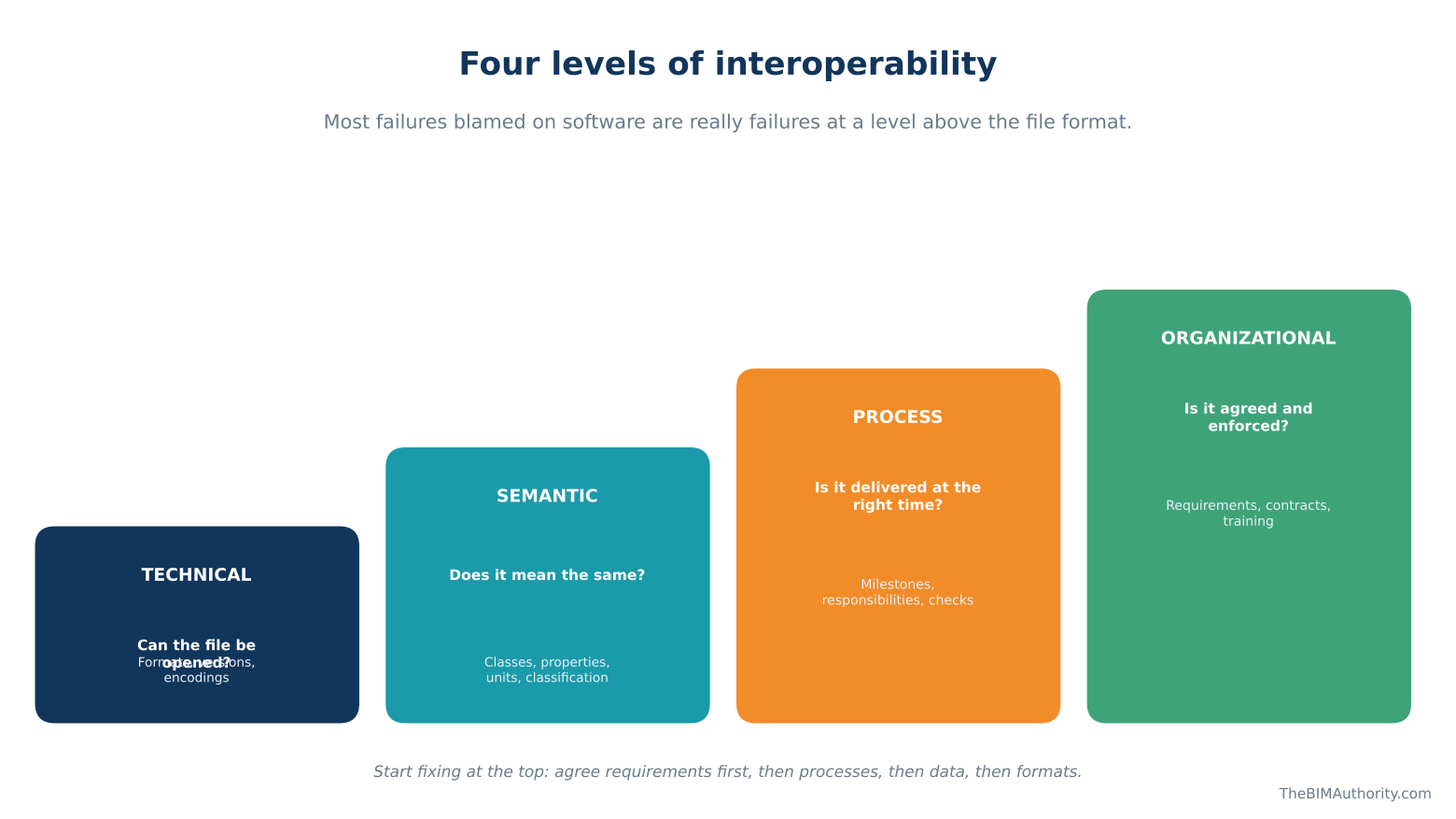
| Level | Question | Typical failure |
|---|---|---|
| Technical | Can the file be opened and read? | Wrong version, unsupported format, corrupt file |
| Semantic | Does the information mean the same on both sides? | Properties with different names or meanings, wrong classes, units |
| Process | Is it delivered at the right time, in the right state, with the right checks? | Late or unchecked exchanges, unclear responsibilities |
| Organizational | Is it agreed, required and enforced? | No requirements, no contract terms, no training |
In one sentence:
Most interoperability problems blamed on software are agreements that were never made.
The practical consequence: fix problems from the top down. Agree requirements and responsibilities first, then processes, then the meaning of data, then formats and settings. Teams that start from the bottom, by fiddling with export checkboxes, often fix a symptom and leave the cause.
A Catalog of Common Problems
I group the problems by the level at which they originate. For each, I give the typical symptom, the likely causes and the remedies. Many link to detailed guides.
Level 1: Technical Problems
Version and Format Mismatch
Symptom: the receiver cannot open the file, or opens it with missing content. Causes: sender and receiver use different schema versions or views; the receiving tool supports a version only partially; the file was exported in a format the receiver does not read. Remedies:
- Specify schema version and model view in the EIR; never write only “IFC”. See IFC 2×3 vs. IFC4 vs. IFC4.3: Key Differences and Model View Definitions (MVD): Understanding IFC Exchange Requirements.
- Test import and export in both directions, in a pilot.
- Check certification as a signal, but test anyway.
Software Version Mismatch
Symptom: a model works for some people and not for others; links break after an update. Causes: different versions of the same software, or updates in the middle of a project. Remedies: record software versions in the BEP; agree update windows; retest exports after updates.
Large and Slow Files
Symptom: the file takes minutes to open, or crashes the receiver’s computer. Causes: excessive geometric detail; inefficient geometry representation; exporting everything; no splitting. Remedies: limit detail to the purpose; review export settings; export by discipline, zone or level. See Level of Information Need vs. LOD vs. LOI: Key Differences and Revit Model Health and Optimization: File Size, Warnings, Links, and Performance.
Corrupt or Invalid Files
Symptom: the file is rejected or behaves unpredictably. Causes: interrupted export, software defects, hand-edited files, invalid identifiers. Remedies: validate before sharing; never edit exchange files by hand; re-export from the source. See How to Validate IFC Models for Data Quality and Compliance.
Level 2: Semantic Problems
These are the most numerous and the most subtle, because the file opens, and everything looks fine.
Missing Properties
Symptom: the data that should be in the model is not. Causes: parameters not mapped to properties; export not configured; property names not agreed; required information never modeled. Remedies:
- Define required properties in the EIR using level of information need and IDS. See ISO 7817-1: Level of Information Need Explained and Information Delivery Specification (IDS): The Complete Guide.
- Configure and test the property mapping. See How to Export and Import IFC Models Correctly.
- Use standard definitions. See buildingSMART Data Dictionary (bSDD) Explained.
Same Name, Different Meaning (and Different Name, Same Meaning)
Symptom: values are present but cannot be compared or aggregated; schedules disagree. Causes: informal naming; no shared definitions; mixed units; mixed data types. Remedies: adopt shared definitions and data templates; define units and data types; check values against allowed lists. See ISO 23387: BIM Data Templates Explained and BIM Metadata, Attributes, and Property Sets Explained.
Wrong or Generic Classes
Symptom: elements arrive as generic proxies; checks by class fail; quantities group wrongly. Causes: elements modeled in generic categories; category-to-class mapping missing. Remedies: model with correct categories; configure mapping; limit proxies to a justified list. See IFC Files Explained: Structure, Classes, and Properties.
Missing or Inconsistent Classification
Symptom: cost and checking workflows cannot group elements; codes do not match. Causes: classification not exported; different systems or editions used; typos. Remedies: state system and edition in the EIR; classify families and types in the library; export and check classification. See BIM Classification Systems Compared: Uniclass, OmniClass, Uniformat, and MasterFormat.
Unit and Scale Errors
Symptom: the model is a thousand times too big or small; quantities are absurd. Causes: project unit mismatch; export unit setting; imported data interpreted in the wrong unit. Remedies: state units in the BEP; check units in template and export; verify with a known dimension after import.
Lost Relationships
Symptom: windows without openings, doors without walls, elements without storeys, systems without connections. Causes: relationships not exported or not supported by the receiving tool; hosts changed in the source. Remedies: check relationships in the pilot; choose export options deliberately; test in the receiver’s tool.
Unstable Identifiers
Symptom: issues lose their link to elements; version comparison shows everything as changed. Causes: exports regenerate GlobalIds. Remedies: configure identifier handling; test by exporting twice; require stable identifiers. See BIM Collaboration Format (BCF): The Complete Guide and BIM Model Version Comparison and Change Detection.
Level 2b: Geometric and Coordinate Problems
Models That Do Not Align
Symptom: disciplines do not line up; models sit kilometers apart or rotated. Causes: different origins, base points, rotations or units; missing or inconsistent georeferencing; different storey elevations. Remedies: fix and publish the coordinate system at the start; test alignment with the first exchange; use reference elements that everyone models identically. See BIM Georeferencing: Coordinate Systems and Model Positioning.
Geometry That Changes in Translation
Symptom: shapes are distorted, simplified or missing; curves become facets; details disappear. Causes: geometry representation not supported; export settings; conversions of complex shapes. Remedies: test with real geometry; adjust settings; simplify the source where the purpose allows; agree what accuracy is needed.
Duplicated or Overlapping Elements
Symptom: double quantities, false clashes. Causes: two teams modeled the same element; links exported twice; elements copied. Remedies: define who models what in the responsibility matrix; export each model once and separately. See How to Create a BIM Responsibility Matrix.
Floating-Point and Distance-From-Origin Problems
Symptom: jitter, gaps and imprecision in geometry far from the origin. Causes: models placed far from the origin, with large coordinates. Remedies: keep models near a local origin and apply georeferencing as a transformation, where the tools support it.
Level 3: Process Problems
Exchanges at the Wrong Time or Without Checks
Symptom: coordination meetings with outdated or broken models; endless rework. Causes: no exchange rhythm; no self-checks; models shared in the wrong state. Remedies: schedule exchanges in the MIDP; require checks before sharing; use CDE states and status codes. See Master Information Delivery Plan (MIDP): Complete Guide and Common Data Environment (CDE): The Complete Guide.
No Agreed Acceptance Criteria
Symptom: disputes about whether a delivery complies. Causes: requirements written in prose; no verification method. Remedies: write verifiable requirements; plan checks and pass criteria. See ISO 19650-4: Information Exchange Requirements Explained.
Issues That Do Not Travel
Symptom: coordination decisions lost; issues duplicated across tools. Causes: reliance on PDFs and emails; no common issue format. Remedies: use BCF with agreed statuses and ownership. See BIM Issue Tracking and Resolution Using BCF.
Editing the Wrong Model
Symptom: fixes disappear at the next update. Causes: changes made in the federated or exchanged copy instead of the source. Remedies: make the rule explicit: native source models are authoritative. See BIM Models vs. Federated Models: What Is the Difference?.
Round-Trip Expectations
Symptom: disappointment after passing a model through IFC and back. Causes: treating IFC as a lossless copy. Remedies: keep native files as the source; use IFC for reference, coordination, checking, handover and archive. See openBIM vs. Closed BIM: Pros, Cons, and When to Use Each.
Level 4: Organizational Problems
No Requirements, or Vague Ones
Symptom: each team delivers what it assumes is wanted. Causes: no EIR; “deliver in IFC” with no detail. Remedies: write precise exchange requirements. See Exchange Information Requirements (EIR): Complete Guide.
Unclear Responsibility
Symptom: everyone thinks someone else is checking. Causes: no named owner for export standards, validation or issue closure. Remedies: assign roles. See BIM Roles and Responsibilities: Manager, Coordinator, Modeler, and Information Manager.
Missing Contract Terms
Symptom: disagreements about liability for incorrect or incomplete exchange. Causes: BIM obligations not in appointments. Remedies: include information obligations in appointments and protocols, with legal advice. See BIM Contracts and Legal Considerations.
Capability Gaps
Symptom: a subcontractor cannot produce what is required. Causes: requirements not cascaded; capability not assessed. Remedies: assess capability early; cascade requirements; provide templates and training. See BIM Procurement and Appointments Under ISO 19650.
Standards Confusion
Symptom: parties cite different documents and editions. Causes: no standards register; mixed vocabularies. Remedies: keep a project standards register with editions; agree a glossary. See BIM Standards Around the World: USA, UK, Canada, Australia, and Europe.
A Diagnostic Method: When an Exchange Fails
When something goes wrong, resist the urge to try random settings. Use a short, disciplined sequence. It works from the top of the interoperability levels down.
Step 1: State the Expectation Precisely
What exactly was expected? Which requirement, in which document? If you cannot find it, you have an organizational problem. Fix that first.
Step 2: Locate the Failure
Find the first point in the chain where the information is no longer right: the source model, the export, the file, the import or the use.
| Check | How |
|---|---|
| Is the information correct in the source model? | Inspect the native model |
| Is it correct in the exported file? | Open the file in a viewer; inspect with a checker or a script |
| Is it correct after import in the receiver’s tool? | Inspect the receiver’s model |
| Is it correct in use? | Test the actual task |
The failure usually lies between the last place it was right and the first place it is wrong.
Step 3: Classify the Level
Is it technical (version, format), semantic (mapping, naming, units), process (timing, checks) or organizational (requirement, responsibility)? Remedies differ by level.
Step 4: Find the Cause, Not Just the Symptom
Ask “why” until you reach something you can change: a template, a mapping, a requirement, a rule. A thousand missing properties usually come from one mapping decision.
Step 5: Fix at the Source
Correct the native model, the mapping, the template, the requirement or the process. Never patch the exchange file by hand.
Step 6: Retest and Prevent
Re-export, re-validate and re-check. Then add a check, a template change or a rule so the problem cannot recur silently.
An Interoperability Test Plan
The cheapest and most effective prevention is a pilot at the start of the project. Here is the plan I use.
Before Production Starts
- List parties and tools, with versions.
- Define the exchanges: which models, to whom, for which purpose, in which version and view.
- Agree coordinates, units, levels and naming.
- Write the content requirements with LOIN and, if possible, IDS.
- Ask each team to export a representative sample: a few elements of each important type, with the real mapping.
- Run the checks: validation, IDS, viewer inspection, alignment.
- Import into the receivers’ tools and check what arrives.
- Test issue exchange with BCF between tools.
- Test identifier stability: export twice with a small change.
- Record the results and fix mappings and requirements.
- Freeze the export specifications and save settings in the templates.
During the Project
- Retest after software updates.
- Run routine validation at each exchange.
- Review problems at each coordination cycle, and track causes.
At Handover
- Load-test the delivery into the owner’s systems.
See BIM Execution Plan (BEP): How to Create and Implement One.
Governing Interoperability: A One-Page Charter
I suggest a short interoperability charter inside the BEP. It can fit on a page.
| Item | Content |
|---|---|
| Parties and tools | Software and versions per party |
| Exchanges | List with purpose, sender, receiver, frequency |
| Schema and views | IFC version and model view per exchange |
| Content requirements | Reference to the EIR, LOIN tables and IDS files |
| Coordinates and units | Origin, rotation, georeferencing, units |
| Mapping and settings | Location and owner of export specifications |
| Validation | Tools, versions, pass criteria, who runs them |
| Issue management | BCF version, statuses, response times |
| Source of truth | Which files are authoritative |
| Change control | How updates to tools, standards and settings are agreed |
| Responsibilities | Named roles |
Review it at each milestone and after any significant failure.
Metrics That Reveal Interoperability Health
You cannot improve what you do not measure. A few simple indicators help.
| Indicator | What it shows |
|---|---|
| First-time pass rate of exchanges (validation and requirement checks) | How well exports match requirements |
| Number of exchange-related issues per cycle | Whether problems are decreasing |
| Time from issue to fix | Responsiveness |
| Share of generic proxies | Quality of category mapping |
| Share of elements with required properties and classification | Completeness |
| Identifier stability rate between revisions | Traceability |
| Rework hours attributed to exchange problems | Cost of poor interoperability |
Track them across cycles. Improvement is visible, and so are the points where a team needs help.
Common Mistakes
- Debugging settings before checking agreements.
- Writing “IFC” and stopping there.
- No pilot exchange before production.
- Assuming certification or “supports IFC” means “works for us”.
- Fixing symptoms in the exchanged file instead of causes in the source.
- No named owner for export standards.
- Never retesting after software updates.
- Treating a valid file as a complete one.
- Blaming the software for unspecified requirements.
- No records of what was agreed and tested.
See also Common BIM Mistakes Beginners Should Avoid.
Frequently Asked Questions
What is interoperability in BIM?
The ability of different software, teams and organizations to exchange information and use it correctly without rebuilding it by hand. It depends on standards, but also on agreements, processes and checks.
Why do IFC exchanges fail?
Rarely because of software defects. More often because requirements, versions, views, mappings, coordinates or checks were not agreed or tested.
What are the main types of interoperability problems?
Technical (formats and versions), semantic (meaning, properties, classes, units), process (timing, checks, responsibilities) and organizational (requirements, contracts, capability).
How can I prevent interoperability problems?
Write precise exchange requirements, run a pilot exchange at the start, save export specifications in templates, validate and check every exchange, use BCF for issues and retest after updates.
Is open BIM always interoperable?
No. Open standards provide the means, but interoperability depends on how they are specified, implemented, configured and checked.
How do I find the cause of a missing property?
Trace the property through the chain: is it in the source model? Is it mapped and exported? Is it in the file? Is it imported? The first place it disappears is where to look.
Who is responsible for interoperability on a project?
Shared: the appointing party sets requirements, the BIM manager defines export and validation standards, task teams export and check, the coordinator checks on receipt and the information manager keeps the records.
How do I handle a supplier who cannot meet the exchange requirements?
Assess capability early, provide templates and examples, agree a realistic subset if necessary and record the exception. See How to Respond to BIM Requirements in Tenders.
Do I need special tools to improve interoperability?
Not necessarily. A viewer, a validation service, a checker or IDS tool and a spreadsheet go a long way. The key is a routine.
Final Thoughts
When I visit my mental museum now, I notice that every exhibit has the same hidden label: “Nobody checked.” Nobody checked the rotation, the property names, the floor definitions or what the client had actually asked for. The software was rarely at fault. The absence of a simple, boring routine was.
That is encouraging, because routines can be built. A pilot exchange, a one-page charter, a saved export specification, a validation step, an IDS file and an issue format are all things a small team can put in place in a week. They will not make interoperability perfect. They will make it predictable, which is what lets teams stop firefighting and start designing.
Where to go next: to build the routine, read How to Export and Import IFC Models Correctly and How to Validate IFC Models for Data Quality and Compliance. For the standards behind it, continue with openBIM Explained: Principles, Standards, and Benefits and Information Delivery Specification (IDS): The Complete Guide, and for the process side, BIM Coordination: The Complete Guide.