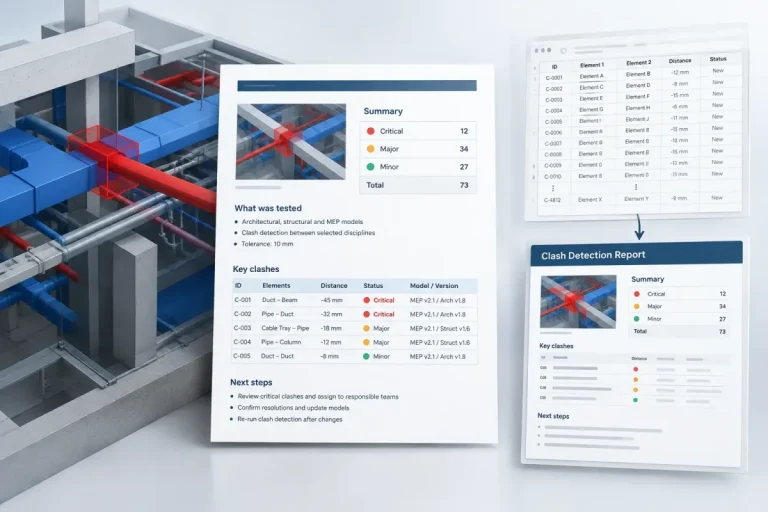

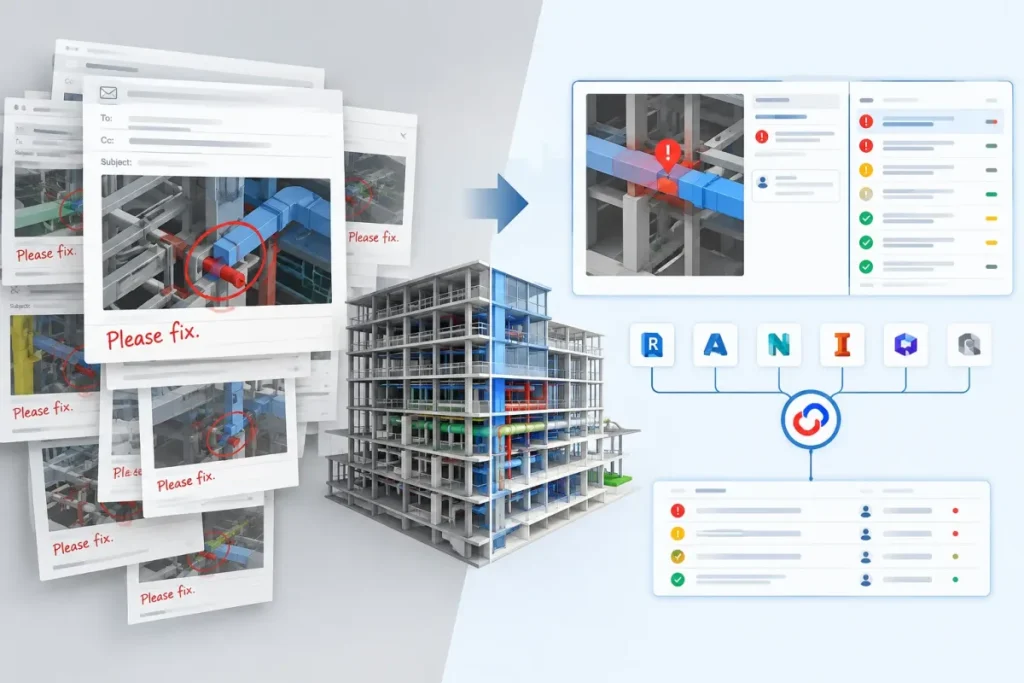

Before BCF, the standard way to report a model problem was to take a screenshot, paste it into an email, circle the problem in red and write: “Please fix.” Multiply that by five hundred issues, twenty people and six different software tools, and you have the original coordination problem in its purest form. Each email was clear to its writer and ambiguous to its reader. Each screenshot showed a view that nobody could reproduce. Each answer was a reply to a thread that someone else had forked. When I asked a project team once how many open issues they had, the answer was: “We would have to search our inboxes.” That is not issue management. That is archaeology.
BIM Collaboration Format (BCF) was created to end it. BCF is an open standard that lets issues travel between different software tools: each issue carries a title, a description, a status, an assignee, a viewpoint (the camera position and the visible and selected elements) and comments, and any BCF-capable tool can open it, show the view and let the user respond. It does not matter whether the issue was raised in a federation tool, a model checker or an authoring tool, or whether the recipient uses a different one. The issue keeps its context.
This guide explains how to track and resolve issues using BCF. It covers the main ideas of BCF (the file format and the API), how an issue is structured, a lifecycle with statuses, good practice for writing, assigning, resolving and verifying issues, integrating BCF with clash detection, model checking and meetings, organizing the issue register, metrics and common mistakes. For the standard itself, see BIM Collaboration Format (BCF): The Complete Guide; this guide focuses on how to run an issue process with it.
The Short Answer
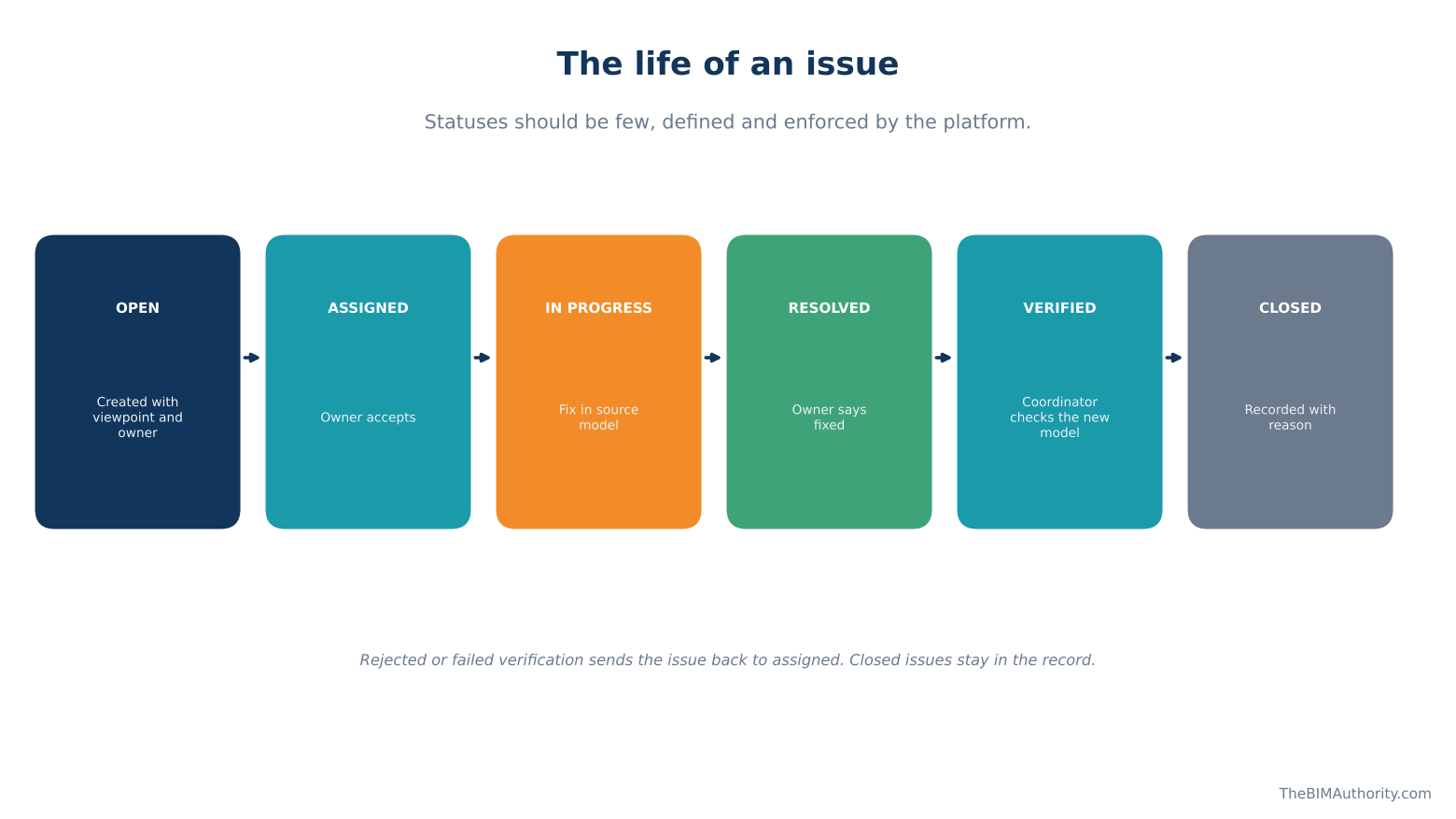
An effective issue process turns each problem into a tracked topic with a view, an owner, a due date and a status that moves through a defined lifecycle until it is verified and closed.
| Stage | Meaning |
|---|---|
| Open | Issue created with a viewpoint and a clear description |
| Assigned | An owner accepts responsibility |
| In progress | The fix is being made in the source model |
| Resolved | The owner says it is done |
| Verified | The coordinator confirms in the new model |
| Closed | Recorded with the reason and date |
In one sentence:
A good issue is clear on its own: anyone can open it, see the problem, know who owns it and know when it is done.
What BCF Provides
BCF is maintained by buildingSMART. It exists in two main forms.
| Form | What it is | Typical use |
|---|---|---|
| BCF-XML | A file format (zipped XML) for exchanging issues (“topics”) between tools. Versions 2.1 and 3.0 exist | Sending issues between desktop tools; archiving; offline exchange |
| BCF-API | A web API specification (version 3.0) for creating, reading and updating issues on a server | Cloud platforms, integrations and automated workflows |
Both rely on the same idea: a topic with metadata, comments, and one or more viewpoints. Support in software varies, and different tools and versions may implement different parts, so test the exchange in your toolchain before relying on it. BCF also forms part of the openCDE concept, in which BCF-API is one of the APIs used to connect platforms. See BIM Collaboration Format (BCF): The Complete Guide and openBIM Explained: Principles, Standards, and Benefits.
Anatomy of a Good Issue
| Field | Purpose | Good practice |
|---|---|---|
| Title | Quick identification | Short, specific, with location and kind: “L3 west corridor: chilled water vs supply duct (H)” |
| Description | The problem, the requirement and the proposed decision | State what is wrong, why it matters and what decision is needed |
| Type or kind | Classification | Hard, clearance, workflow, information, missing; see Hard Clashes vs. Soft Clashes vs. Workflow Clashes |
| Priority | Importance | By consequence, not by count |
| Status | Lifecycle state | From the agreed list |
| Assignee | Who must act | A person or role, never “everyone” |
| Due date | When | Aligned with the next cycle or milestone |
| Viewpoint(s) | The camera and visible and selected elements | Clear view of the problem, with relevant elements isolated or highlighted |
| Referenced elements | Identifiers of the elements involved | So the assignee can find them in the native model |
| Comments | Discussion and updates | Concise, factual, dated |
| Labels or tags | Filtering | Discipline, level, zone, system |
| Links | To documents, specifications, previous issues | Context |
| Creation and modification metadata | Audit trail | Automatic |
What Makes an Issue Clear
| Weak | Strong |
|---|---|
| Title: “Clash.” | Title: “L3 W corridor: CHW main vs supply duct (H, 84 results).” |
| “Please fix.” | “Decision needed: CHW main moves below supply duct with revised hangers. Mechanical to update model by Friday; structure not affected.” |
| A screenshot without elements | A viewpoint with isolated systems and element identifiers |
| Assigned to “MEP” | Assigned to the mechanical modeling lead, with the coordinator as reviewer |
Choosing Statuses
Keep the list short and defined. The sequence below is a common starting point.
| Status | Definition | Who sets it |
|---|---|---|
| Open | Created; not yet accepted | Creator |
| Assigned | Owner has accepted | Owner or coordinator |
| In progress | Work underway | Owner |
| Resolved | Owner states the fix is made in the source model | Owner |
| Verified | Coordinator confirms in a later model | Coordinator |
| Closed | Issue completed; record kept | Coordinator |
| Rejected / not an issue | Owner or reviewer explains why no action is needed | Reviewer, with reason |
| Deferred | Decision postponed with date and reason | Coordinator |
| Reopened | Problem persists or recurs | Coordinator |
Rules
- Only the right role can set certain statuses: for example, only the coordinator can verify and close.
- A reason is required for rejection, deferral and approval of deviations.
- Statuses are not decoration: they drive dashboards and decisions.
BCF supports configurable statuses, priorities and labels through its extension mechanisms, so you can align it with your process. Agree the list in the BEP and set up the platform accordingly.
Running the Process
Creating Issues
| Source | How |
|---|---|
| Clash detection results | Group clashes by cause; create one issue per decision with a viewpoint. See BIM Clash Detection: The Complete Guide |
| Model checking results | Group findings by rule or cause; create issues for items that need action. See BIM Model Checking: Geometric and Information Validation |
| Design reviews | Reviewers create issues with viewpoints during walkthroughs |
| Authoring users | Raise issues from within the modeling tool when they find a problem in another discipline’s model |
| Site and construction | Raise issues from site observations with photos and viewpoints |
| Audit findings | Convert significant findings into issues |
Assigning
- Assign to the party who owns the element or the decision.
- If ownership is unclear, assign to the coordinator to establish it quickly.
- Add a reviewer where design approval is needed (for example an engineer).
- Set a due date based on the cycle, not “as soon as possible”.
Responding and Resolving
| Step | Practice |
|---|---|
| Acknowledge | Accept the assignment quickly, or reject with a reason |
| Analyze | Decide the fix; check design implications; consult others if needed |
| Fix at the source | Update the native model. See How to Identify and Fix BIM Model Errors |
| Comment | State what was done and in which model revision |
| Set Resolved | Only when the change is in the shared model, not only intended |
Verifying and Closing
The coordinator re-runs tests or checks the updated model. If the fix is confirmed, set Verified, then Closed with a short reason. If not, Reopen with a comment and a viewpoint.
Escalating
Define escalation rules: for example, issues open beyond the due date are escalated to the discipline manager; issues beyond two cycles to the design or project manager.
Integrating BCF With the Rest of Coordination
| Integration | How |
|---|---|
| Clash detection tools | Export grouped clash results as BCF topics, or create issues directly; keep traceability between results and issues |
| Model checkers | Same: findings as topics |
| Authoring tools | Open BCF topics to jump to the viewpoint and elements; fix; update status |
| Federation viewers | Review viewpoints and comment |
| CDE | Store BCF files or connect via API; record issues with the CDE status and revision. See Common Data Environment (CDE): The Complete Guide |
| Meetings | Report from the tracker; update live in meetings. See BIM Coordination Meetings: Planning, Reporting, and Best Practices |
| Dashboards | Metrics from the tracker |
Round-Tripping Cautions
Different tools may interpret viewpoints, element identifiers and comments differently. Test round trips (create in tool A, open in tool B, update, return) with your actual tools. Typical problems include lost viewpoints, mismatched element identifiers after model updates and statuses that do not map. Agree element identification (for example by stable global identifiers) so that issues continue to point at the right elements after model changes.
Organizing the Issue Register
| Practice | Benefit |
|---|---|
| Naming convention for titles | Sort and search; include location and kind |
| Consistent labels | Filter by discipline, level, zone, system, kind |
| One issue, one decision | Avoid multi-problem threads |
| Link duplicates | Merge or reference duplicates |
| Archive closed issues | Keep the record; keep the working list short |
| Backup and export | Periodic BCF exports for the archive and for portability |
| Retention | Follow the project’s information retention rules. See BIM Information Security, Access Control, and Data Governance |
| Reporting views | Standard filters: open by owner, overdue, by priority, by zone |
Metrics From the Tracker
| Metric | What it shows |
|---|---|
| Open issues by status, priority and owner | Workload and bottlenecks |
| Age of open issues | Responsiveness |
| Time from creation to assignment, resolution, verification | Process speed |
| Issues opened and closed per cycle | Convergence |
| Reopened issues | Quality of fixes and verification |
| Issues by kind and discipline | Where problems arise |
| Overdue issues | Follow-through |
| Issues escalated | Decision problems |
Use these to improve the process, not to rank people. See How to Measure BIM Performance, ROI, and Project Success.
Special Uses
| Use | Notes |
|---|---|
| Design review and client comments | Reviewers create BCF topics with viewpoints; designers respond |
| Site queries and RFIs | Link queries to model elements and views; respond with decisions and updated information |
| Snagging and handover | Defects as topics with locations; track closure |
| Authority comments | Record and respond to approvals comments linked to model views |
| Model quality findings | Audit and checking findings tracked to closure |
| Lessons learned | Tag issues that reveal systemic problems |
Common Problems and Remedies
| Problem | Cause | Remedy |
|---|---|---|
| Issues unclear | Poor titles; no viewpoints | Templates; examples; training |
| Thousands of issues | One issue per raw clash | One issue per decision; grouping |
| Nobody responds | Unclear assignment; no due dates | Named assignee; due dates; escalation |
| Issues marked resolved but not fixed | No verification | Verification step by the coordinator |
| Viewpoints break | Models updated; identifiers changed | Stable identifiers; recreate viewpoints for changed elements |
| Tools do not exchange properly | Different BCF versions or implementations | Test; agree a version and settings |
| Statuses inconsistent | No agreed list | Define in the BEP; configure platform |
| Email still used | No habit or training | Make the tracker the single source; stop answering email issues |
| Issues lost at the end | No archive | Export and archive |
Common Mistakes
- Issues without viewpoints or elements.
- One issue per raw clash.
- No named assignee or due date.
- Too many statuses, or undefined ones.
- Anyone can close issues.
- No verification.
- Not testing BCF between tools.
- Email alongside the tracker.
- No escalation rules.
- No archive of closed issues.
- Metrics used to blame.
- No link between issues and decisions.
See also Common BIM Mistakes Beginners Should Avoid.
A Short Checklist
- Have we agreed statuses, priorities, labels and roles in the BEP?
- Does every issue have a clear title, description, viewpoint, referenced elements, assignee and due date?
- Is one issue equal to one decision?
- Is the process (create, assign, fix at source, resolve, verify, close) followed?
- Is escalation defined?
- Have we tested BCF exchange between our tools?
- Are element identifiers stable enough for issues to survive model updates?
- Are clash and checking results converted into grouped issues?
- Are metrics used for process improvement?
- Are closed issues archived and exported?
Frequently Asked Questions
What is BCF?
BIM Collaboration Format, an open buildingSMART standard for exchanging issues between software tools, with viewpoints, comments, statuses and assignments.
What is the difference between BCF-XML and BCF-API?
BCF-XML is a file format for exchanging issues; BCF-API is a web interface for managing issues on a server.
What should a BCF issue contain?
A clear title, description, type, priority, status, assignee, due date, viewpoint, referenced elements and comments.
How many statuses should I use?
As few as you need: typically open, assigned, in progress, resolved, verified and closed, with rejected and deferred where useful.
Who should close an issue?
The coordinator or reviewer, after verifying the fix in the updated model.
Can issues be exchanged between different software?
Yes, if both support BCF, but implementations vary. Test the exchange in your tools.
How do I link clash results to issues?
By grouping results into issues with viewpoints and references, creating topics from the clash tool or exporting to BCF.
Should I still use email for issues?
No. Use the tracker as the single source of truth, and use email only for notifications.
Final Thoughts
The team that had to search their inboxes eventually adopted a single rule: if it is not in the tracker, it does not exist. For two weeks, the coordinator answered every emailed issue with a polite message: “Please raise this in the tracker.” People grumbled. Then someone raised an issue with a good viewpoint, and the owner opened it directly in the modeling tool, jumped to the elements, fixed the problem and set the status in two minutes. After that, the grumbling stopped.
BCF does not make coordination easier by magic. It makes the context travel: the view, the elements, the owner, the status, the history. Combine that with a short lifecycle, one issue per decision, verification before closure and a few metrics, and you have an issue process that people trust, which is the only kind they will use.
Where to go next: for the standard in depth, read BIM Collaboration Format (BCF): The Complete Guide. For generating issues, continue with BIM Clash Detection: The Complete Guide and BIM Model Checking: Geometric and Information Validation, and for using them in meetings, BIM Coordination Meetings: Planning, Reporting, and Best Practices.