

I once inherited a project where the coordination lead proudly announced: “We have a single BIM model of the whole building.” It turned out to be a 4 GB file that someone had exported from three different design teams, merged into one, and then renamed FINAL_MODEL_v7. Nobody knew who had drawn which part. Nobody could update it. When the structural engineer changed the slab edges, the “single model” was already obsolete, and no amount of goodwill could fix it. Two weeks later we threw it away and rebuilt the coordination setup from the individual models.
That story illustrates the difference between a BIM model and a federated model, and why the distinction is not a matter of vocabulary. It is a matter of ownership, traceability and survival of your coordination process. After many years managing CAD and BIM production in design offices, I can tell you that setting up federation correctly is one of the quickest ways to make a project calmer.
In this guide, I will explain what each term means, how they relate, how federation works in practice, and how to avoid the pitfalls I have seen.
The Short Answer
- A BIM model is the digital model of one discipline, one scope or one task team, created in an authoring tool: the architectural model, the structural model, the MEP model.
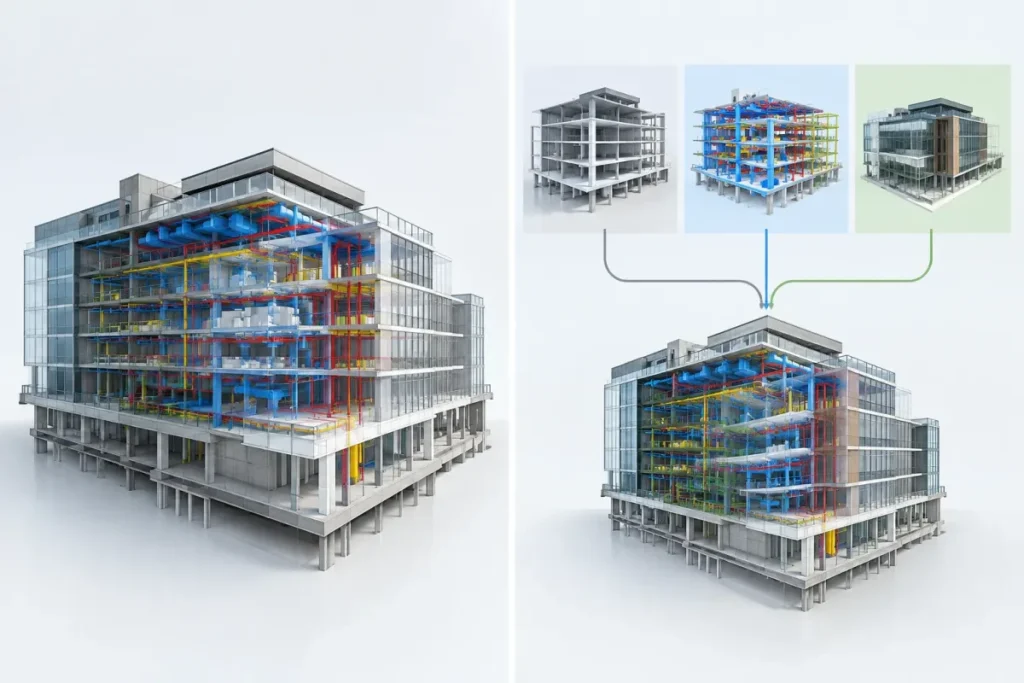
- A federated model is the combination of several separate models (and sometimes other information such as point clouds or GIS data), brought together in a common coordinate system for coordination, review and decision-making. The individual models remain separate files, with separate owners.
In one sentence:
A BIM model is something you author. A federated model is something you assemble and check.
If you only want the definition, that is it. The rest of the article explains why the difference matters and how to manage it.
What Is a BIM Model?
A BIM model is the model created and maintained by the people responsible for one part of the design or construction. In practice, it is usually:
- Discipline-based: architecture, structure, mechanical, electrical, plumbing, civil, landscape, fire protection.
- Authored in one software (or a coordinated set of tools), with its own file or files.
- Owned by one team, which is responsible for its content, quality and updates.
- Detailed according to its own needs and milestones, for example a structural model more developed than the interior fit-out at the same stage.
A BIM model contains elements with geometry and information, and it generates its own drawings, schedules and quantities. See What Is BIM? The Complete Guide to Building Information Modeling and BIM Objects, Families, and Parameters Explained for what the elements inside are made of.
Models Can Also Be Divided Within a Discipline
On large projects, one discipline often has several models, for example the architectural model split by building, zone or floor, because a single file would be too heavy. ISO 19650 calls the strategy that governs this the volume strategy: how the project is divided into parts, so teams can work in parallel without overloading the files.
What Is a Federated Model?
A federated model is created by linking or referencing several models so that they can be viewed and analyzed together. Typical components are:
- Architectural model
- Structural model
- MEP models (often one per system or one combined)
- Civil and site model
- Specialist models (facade, lifts, process equipment)
- Existing conditions (point clouds, scan-to-BIM models)
- Geospatial context (terrain, neighboring buildings, utilities)
What Makes It “Federated”
Three characteristics define it.
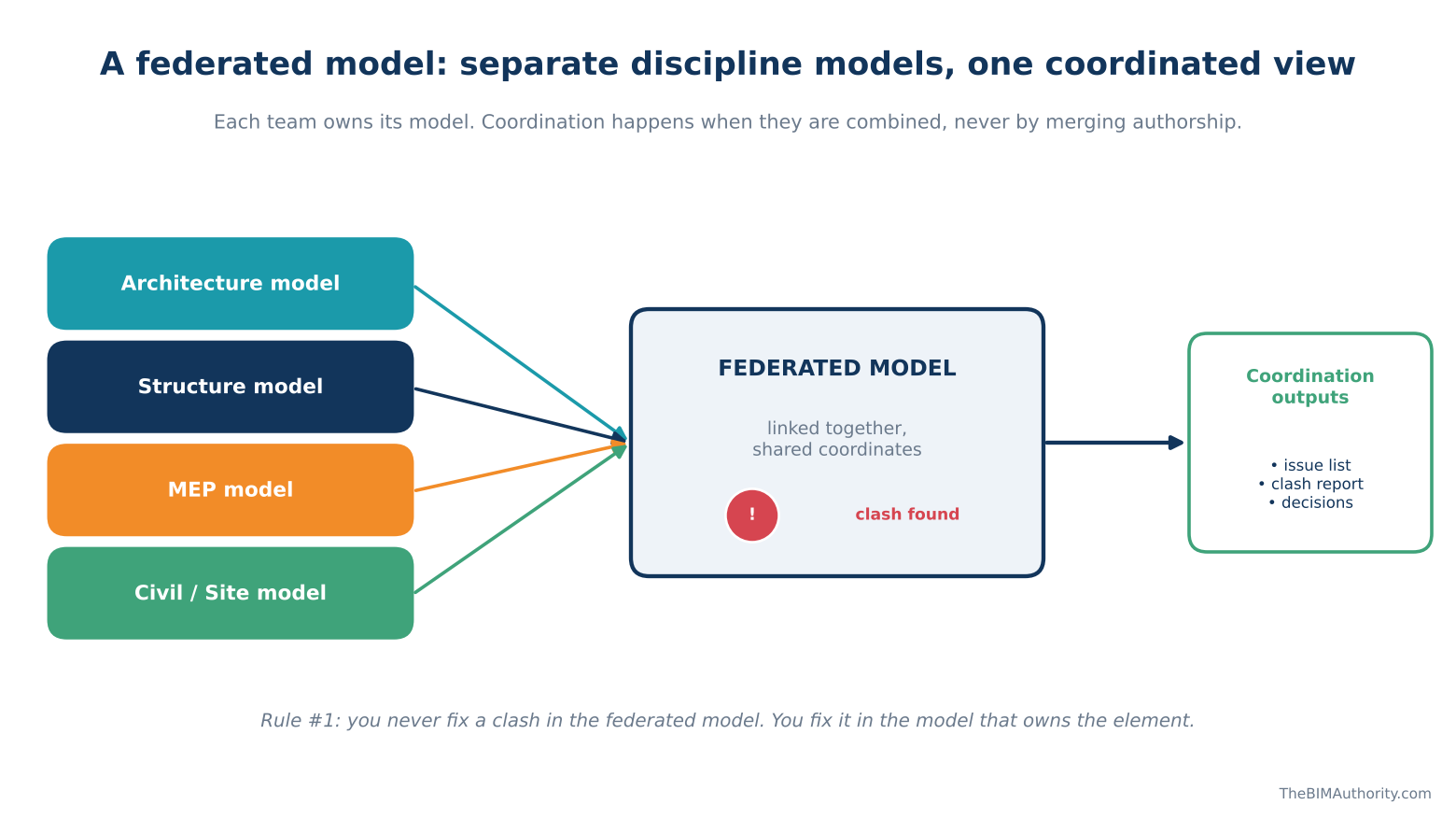
- The source models stay separate. Each remains a standalone file under the control of its owner.
- They share the same coordinate system, origin, units and levels, so they align.
- It is a combined view, used to check, coordinate, measure, review and sometimes simulate. It is not where design changes are made.
The last point is the golden rule: you never fix a clash in the federated model. You fix it in the source model that owns the element, then you update the federation.
Where Federated Models Are Used
- Clash detection and coordination meetings. See BIM Clash Detection: The Complete Guide and BIM Coordination: The Complete Guide.
- Design reviews with clients and stakeholders.
- 4D simulation and construction planning.
- Site logistics and safety planning.
- Model checking across disciplines.
- Handover, as a consolidated reference for the owner.
BIM Model vs. Federated Model: The Direct Comparison
| Criteria | BIM model (discipline model) | Federated model |
|---|---|---|
| Content | One discipline or scope | Several models combined |
| Created in | An authoring tool (Revit, Archicad, Tekla…) | A coordination or viewing tool (Navisworks, Solibri, Revizto, cloud platforms) |
| Who owns it | One team | The BIM coordinator manages the federation; each source remains owned by its author |
| Editable? | Yes, by its owner | Generally not: it is a review environment |
| Purpose | Design, documentation, quantities | Coordination, review, simulation, checking |
| Updates | By modeling | By refreshing the links or reloading source models |
| Typical file | .rvt, .pln, .ifc, .dgn | .nwd, .nwf, cloud project, .ifc aggregation |
| Main risk | Over-detailed, poorly structured, wrong coordinates | Out of date, misaligned, merged without traceability |
Linked, Federated, Merged, Aggregated: Clearing Up the Vocabulary
This is where many teams get lost, so let me define the terms the way I use them in practice.
| Term | What it means | Keeps ownership? | Typical use |
|---|---|---|---|
| Linked model | One model referencing another inside an authoring tool (for example, a Revit link) | Yes | Working with other disciplines’ backgrounds while authoring |
| Federated model | Several separate models combined in a common environment for coordination | Yes | Clash detection, reviews, simulations |
| Merged model | Several models combined into a single new file | No | One-off snapshot, archive, lightweight viewing |
| Aggregated model | Another word for federated, used mostly in software and cloud platforms | Yes | Same as federated |
| Single model | The whole project authored in one file by one team | Yes (single owner) | Small projects, single-discipline work |
Why Merged Models Are Risky
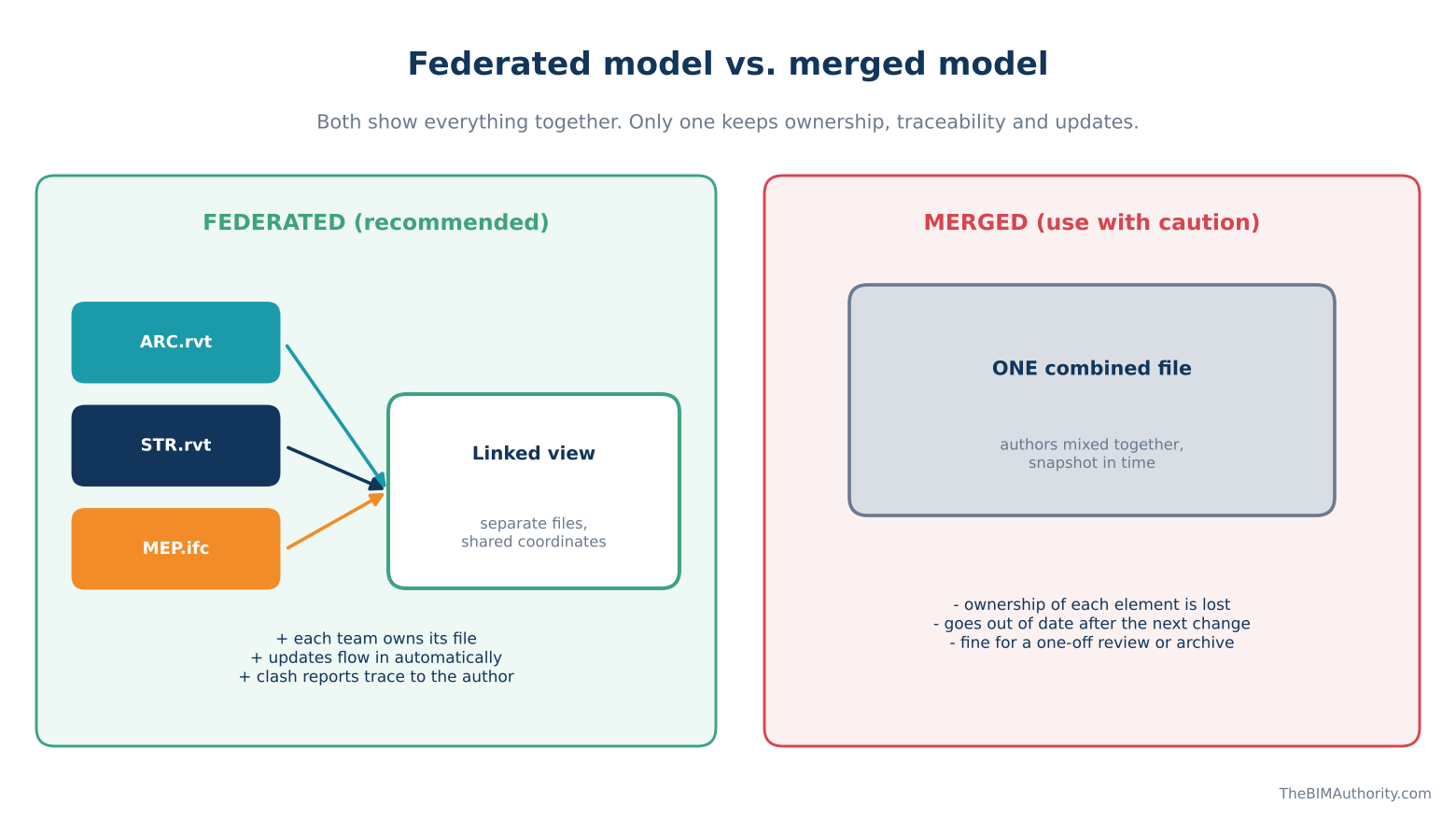
A merged model loses the identity of authorship. If you merge the architectural, structural and MEP models into one file, you can no longer tell which team must correct a given element, and you cannot refresh it when one team updates its model. The merged file is a snapshot: useful for archiving a milestone, dangerous as a working tool.
I do accept merged files in two situations: a final archive at a milestone, and a very lightweight model for a viewer on a phone or a tablet. Never as the basis for coordination.
What About Linked Models in Revit?
A Revit link is the authoring-side version of federation. When an engineer links the architectural model into the structural one, they see the background, align to it and reference its elements, but they do not edit them. This is the daily mechanism by which disciplines coordinate while modeling. A federated model for coordination is the same logic at a project level, in a dedicated environment.
Why Federation Is Better Than One Big Model
You might wonder why we do not simply build everything in one file. The reasons are practical.
- Different disciplines use different software and different workflows. A structural engineer working in Tekla and an architect in Archicad cannot share one native file.
- Different companies have different contracts, liabilities and confidentiality rules. Each is responsible for its own information.
- File size and performance. A single model for a large project can be unmanageable.
- Parallel work. Separate models let teams work at the same time without locking each other out.
- Traceability. Every element has a clear author, version and status. This is exactly what ISO 19650 requires.
- Quality control. Each model can be checked and approved before it enters the shared environment.
On small projects with a single team, a single model with worksets can be perfectly appropriate. Federation becomes essential as soon as multiple disciplines or companies are involved.
How Federation Fits the ISO 19650 Process
ISO 19650 provides the framework for managing information, and federation sits inside it.
- The delivery team defines a federation strategy in the BIM Execution Plan: which models exist, how the project is divided, how the models are combined and who is responsible. See BIM Execution Plan (BEP): How to Create and Implement One.
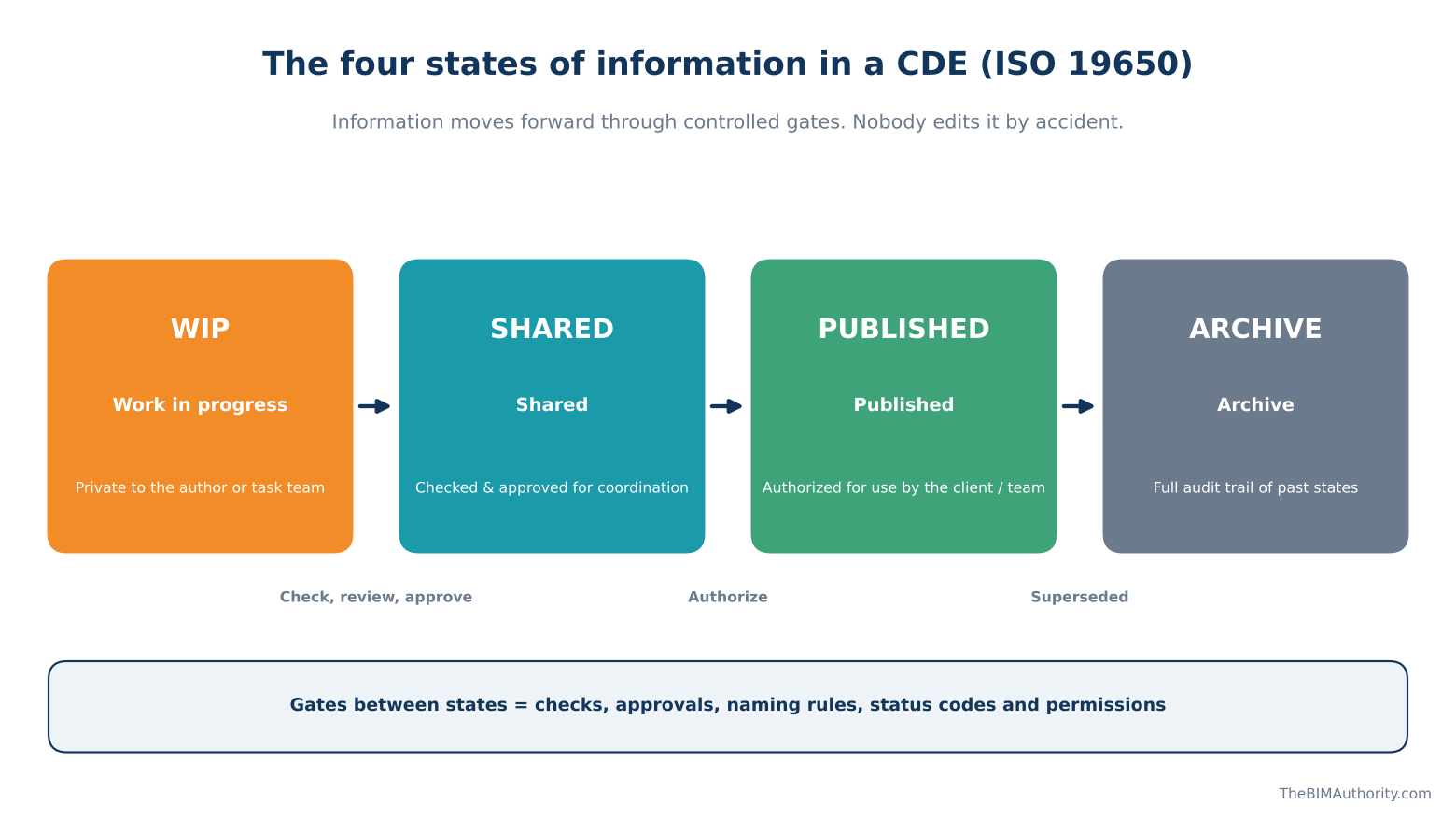
- Each model is an information container, with a unique name, status and revision, stored in the Common Data Environment.
- Models move from work in progress to shared after a check, and only shared information is used for federation and coordination.
- The responsibility matrix and the MIDP state who delivers which model, when. See How to Create a BIM Responsibility Matrix and Master Information Delivery Plan (MIDP): Complete Guide.
This is why a federated model is not just a technical trick. It is a controlled assembly of approved information.
For the platform side, read Common Data Environment (CDE): The Complete Guide.
How to Set Up a Federated Model: Step by Step
Here is the procedure that has worked for me on many projects, from a hospital extension to a multi-building campus.
Step 1: Define the Federation Strategy Before Anyone Models
Decide which models exist, how they are divided (by discipline, by building, by level), and which tools will be used for coordination. Write it down in the BEP.
Step 2: Fix the Common Coordinate System
Everything depends on this. Agree on:
- Project origin and survey point.
- Units (meters or millimeters, never mixed).
- Levels and grids, identical across models.
- Rotation (true north versus project north).
- Coordinate reference system, if the project is georeferenced.
A project that sets this on day one avoids weeks of rework. See BIM Georeferencing: Coordinate Systems and Model Positioning.
Step 3: Agree on the Exchange Format and Frequency
Will models be shared in native format (for closed BIM within one vendor’s tools) or IFC (for openBIM)? How often, and on which day? A weekly rhythm works for many projects. See openBIM Explained: Principles, Standards, and Benefits and How to Export and Import IFC Models Correctly.
Step 4: Check Models Before Sharing
Each team should run its own checks before publishing: warnings, duplicates, unplaced rooms, correct coordinates, required parameters. Sharing a broken model contaminates the federation. See BIM Model Checking: Geometric and Information Validation.
Step 5: Name and Version Files Consistently
Use the agreed naming convention so that the federation tool picks up the right file, and so that nobody mixes versions. See BIM File Naming Conventions and ISO 19650.
Step 6: Assemble the Federation
The BIM coordinator loads the shared models into the coordination tool, in the same coordinate system. Verify alignment visually first: check that grids and levels match, and that key reference elements coincide.
Step 7: Run Clash Detection and Review
Use a clash matrix to test the right combinations. See How to Create a BIM Clash Detection Matrix. Produce a report with viewpoints, assign responsibility and track issues, ideally using BCF. See BIM Issue Tracking and Resolution Using BCF.
Step 8: Feed Decisions Back to the Source Models
Teams correct their own models, publish a new version, and the federation is refreshed. Keep a record of what changed.
Step 9: Archive at Milestones
Save the federated model, with the exact versions of the sources, at each information delivery milestone. This gives you a reliable record if a question arises months later.
For the broader procedure, see How to Create and Manage a Federated BIM Model.
Which Software Creates a Federated Model?
The tool depends on your project and the level of openness.
| Tool type | Examples | Notes |
|---|---|---|
| Desktop coordination | Autodesk Navisworks, Solibri | Combines native and IFC files, clash detection, rule-based checking |
| Cloud coordination | Autodesk Construction Cloud, Revizto, Trimble Connect, BIMcollab | Federation in the cloud, with issue tracking and shared access |
| Authoring tool links | Revit links, Archicad hotlinks, Tekla references | Used by discipline teams while modeling |
| Viewers | Free IFC and model viewers | Review only, limited analysis |
No single tool is “the” correct one. What matters is that the tool respects source ownership, coordinates and update flow. For a structured comparison, see Best BIM Software: A Complete Comparison Guide, Autodesk Navisworks: The Complete BIM Coordination Guide and Solibri: BIM Model Checking and Validation Guide.
Common Problems with Federated Models
I have debugged enough federations to recognize the usual suspects.
- Models do not align. Different origins, units, rotation or shared coordinates. Always the first thing to check.
- Duplicate elements. The same wall present in two models, because two teams modeled it. Define who models what in the responsibility matrix.
- Outdated models. Someone forgot to publish, or the federation was not refreshed. Show the date and version of each model in the report.
- Heavy files. The federation takes minutes to open. Split by zone, remove unnecessary detail and use lighter formats for review.
- Lost traceability. Models are merged, renamed or exported without identification. Keep unique identifiers and naming rules.
- Wrong level of detail. Too little detail hides clashes; too much slows everything down. See BIM Levels of Development (LOD) Explained.
- IFC translation errors. Missing properties, changed classifications or lost materials. Test the export workflow early. See How to Validate IFC Models for Data Quality and Compliance.
- No one in charge. If coordination is everybody’s job, it is nobody’s. Appoint a BIM coordinator.
- Fixing problems in the wrong place. Edits in the federated view are lost at the next update. Always correct in the source model.
For the mistakes that begin earlier in the process, see Common BIM Mistakes Beginners Should Avoid.
Practical Tips from the Field
- Test the federation early, with the first rough models, not when the design is nearly finished. The first federation always reveals coordinate problems.
- Use a few reference elements (a column, a corner, a core) that everyone models identically, as a sanity check of alignment.
- Display model versions in the coordination report, so that nobody argues about which file was used.
- Keep a short “federation log”: date, models and versions included, issues found, issues closed.
- Use lighter models for review and keep heavy ones for authoring. A coordination view rarely needs every detail.
- Treat the federation as a deliverable, with an owner, a schedule and a quality check, not as something that “just happens”.
- Plan for specialist models. Facade, lifts and process equipment often arrive late and in different formats. Define their delivery requirements in advance.
Frequently Asked Questions
What is the difference between a BIM model and a federated model?
A BIM model is the model of one discipline or scope, created in an authoring tool and owned by one team. A federated model is the combination of several such models, linked together in a shared coordinate system for coordination and review, while the source models stay separate.
What does “federated” mean in BIM?
It means that separate models are combined without being merged. Each keeps its own identity, author and update cycle.
Can I edit a federated model?
Normally not. You edit the source models, then refresh the federation. Editing the federated view would break traceability and be lost at the next update.
Is a federated model the same as a merged model?
No. A merged model is a single new file that combines the content and loses source ownership and updateability. A federated model keeps the sources separate and traceable.
Is a federated model the same as an IFC file?
Not necessarily. You can federate native files, IFC files or both. IFC is a format; federation is a method of combining models.
How many models does a project need?
It depends on size and complexity. A small project can use a single model. A large one may have dozens of models divided by discipline, building and level. The federation strategy defines it.
Who is responsible for the federated model?
Usually the BIM coordinator (or the information manager, depending on the role definition) manages the federation. Each author remains responsible for the quality and content of their own model. See BIM Roles and Responsibilities: Manager, Coordinator, Modeler, and Information Manager.
How often should a federated model be updated?
At the rhythm agreed in the BEP, commonly weekly during design development. More frequent updates may be needed in busy phases, but each update should include a check.
Final Thoughts
When I think back to the “FINAL_MODEL_v7” file, what strikes me is how reasonable the original decision seemed. One file, one source, simple. But BIM does not reward simplicity of the file; it rewards clarity of responsibility. A good federation keeps the structure of the project visible: who drew what, in which version, and who must fix what.
If you remember only one rule, let it be the one I gave earlier: author in the source, coordinate in the federation, and never confuse the two. Once that habit is in place, coordination meetings become shorter, clashes become traceable, and surprises on site become rarer.
Where to go next: to see the process in action, read How to Create and Manage a Federated BIM Model, and then BIM Clash Detection: The Complete Guide. For the foundations of the models themselves, go back to BIM Objects, Families, and Parameters Explained and How BIM Works: From Conceptual Design to Facility Management.