



The federated model is the closest thing a BIM project has to a meeting table: the place where all the disciplines finally sit together and see the same building. When it works, a coordinator can open one file and see architecture, structure, services, façade and site in their correct positions, in their correct versions, ready for testing and review. When it does not work, the table is a mess of misaligned models, stale files and missing pieces, and every meeting begins with the same question: “Is this the latest?”
I have built federated models on projects with three models and on projects with three hundred. The technology is rarely the problem. Combining models is, technically, easy: modern tools do it in seconds. The difficulty is management: deciding what is included, in which version, from whom, in which coordinates, who is allowed to publish it, how often it is refreshed and how to tell when it is out of date. I once spent an entire morning in a coordination meeting before discovering that the structural model in the federation was six weeks old. The engineers had been resolving clashes against a building that no longer existed.
This guide explains how to create and manage a federated model: what federation is (and is not), how to plan the federation strategy, how to break a project into models, which formats and methods to use, how to align and verify models, how to manage versions and refresh cycles, how to organize views and sets, how to control access and ownership, how to keep it light enough to use and how to avoid the usual failures. For the conceptual difference between a discipline model and a federated model, see BIM Models vs. Federated Models: What Is the Difference?.
The Short Answer
A federated model is a combination of separate models, linked together without being merged, so that each discipline keeps ownership of its own model while the team can view, test and review them as one. It is assembled and managed by the coordinator, read-only for most users, and refreshed on a defined cycle.
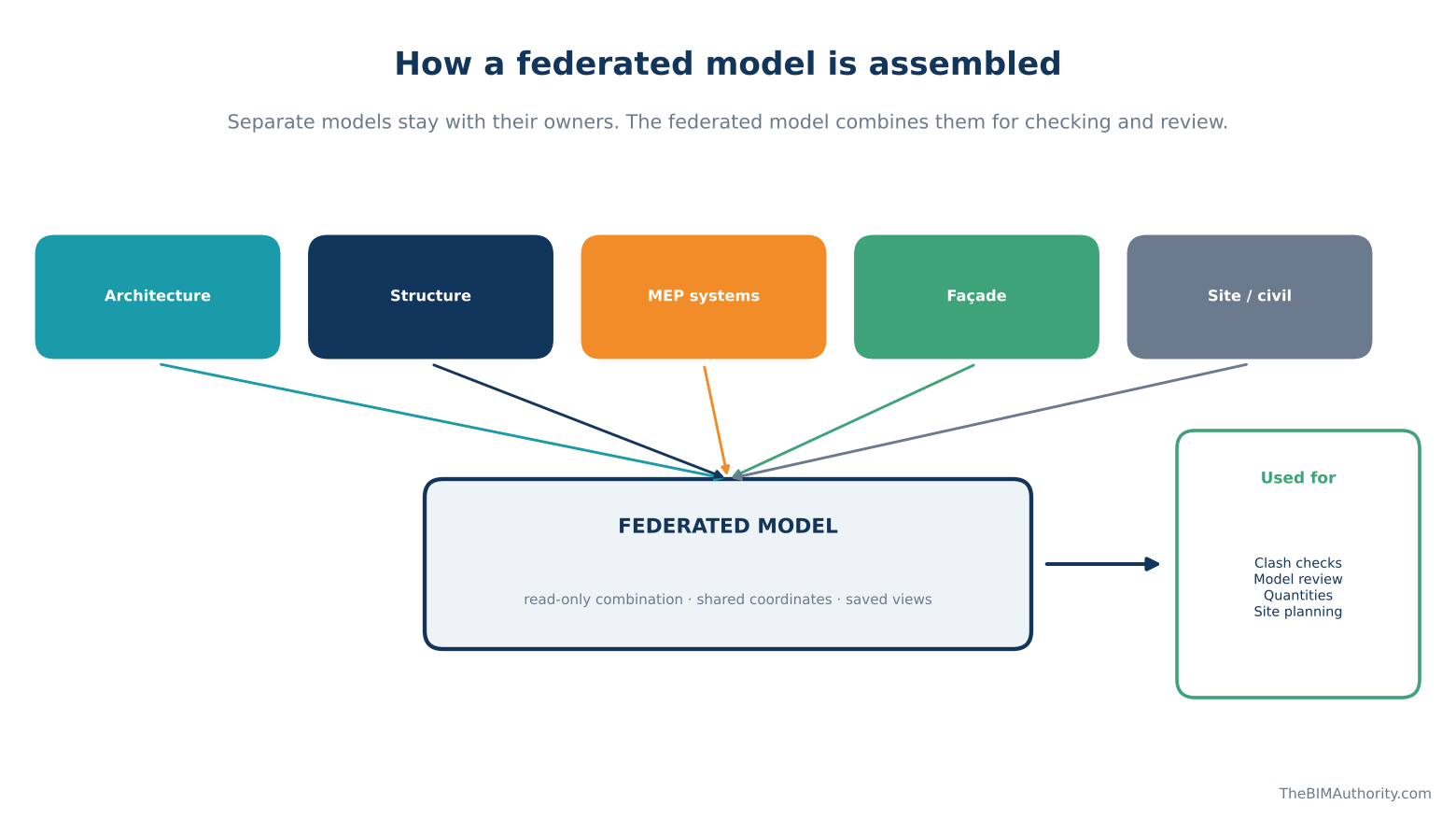
| Principle | Meaning |
|---|---|
| Models stay separate | Each discipline edits only its own model |
| The federation is read-only | Nobody fixes problems in the federated model |
| One coordinate system | All models aligned on shared coordinates |
| One published version | The federation shows defined versions with a clear date |
| A managed list of contents | Which models, versions and statuses are in |
| A purpose | Clash checks, model review, quantities, planning |
In one sentence:
A federated model is a managed assembly of the latest agreed models, built for checking and review, and never the place where corrections are made.
Why Federate?
| Reason | Explanation |
|---|---|
| Ownership | Each company is responsible for its own information; merging models would blur responsibility |
| Performance | Smaller models are easier to author; the federation can use lightweight formats |
| Software independence | Models from different authoring tools can be combined |
| Clarity | Changes can be traced to the model that made them |
| Control | Status and versions can be managed per model |
| Coordination | A single view enables clash tests and joint review |
ISO 19650 recognizes federation as part of the information delivery strategy: the delivery team describes in its BEP how information models are divided and combined. See BIM Execution Plan (BEP): How to Create and Implement One and ISO 19650-2: BIM Information Management During Project Delivery.
Step 1: Plan the Federation Strategy
What the Strategy Decides
| Decision | Considerations |
|---|---|
| How the project is divided | By discipline, building, wing, level, zone, system or a combination |
| Who owns each model | Company, task team, responsible person |
| What is federated for which purpose | A coordination federation may differ from a review federation or a construction planning federation |
| Level of information per cycle | What each model must contain to be useful |
| Formats and methods | Native links, lightweight caches, IFC, cloud aggregation |
| Naming and identification | Container IDs, status and revision. See BIM File Naming Conventions and ISO 19650 |
| Update frequency and cut-off dates | When models are shared and the federation is refreshed |
| Access and permissions | Who may view, who may publish |
| Responsibility | Who builds and publishes the federation |
Dividing the Project (Volume and Model Strategy)
| Approach | Advantages | Risks |
|---|---|---|
| By discipline | Clear ownership; natural for design teams | Large files for large buildings |
| By discipline and level or zone | Smaller files; parallel work; better performance | More files to manage; interfaces between zones |
| By system | Good for MEP and specialist trades | Cross-system conflicts need federation |
| By building or phase | Suits multi-building programs | Interfaces between buildings |
Choose the simplest division that gives manageable file sizes and clear ownership. Over-dividing creates administrative burden; under-dividing creates unusable files. See Revit Model Health and Optimization: File Size, Warnings, Links, and Performance.
Step 2: Prepare Models for Federation
The federation is only as good as the models that enter it.
| Requirement | Why |
|---|---|
| Shared coordinates and levels | Alignment |
| Agreed units | No scale errors |
| Model near the origin | Avoids precision problems |
| Clean content | No test geometry, no stray elements, no far-flung objects |
| Level of information as agreed | Real sizes, insulation, clearances where required |
| Systems, categories and parameters | For filtering and sets |
| Status and revision set | Know what is being federated |
| Export settings saved and tested | Consistent output |
| Checked before sharing | Sharing checklist passed |
Provide a reference model (levels, grids, coordinates) so that everyone aligns to the same framework. See BIM Georeferencing: Coordinate Systems and Model Positioning.
Step 3: Choose Formats and Methods
| Method | How it works | Strengths | Limits |
|---|---|---|---|
| Native links | Models linked inside an authoring tool | Full fidelity; live updates | Same platform; heavy; not for clash scale |
| Lightweight aggregation formats | Each model exported or cached to a lightweight format and combined in a coordination tool | Fast; many tools; mixed software | Export settings matter; data may be reduced |
| IFC federation | IFC models combined in an IFC-capable tool | Open and vendor-neutral; mixed software | Quality depends on export settings and tool support |
| Cloud aggregation | A platform combines uploaded models automatically into shared coordination spaces | Always available; shared; integrated issues | Depends on platform, permissions and upload discipline |
| Hybrid | Combination of the above | Flexibility | More to manage |
Practical Guidance
- Agree the formats and versions in the BEP, and test them in a pilot. See How to Export and Import IFC Models Correctly.
- Use open formats for exchange across tools, and native links within a team on one platform. See openBIM vs. Closed BIM: Pros, Cons, and When to Use Each.
- Keep export settings under control: a model exported with different settings by different people produces inconsistent results.
- Record how each model was exported: tool, version, settings, date.
Step 4: Align and Verify
Alignment Checks
Before using a federation, verify that models align.
| Check | How |
|---|---|
| Reference points | Check that known points (grid intersections, benchmark elements) coincide across models |
| Levels | Level elevations match |
| Orientation | Rotation consistent |
| Scale | A known dimension measures the same |
| Duplicate elements | Same object present in two models |
| Missing models | All expected models present |
| Version check | Each model is the expected revision, with the expected date |
Create a reference test (a small set of views or a saved viewpoint showing known landmark elements) that the coordinator inspects at each refresh.
Common Alignment Failures
| Symptom | Likely cause |
|---|---|
| Model offset by a constant distance | Different origin or base point |
| Model rotated | Project north versus true north confusion |
| Model scaled | Unit mismatch |
| Model offset by large distance | Coordinates in a different system |
| Levels do not match | Different level definitions |
Fix the source model or its export settings, not the federation. See How to Identify and Fix BIM Model Errors.
Step 5: Manage Versions and Refresh
The Federation Register
Maintain a simple register of the federation contents.
| Field | Content |
|---|---|
| Model | Name and container ID |
| Owner | Company and contact |
| Version / revision | Identifier |
| Status | Suitable for coordination, review and so on |
| Date of model | When it was exported or shared |
| Format and tool | How it was produced |
| Alignment check | Pass or fail, with date |
| Notes | Known issues or exclusions |
Publish the register with every federation release.
Refresh Cycle
| Practice | Why |
|---|---|
| Fixed cut-off date | Everyone shares by the same time |
| Release the federation once per cycle | A stable snapshot for the meeting |
| Date and version label | Everyone knows which snapshot they discuss |
| Archive snapshots at milestones | Records for audit, comparison and dispute resolution |
| Highlight what changed | Version comparison between releases. See BIM Model Version Comparison and Change Detection |
| Flag stale models | If a team has not shared on time, the register shows the old date |
Late and Missing Models
Decide in advance: if a model is late, include the previous version with a visible warning, or exclude it, and say so. Never let a stale model pass silently.
Step 6: Organize Views, Sets and Tests
A federation that is not organized becomes unusable at scale.
| Element | Use |
|---|---|
| Selection by categories and parameters | Filter by system, level, zone, discipline, status |
| Dynamic sets | Sets defined by rules (for example “all supply air ducts on level 2”) update automatically when models update; fixed selections do not |
| Saved viewpoints | Standard views for coordination hotspots |
| Section boxes and level views | Navigation and isolation |
| Appearance rules | Color by discipline or system for readability |
| Test sets | Groups prepared for clash tests per the matrix. See How to Create a BIM Clash Detection Matrix |
| Issue viewpoints | Linked to BCF topics. See BIM Issue Tracking and Resolution Using BCF |
Name sets and views consistently, so that new team members can use them.
Step 7: Control Access and Ownership
| Question | Guidance |
|---|---|
| Who builds the federation? | Typically the BIM coordinator of the lead appointed party, under the BEP |
| Who may publish it? | The coordinator; publication is controlled and recorded |
| Who may view it? | Team members with a need; sensitive information may require restricted access. See BIM Information Security, Access Control, and Data Governance |
| Who may edit? | Nobody edits federated content; edits happen in source models |
| Which CDE state? | Typically shared, with status “suitable for coordination”; the federated model is an information container with its own identifier and status. See Common Data Environment (CDE): The Complete Guide |
| What is the legal status? | The federated model is a coordination and review tool; check the contract regarding reliance and ownership. See BIM Contracts and Legal Considerations |
Step 8: Keep It Usable: Performance and Size
| Practice | Effect |
|---|---|
| Federate lightweight versions of models | Faster loading and navigation |
| Exclude non-coordination content (entourage, furniture in early cycles, heavy details) | Reduces noise and size |
| Split large projects into zones or levels for testing | Manageable tests |
| Control detail levels in export | Smaller files |
| Use caches and shared storage | Faster refresh |
| Hardware appropriate for model size | Smooth navigation |
| Archive old releases | Keep the working set tidy |
See Revit Model Health and Optimization: File Size, Warnings, Links, and Performance for source model health.
Uses of the Federated Model
| Use | Notes |
|---|---|
| Clash and clearance detection | The main use. See BIM Clash Detection: The Complete Guide |
| Model review and design review | Walkthroughs with the client or authorities |
| Model checking | Rule-based checks across disciplines. See BIM Model Checking: Geometric and Information Validation |
| Quantity extraction and cost | Consolidated quantities; check measurement rules |
| 4D planning and logistics | Link to programme; site planning. See 4D BIM Explained: Construction Scheduling and Simulation |
| Coordination drawings | Composite views for trades |
| Site coordination and induction | Visualization for site teams |
| Handover reference | Snapshot of what was agreed |
Common Problems and Remedies
| Problem | Cause | Remedy |
|---|---|---|
| Stale models in the federation | No cut-off or register | Fixed cycle; register; stale flags |
| Misaligned models | Coordinates, units or origin differ | Reference model; alignment tests; fix at source |
| Duplicates | Same element in two models | Ownership; duplicate checks |
| Slow or crashing federation | Too heavy; poor exports | Lightweight exports; split; filters |
| Different results between users | Different versions or settings | Single published federation; shared settings |
| Fixes made in the federation | Misuse | Read-only; fix at source |
| Missing content | Export settings exclude categories | Export checks; content lists |
| No record of what was federated | No register | Federation register; snapshot archive |
| Confusion over legal status | Not addressed | Clarify in the BEP and appointments |
Common Mistakes
- No federation strategy.
- Models shared before being ready.
- No shared coordinates and alignment checks.
- Stale models silently included.
- No register or version labeling.
- Different export settings per person.
- Fixing problems in the federated model.
- Everything in one huge file.
- No saved views and sets.
- No archive of milestones.
- Uncontrolled access to sensitive data.
- No clarity on legal status.
See also Common BIM Mistakes Beginners Should Avoid.
A Short Checklist
- Is the federation strategy (division, formats, cycle, ownership) in the BEP?
- Do models use shared coordinates, levels and units?
- Are models checked, clean and at the agreed level before sharing?
- Are formats and export settings agreed and tested?
- Do we run alignment and version checks at each release?
- Is there a federation register with dates and statuses?
- Is there a fixed cycle with a stable, dated snapshot?
- Are sets, views and tests organized and named?
- Is the federation read-only, with controlled publication and access?
- Is it light enough to use, and are milestone snapshots archived?
Frequently Asked Questions
What is a federated BIM model?
A combination of separate models, linked without merging, so teams can view, test and review them together while each discipline keeps ownership of its model.
How is a federated model different from a merged model?
In a merged model, all geometry is combined into one file. In a federated model, each model remains separate and is displayed together.
Who creates the federated model?
Typically the BIM coordinator of the lead appointed party, following the federation strategy in the BEP.
Can I edit elements in the federated model?
No. Corrections are made in the source models by their owners.
How often should the federation be refreshed?
On the coordination cycle, usually weekly or fortnightly, with a dated snapshot and register.
What formats can be federated?
Native links, lightweight caches, IFC and cloud-aggregated models. Choose by your tools and process, and test them.
How do I check that models align?
With reference points, levels, orientation and scale tests, duplicate checks and version checks at every release.
What if a model is late?
Decide in advance: include the previous version with a warning or exclude it, and record the choice.
Final Thoughts
After the six-week-old structural model, I added one line to every federation release: a small table at the top of the coordination report listing each model, its version and the date it was last shared. The table took five minutes to produce. In the first meeting where it was shown, an engineer looked at it and said quietly: “Ah. Our model is older than I thought.” Nobody argued. Everyone simply updated their files, and the meeting was about the building instead of about trust.
A good federated model is a trustworthy snapshot. Plan the strategy, prepare the models, align and verify, label versions, keep a register, protect the read-only rule and keep the federation light enough to use. When the table is properly set, the conversation around it can finally be about decisions.
Where to go next: for testing the federation, read BIM Clash Detection: The Complete Guide. For the rules behind tests, continue with How to Create a BIM Clash Detection Matrix, and for tracking what you find, BIM Issue Tracking and Resolution Using BCF.