
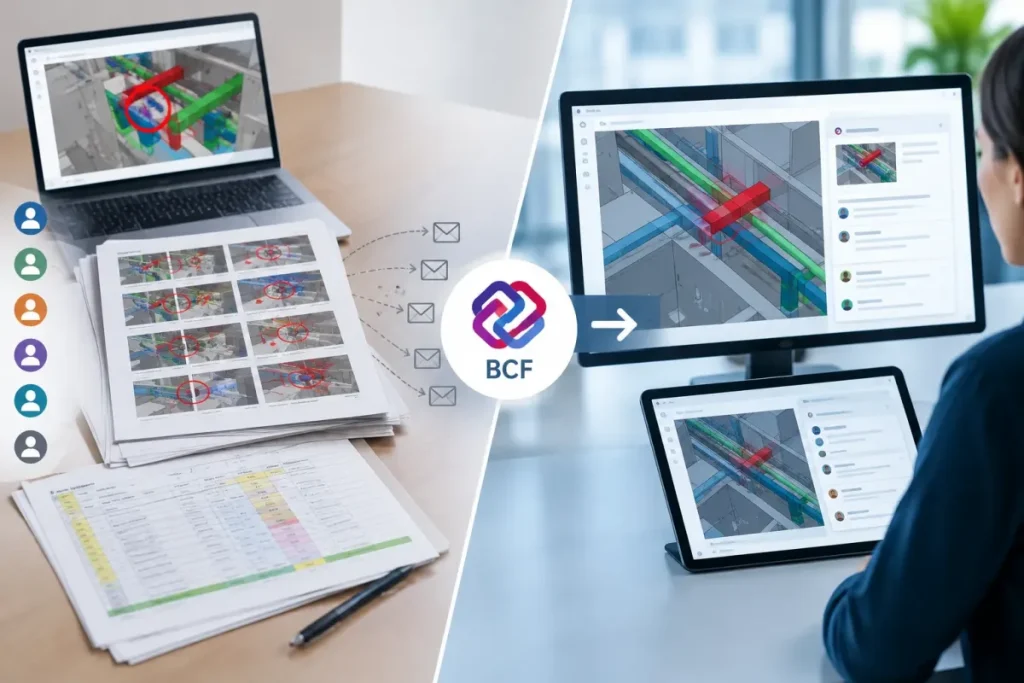

Before BCF, a clash report looked like this. A coordinator would run a clash test, export a PDF with a few hundred screenshots, circle the interesting parts in red, add comments in a spreadsheet and email the package to six people. Each recipient would open the PDF, try to find the element in their own model by squinting at a picture, fix it (or not), and reply to the coordinator with a message such as “Done, I think”. The next week, the coordinator would run the test again and compare, by eye, which of the previous hundred issues had really been closed. I did this for years. I was good at it. I also, quietly, hated it.
The problem was never the clash detection. Finding conflicts was the easy part. The hard part was the conversation about each conflict: where exactly is it, who owns it, what has been decided, is it fixed and how do we know? That conversation lived in emails, PDFs and memories, disconnected from the models, disconnected from the software and impossible to carry from one tool to another.
BCF, the BIM Collaboration Format, is the open standard that moves that conversation into a structured, portable form. An issue becomes a small data package: a title, a status, an assignee, a viewpoint that shows exactly where in the model it is, comments, and references to the exact elements involved. Any compliant tool can create it, any other compliant tool can read it, and the conversation survives the journey.
In this guide, I explain what BCF is, what an issue actually contains, how the two forms of BCF (files and APIs) work, how it fits into coordination and the CDE, how to write good issues and how to govern the process. I checked the current versions and structure against buildingSMART’s public documentation. For the broader coordination process, see BIM Coordination: The Complete Guide; for the issue-tracking workflow, see BIM Issue Tracking and Resolution Using BCF.
The Short Answer
BCF (BIM Collaboration Format) is an open standard from buildingSMART for managing and exchanging coordination topics (issues) between disciplines and between software. It lets a team describe a problem or a decision, link it to a precise view and to specific model elements, assign it, discuss it and track it to closure, in a way that different applications can read.
BCF exists in two forms.
| Form | What it is | Typical use |
|---|---|---|
| BCF-XML | A file-based format: a package of XML files and snapshots, exchanged like a document | Exchange between tools, offline work, migration between platforms |
| BCF-API | A web interface (REST) that lets applications create, read and update topics on a server | Live issue management on collaboration platforms |
Two versions of BCF-XML are in use, 2.1 and 3.0, and the BCF-API is currently at version 3.0 (with the earlier 2.1 API also published). Version 3.0 builds on 2.1.
In one sentence:
BCF carries the conversation about the model, not the model itself.
That second part is crucial. A BCF file does not contain geometry of the building. It contains topics that refer to the model, so it stays small, and the model remains with its owner.
Why BCF Matters
The Old Way and Its Costs
| Problem | Consequence |
|---|---|
| Issues in PDFs and emails | Nobody can filter, sort or track them; closure is by memory |
| Screenshots without context | Recipients cannot locate the element in their model |
| Issues tied to one software | Teams on other tools cannot read or update them |
| No link to elements | “The duct near the corridor” is not an identifier |
| No status history | Nobody knows what was decided and when |
| Manual comparison between rounds | Time lost and errors made |
What BCF Changes
- Location. Each issue stores a viewpoint: the camera position, the visible elements and sometimes clipping planes, so the recipient sees the problem from the same angle.
- Identity. Issues refer to elements by their identifiers (the IFC GlobalId), so the element can be found in any model that carries it.
- Responsibility. Issues have an assignee, a status, a priority and a due date.
- History. Comments and status changes are recorded.
- Portability. The same issue can be created in one tool and resolved in another.
- Traceability. The CDE can hold the issue record alongside the models. See Common Data Environment (CDE): The Complete Guide.
What Is Inside a BCF Topic
A BCF topic is a package of information. The details differ slightly between versions, but the essentials are consistent.
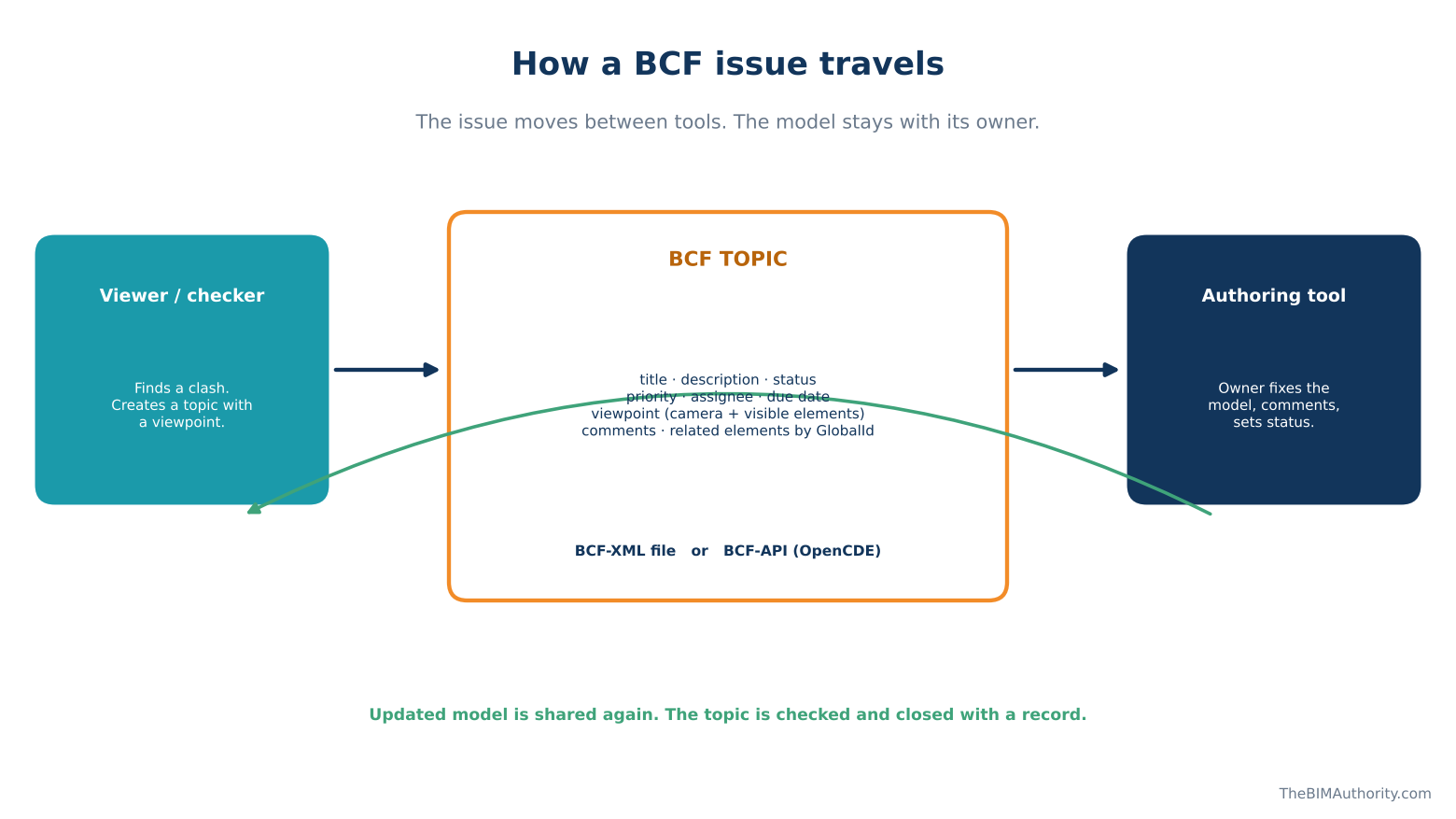
| Component | What it holds | Why it matters |
|---|---|---|
| Identifier | A unique ID for the topic | Allows the same issue to be tracked across tools and exchanges |
| Title and description | What the issue is | The human-readable core |
| Type and labels | Category of the issue (clash, request, remark, fire safety and so on) | Filtering and reporting |
| Status | Where the issue stands (for example open, assigned, resolved, closed) | Tracking |
| Priority | How urgent it is | Planning |
| Assigned to | The person or role responsible | Accountability |
| Due date | When it should be resolved | Management |
| Creation and modification data | Author, dates | Audit trail |
| Comments | The discussion, with authors and dates | Decision record |
| Viewpoints | Camera, visible and highlighted elements, clipping, snapshots | Locating and understanding the problem |
| Related elements | References to model elements by their identifiers | Linking to the exact objects |
| Related topics and documents | Links to other issues or files | Context |
The Viewpoint in More Detail
A viewpoint typically records:
- the camera (position, direction, type: perspective or orthogonal);
- which elements are visible, selected or colored;
- clipping planes or section boxes;
- optionally lines or markup;
- a snapshot image of what the author saw.
The viewpoint is what turns “there is a clash near gridline C” into “here, from this angle, with these elements highlighted”. It is also the main reason BCF files stay small and usable: they contain pictures and references, not models.
Element References and the GlobalId
BCF refers to elements through their identifiers, normally the IFC GlobalId. That is both a strength and a requirement.
- Strength: the receiver can find the element in any model that carries that identifier.
- Requirement: the identifiers must be stable between model versions. If an authoring tool regenerates GlobalIds at every export, the link between the issue and the element is lost. See IFC Files Explained: Structure, Classes, and Properties and How to Export and Import IFC Models Correctly.
BCF-XML: The File-Based Form
BCF-XML is a package (a compressed archive) containing XML files and snapshots. Each topic has its own folder, with a markup file (title, status, comments and so on), viewpoint files and snapshot images. A file describes the project it belongs to and the version of the BCF format.
Typical Uses
- Exchanging issues between tools that do not share a platform: one tool exports a BCF file, another imports it.
- Round-tripping issues between a coordination tool and the authoring tools of the disciplines.
- Migrating issues from one platform to another.
- Offline work, when no common server is available.
- Archiving the issue record at a milestone.
Strengths and Limits
| Strengths | Limits |
|---|---|
| Works with any compliant tool, no server needed | Manual export and import; risk of version confusion |
| Small, portable files | Two people can update copies in parallel, creating conflicts |
| Good for archive and migration | No live synchronization |
| Supported widely | Depends on tools implementing the same version consistently |
BCF-API: The Online Form
The BCF-API is a RESTful web interface through which applications exchange issues with a server over standard web protocols. Topics, comments, viewpoints and related information are retrieved and updated through requests and JSON responses. It is part of the OpenCDE API family, and every OpenCDE API builds on a shared Foundation API that handles common conventions such as authentication.
How It Works, in Plain Words
- A BCF server stores projects, topics, comments and viewpoints.
- Client applications (viewers, checkers, authoring tools) connect to it, with the user’s authorization, and read and write topics live.
- The server can say what each user is allowed to do: update a topic, add comments, add viewpoints, change status to particular values.
- Project extensions define the allowed values for things like status, priority and labels, which may change during the project.
- The API exchanges lengths in meters and angles in degrees, so that viewpoints are interpreted consistently.
Typical Topologies
The specification describes how the BCF server relates to the model files, for example:
- BCF server only, with model files shared through a separate file service.
- BCF server and model server co-located, on the same platform.
The practical point is that issues can be managed live across tools, without sending files around, as long as the tools and platform support the API.
Strengths and Limits
| Strengths | Limits |
|---|---|
| Live, shared issue list for everyone | Requires platforms and tools that implement the API |
| Fine-grained permissions | Implementation varies between products |
| Integrates with the CDE | Needs authentication and administration |
| Single source of truth for issues | Offline work is harder |
BCF 2.1 vs. BCF 3.0
Both versions are in use, and tools support them to different degrees. The practical guidance is more important than the details.
| Topic | BCF 2.1 | BCF 3.0 |
|---|---|---|
| Status | Widely supported and long established | Newer, builds on 2.1 |
| BCF-XML | Yes | Yes |
| BCF-API | An earlier API version exists | API 3.0, as part of the OpenCDE family |
| Support | Almost universal among tools that support BCF | Growing |
| Advice | The safe baseline for file exchange between mixed tools | Use where all parties’ tools and platforms support it; test first |
State the BCF version in the BEP, exactly as you state the IFC version, and test it with your tools. Open-source libraries exist that read and write both versions of BCF-XML and the 3.0 API, which is helpful for automation. See IFC Automation Using Python and IfcOpenShell.
BCF in the Coordination Workflow
BCF is the issue layer of an openBIM coordination cycle. Here is how it fits.
- Federate the models in a coordination tool. See How to Create and Manage a Federated BIM Model.
- Check them: clash detection, rule-based checks, visual review. See BIM Clash Detection: The Complete Guide and BIM Model Checking: Geometric and Information Validation.
- Create topics. Clash results and review findings become BCF topics, each with a viewpoint, references to the elements and an assignee.
- Distribute. Topics are shared by BCF file or through the BCF-API.
- Resolve. Each team opens the topic in its own tool, locates the element, corrects the source model, comments and updates the status.
- Verify. The coordinator re-checks the updated models, confirms and closes the topic, or reopens it.
- Record. Closed topics remain as a record of decisions, stored with the project information.
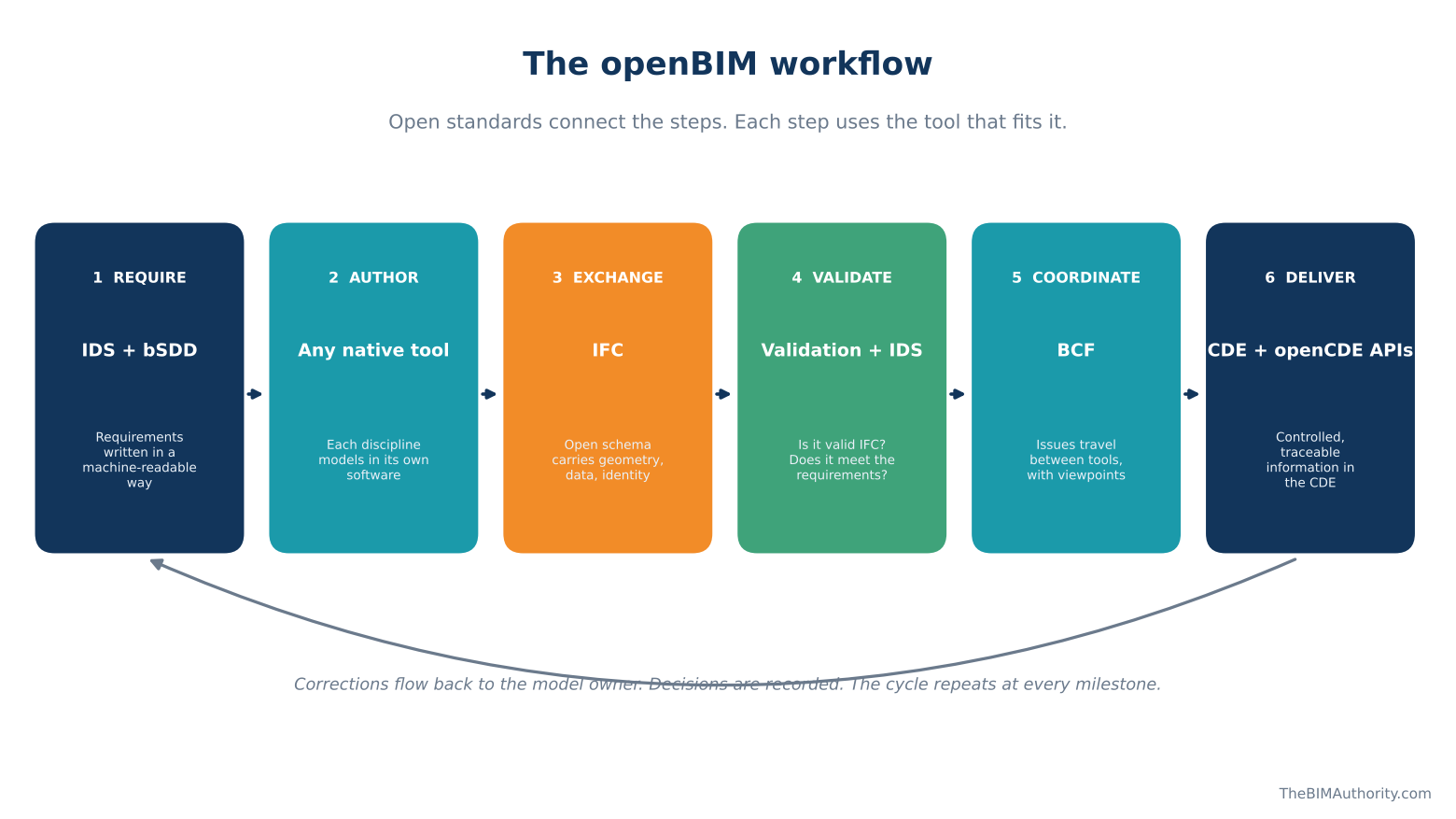
Notice the golden rule of coordination, repeated here because it matters: issues are resolved in the source model by its owner, never in the federated model. See BIM Models vs. Federated Models: What Is the Difference?.
How to Write a Good Issue
The format does not guarantee quality. Over the years I have seen BCF files with a thousand topics titled “Clash 1”, “Clash 2”, “Clash 3”. They were useless. A good issue answers six questions at a glance.
| Question | Example of a good answer |
|---|---|
| What is the problem? | “Supply duct crosses structural beam B-204 at level 2” |
| Where is it? | Viewpoint from a clear angle; level and grid reference in the description |
| Which elements? | Both elements linked by their identifiers |
| Who must act? | Assigned to the MEP engineer’s task team |
| By when? | Due date linked to the next coordination cycle |
| What is expected? | “Reroute below the beam, keeping 150 mm clearance, or confirm sleeve in the beam with the structural engineer” |
Writing Rules I Teach
- One issue, one problem. Do not bundle five clashes in one topic.
- A title that can be read in a list. Include the elements, location and nature.
- A viewpoint that works. Hide irrelevant elements, use a section box, choose a clear angle.
- State the expected action, not only the problem.
- Assign to a role or team, and a named person where possible.
- Set a realistic priority and due date.
- Group related issues with labels or related-topic links rather than merging them.
- Keep comments factual. Decisions, not opinions.
- Close with a note saying what was done.
Grouping Clashes Sensibly
Automated clash tests can produce thousands of raw clashes. Turning each into a BCF topic would drown the team. Group them first: by system, by location, by cause. One topic can cover a cluster of clashes with a common cause (for example a missing coordination of risers on a floor). See How to Create a BIM Clash Detection Matrix.
Governing the Issue Process
BCF gives you the container. Your project defines the rules. Agree these in the BEP.
A Status Vocabulary
Keep it short and unambiguous.
| Status | Meaning |
|---|---|
| Open | Created, not yet acted on |
| Assigned / In progress | Owner is working on it |
| Resolved | Owner believes it is fixed, awaiting verification |
| Closed | Verified and closed by the coordinator |
| Reopened | Verification failed or the issue recurred |
| On hold / Rejected | Waiting for a decision, or not accepted, with a reason |
Types, Labels and Priority
- Define a small set of issue types (for example clash, missing information, design change request, safety, quality).
- Use labels for disciplines, zones or systems.
- Define what high, medium and low priority mean in terms of consequence and deadline.
Roles and Rights
- Who may create issues? Who may close them? Usually only the coordinator closes.
- Who may assign them?
- How are issues for non-BIM actors (client, authorities, operators) handled?
Cycle Time
Set expectations: response within a number of working days, resolution before the next coordination cycle. See BIM Coordination Meetings: Planning, Reporting, and Best Practices.
Naming and Identification
Give issues a project-wide identification pattern so they can be quoted in meetings. Many tools generate numbers; make sure they are not reset when files move between platforms.
Records and Reporting
- Keep a log of issues per cycle: created, closed, overdue.
- Report metrics that mean something: open issues by discipline, age of open issues, closure rate per cycle, recurring causes. They show where the process is failing.
- Archive issue sets at information delivery milestones.
See BIM Issue Tracking and Resolution Using BCF.
BCF Beyond Clashes
Clash detection is the best-known use, but BCF topics fit many situations.
- Model checking results. Missing properties, naming errors, wrong classification.
- Design review comments from clients and users.
- Requests for information tied to a location.
- Design change proposals with viewpoints.
- Site observations linked to the model, with photos.
- Safety and constructability concerns. See ISO 19650-6: Health and Safety Information Management.
- Handover defects and snagging.
- Operational issues in the asset information model, referencing the elements concerned.
Anything that benefits from a location in the model plus a conversation is a candidate.
BCF and Other openBIM Standards
| Standard | Relationship to BCF |
|---|---|
| IFC | BCF topics refer to IFC elements by GlobalId. See ISO 16739 and the IFC Standard Explained |
| IDS | An IDS check produces results that can be turned into BCF topics: “these doors lack a fire rating”. See Information Delivery Specification (IDS): The Complete Guide |
| bSDD | Definitions used in checks and requirements; BCF topics can reference them in text |
| OpenCDE APIs | The BCF-API is part of the family and relies on the Foundation API |
| CDE | Holds the issue record with the models, and enforces access and status |
See openBIM Explained: Principles, Standards, and Benefits.
Tools and Interoperability
Many viewers, coordination tools, authoring tools and collaboration platforms support BCF, to varying degrees. When you choose tools:
- Check which BCF version each supports (2.1, 3.0, API 3.0).
- Check whether it supports import and export, or only one.
- Check which fields are preserved (assignee, due date, labels, custom fields, multiple viewpoints).
- Check how it handles viewpoints (visible elements, coloring, clipping).
- Test a round trip: create an issue in tool A, import it in tool B, comment, export back and confirm the result in A.
Differences in how tools implement optional fields are the most common source of “my comment disappeared”. Test early with a sample of real issues. See BIMcollab: BCF-Based Coordination and Issue Tracking, Revizto: BIM Coordination and Issue Management Guide and Best BIM Software: A Complete Comparison Guide.
Common Problems and Remedies
| Problem | Likely cause | Remedy |
|---|---|---|
| Issue opens but the element is not found | Identifiers changed between model versions | Keep identifiers stable; compare versions; reference elements by more than one attribute in the description |
| Viewpoint shows nothing useful | Hidden elements, wrong camera, section box missing | Create viewpoints deliberately; check before saving |
| Comments or fields lost between tools | Tools preserve different fields | Test round trips; limit use to common fields |
| Duplicate issues | Parallel exports and imports, or repeated clash runs | Single issue owner; compare against existing topics before creating |
| Issues pile up with no owner | No assignee or role | Require assignment; define default routing |
| Hundreds of one-line “clash” issues | Raw clash results converted blindly | Group and filter first |
| Different tools show different statuses | Status vocabularies not agreed | Define the vocabulary in the BEP and configure the tools |
| Large BCF files | Many snapshots at high resolution | Limit snapshot size; split by cycle |
| Nobody closes issues | No verification step | Make closure a coordinator task with a rule |
A Checklist for Setting Up BCF on a Project
- Have we stated the BCF version and exchange method (file or API) in the BEP?
- Have we tested a round trip between all tools?
- Are identifiers stable in our IFC exports?
- Do we have an agreed status vocabulary, types, labels and priorities?
- Is it clear who creates, assigns, resolves and closes issues?
- Is there a rule for grouping clashes before creating topics?
- Have we set response and resolution times?
- Do we have issue identification that survives platform moves?
- Do we report metrics each cycle?
- Are issue sets archived at milestones in the CDE?
Common Mistakes
- Treating BCF as a PDF replacement and creating weak, context-free topics.
- Not testing between tools before the project starts.
- Unstable identifiers that break the link to elements.
- Converting every raw clash into a topic.
- No agreed statuses, so each tool shows different things.
- No owner. Topics with no assignee are never resolved.
- Closing issues without verifying in the updated model.
- Editing the federated model instead of the source models.
- Mixing BCF versions without checking compatibility.
- Never reporting. Without metrics, you cannot see process problems.
See also Common BIM Mistakes Beginners Should Avoid.
Frequently Asked Questions
What is BCF in BIM?
The BIM Collaboration Format: an open buildingSMART standard for exchanging coordination topics (issues) with viewpoints, comments, assignees and references to model elements, between different software.
Does a BCF file contain the model?
No. It contains topics that refer to the model, with viewpoints and snapshots. The model stays in its own files.
What is the difference between BCF-XML and BCF-API?
BCF-XML is a file-based package for exchanging issues. BCF-API is a web interface through which applications manage issues live on a server. The API is part of the OpenCDE family.
Which BCF version should I use?
BCF 2.1 is the long-established baseline supported almost everywhere. BCF 3.0 and the BCF-API 3.0 are newer. Use the version all your tools support, proven by a test.
How does BCF find the element in the model?
Through the element’s identifier, normally the IFC GlobalId, stored in the topic’s viewpoint components. The identifiers must be stable between model versions.
Can I use BCF for things other than clashes?
Yes: model check results, design review comments, requests for information, site observations, safety concerns, handover defects and more.
Is BCF part of ISO 19650?
No. ISO 19650 defines the information management process and does not name BCF, but BCF is a practical way to manage issues within that process.
Do I need a CDE to use BCF?
No, you can exchange BCF files directly. A CDE or platform that supports the BCF-API makes live issue management easier and keeps the issue record with the project information.
Who should close BCF issues?
Normally the coordinator, after verifying the fix in the updated model.
Final Thoughts
When I look back at those years of red circles on PDFs, what I regret is not the effort. It is how much good coordination work was lost because it had nowhere structured to live. Every well-diagnosed clash, every sensible decision, every careful comment sat in an email thread that nobody would ever find again.
BCF gives that work a home. It does not make anyone a better coordinator, and it will not fix a clash. But it makes the conversation findable, assignable, portable and countable, which is the difference between a team that meets about problems and a team that closes them. Use it with discipline, write issues that you would be happy to receive and verify before you close, and the dull, necessary craft of coordination becomes a craft that leaves a record.
Where to go next: to see the whole cycle, read BIM Coordination: The Complete Guide and BIM Issue Tracking and Resolution Using BCF. For the models that BCF refers to, continue with IFC Files Explained: Structure, Classes, and Properties, and for automated checking that feeds issues, Information Delivery Specification (IDS): The Complete Guide.