

If you want to know how mature a design office really is, ask to see its project template. I have done this in dozens of offices, and the answers are instructive. In the best, a template is a carefully maintained product with an owner, a version number, a change log and a short guide. In the worst, it is a file called Template_NEW_final2.rvt that somebody once saved from a successful project, with a hundred unused families, forty view types no one understands and the previous client’s logo still in the title block.
The template is the most leveraged asset in a BIM office. Every project starts from it. Every decision embedded in it, units, levels, parameters, view settings, export mappings, is repeated, automatically, across every model, every discipline and every new starter’s first day. A good decision made once in the template saves hours on a hundred projects. A bad one multiplies in the same way. When I discovered, on that earlier project, that thirty-seven errors came from four systematic mistakes, all four lived in the template.
This guide shows how to build a template that earns its place. It covers what a template is (and is not), its layers, a step-by-step method to build one, the data and export settings that most templates forget, how to test, version and govern it, how to distribute and upgrade it and how to avoid the classic failures. It is written to be tool-neutral: the file formats and menus differ between authoring software, but the decisions are the same. Where it helps, I mention typical concepts such as project template files and shared parameters. For how a template fits into the project start, see How to Set Up a Successful BIM Project from Day One.
The Short Answer
A BIM project template is a starter file (or set of files) that contains the standard settings, content, data structure, views and export configuration an organization or project uses, so that every new model begins in line with the standards.
A good template carries decisions, not just content. It does the following:
| Benefit | How |
|---|---|
| Consistency | Every model starts with the same units, levels logic, parameters, naming and views |
| Quality | Correct settings prevent whole categories of errors |
| Speed | Less setup; faster onboarding |
| Interoperability | Export and mapping settings are ready and tested |
| Compliance | Standards from the BEP and EIR are built in |
| Learning | Lessons are captured once and benefit every project |
In one sentence:
A template is your standards turned into a file: the way to make the right way of working the default way.
What a Template Is, and What It Is Not
| It is | It is not |
|---|---|
| A clean starter with only what projects need | A copy of the last project |
| Versioned and owned | An orphan file on a shared drive |
| Tested on real exports and checks | A collection of untested settings |
| Documented with a short guide | Self-explanatory by magic |
| Part of a system: with libraries, standards and guides | A substitute for training or standards |
| Specific to a discipline and purpose where needed | One giant file for everybody |
Office Template vs. Project Template
| Type | Owner | Content | When |
|---|---|---|---|
| Office (or discipline) template | The BIM manager | Organization-wide standards for a discipline: units, content, parameters, view standards, export presets | Maintained continuously |
| Project template | The project BIM manager, derived from the office template | Office template plus project-specific items: coordinates, levels, naming codes, client requirements, project parameters | Created at project start. See How to Set Up a Successful BIM Project from Day One |
The office template carries stable decisions; the project template adds specific ones.
The Layers of a Template
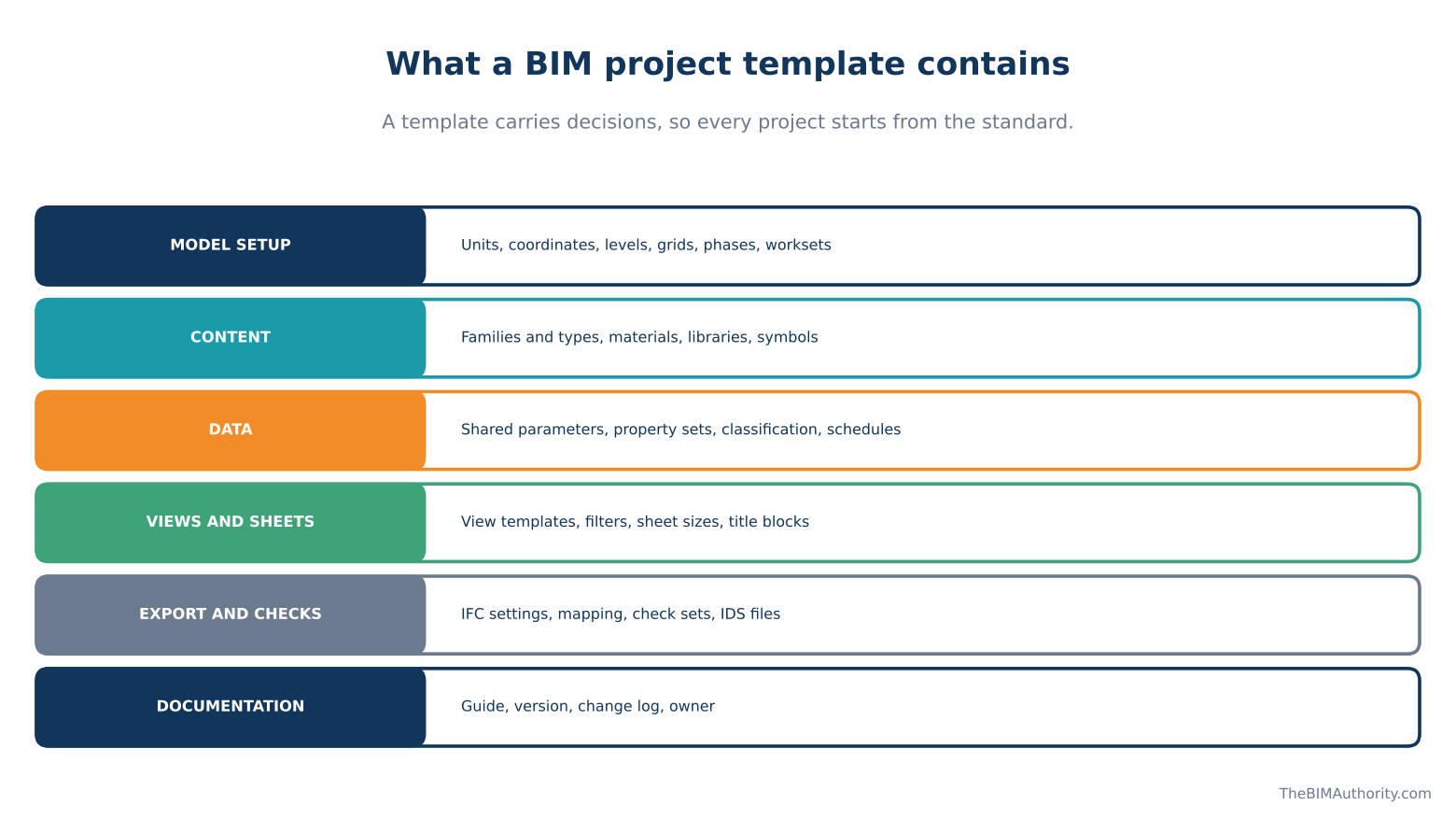
I organize a template into six layers. Use them as a checklist.
1. Model Setup
The technical foundations of the model.
| Item | Notes |
|---|---|
| Units and precision | As specified in the BEP; consistent across disciplines |
| Coordinates and orientation | Mechanism to adopt project shared coordinates; base point conventions. See BIM Georeferencing: Coordinate Systems and Model Positioning |
| Levels and grids | A convention for naming and elevations; usually received from the reference model, not invented per discipline |
| Phases and options | Standard phase names if used |
| Worksharing setup | Worksets or equivalent standard set; naming; default visibility |
| Links and references | Standard approach to linking reference models |
| Project information fields | Project code, originator, discipline, status and revision fields |
| Starting file size and performance | Purged; no hidden junk |
2. Content
The objects and materials the model uses.
| Item | Notes |
|---|---|
| Core families or objects | A small set of approved, tested, well-parameterized content for common types; others loaded from the library as needed |
| Types and naming | Type names follow the convention; product data at type level. See BIM Objects, Families, and Parameters Explained |
| Materials | Standard list with appearance and, where used, physical and classification properties |
| Annotation content | Symbols, tags, text styles, dimension styles |
| Library connection | Link or instructions for the content library |
Keep the template lean. Load what most projects need and leave the rest in the library. An overloaded template is slow and confusing.
3. Data
The information structure. This layer is where templates most often fail.
| Item | Notes |
|---|---|
| Shared parameters or properties | The organization’s standard set, defined once, with consistent names, types and groups. See BIM Metadata, Attributes, and Property Sets Explained |
| Property catalogue link | Each parameter traceable to the catalogue, with definition and allowed values |
| Classification | Parameters and, where possible, pre-loaded classification tables or lookup |
| Schedules | Standard schedules that expose data for checks: element counts, missing properties, areas |
| Unique identifiers and tags | Conventions for marks, tags and asset identifiers |
| Quantities | Configuration so that required quantities can be exported |
Typical authoring tools store shared parameters in an external definition file, so that identical parameters can be reused across projects. Whatever your tool’s mechanism, define the data once, centrally, and version it.
4. Views and Sheets
How the model is displayed and documented.
| Item | Notes |
|---|---|
| View templates and filters | Standard graphics by discipline and purpose; coordination views for checks |
| View naming and organization | Consistent, with prefixes; project browser organization |
| Sheet standards | Title block, sizes, numbering aligned with the container identification convention |
| Line styles, patterns, fills | Standard set |
| Annotation defaults | Scale-aware text and dimension styles |
| Output settings | Printing and PDF presets |
See also BIM Model Naming Convention Template and Guidelines and BIM File Naming Conventions and ISO 19650.
5. Export and Checks
The settings for exchange and quality.
| Item | Notes |
|---|---|
| IFC export setup | Saved settings per purpose: schema version, view, geometry, property sets, classification, quantities, coordinates. See How to Export and Import IFC Models Correctly |
| Category-to-class mapping | Mapping files stored with the template |
| Parameter-to-property mapping | Mapping to property sets and properties |
| Other exports | Formats for cost, analysis and fabrication |
| Check sets | Model checker rule sets, IDS files and checklists. See BIM Quality Management: Processes, Metrics, and Best Practices and Information Delivery Specification (IDS): The Complete Guide |
| Warning and health checks | Standard views or schedules for self-checks |
6. Documentation
A template without documentation is a mystery.
| Item | Notes |
|---|---|
| Quick guide | One to three pages: how to start a project, what is in the template, what to change |
| Version and change log | What changed, when, why |
| Owner and support contact | Who to ask |
| Known limitations | What the template does not cover |
| Link to standards | The BEP, naming and modeling standards |
How to Build a Template: A Step-by-Step Method
Step 1: Define Scope and Audience
Decide:
- Which discipline and purpose (architecture, structure, MEP, infrastructure, coordination, documents).
- Which project types it will serve; do not try to cover all.
- Which software and version.
- Who will use it and what they know.
Several templates, one per discipline and tool, are better than one compromise.
Step 2: Gather Requirements
Collect:
- Your BIM standards and BEP template.
- Client requirements and EIR from recent projects.
- Lessons learned and the list of recurring errors.
- Existing templates and what users like and dislike about them.
- Exchange needs: IFC views, cost and analysis formats.
Step 3: Start Clean
Start from a new, empty template or the vendor default, not from an old project. Add deliberately. Importing a project brings hidden baggage: unused styles, broken links, legacy parameters.
Step 4: Build Layer by Layer
Work through the six layers above, in order. For each decision, ask: Which standard does this serve? Which error does it prevent? If neither, leave it out.
Step 5: Build the Data Layer Carefully
- Define shared parameters from the property catalogue.
- Use consistent names, data types and units.
- Group parameters logically.
- Include only what the standards require, and a small set of useful extras.
- Link parameters to IFC property mappings.
Step 6: Configure Export and Mapping
Create and save export setups for each purpose. Store mapping files with the template. Test exports with real content (see testing below).
Step 7: Create Views, Sheets and Schedules
Build the view templates teams need, including coordination and check views. Create schedules for quality checks: missing parameters, duplicate tags, element counts by category.
Step 8: Write the Guide
Write the quick guide while the details are fresh. Include screenshots and a ten-step start-up procedure.
Step 9: Test It
Testing is what separates a template from a hope.
| Test | What to do |
|---|---|
| Fresh start test | A person who did not build the template starts a model from it, following only the guide. Note every point of confusion |
| Content test | Place typical objects; check parameters, schedules, tags |
| Export test | Export IFC and other formats with the saved settings; validate; open in receiving tools; check properties, classification and coordinates |
| Check test | Run the model checker and IDS on the test model; confirm checks work as expected |
| Coordinates test | Adopt a sample shared coordinate system; confirm alignment with a reference model |
| Performance test | Check file size, open time and sync time |
| Upgrade test | Open in the next software version if relevant |
Fix what fails. Repeat.
Step 10: Release and Version
- Name it following the convention, with a version number.
- Publish through a controlled location (the CDE or a standards library), read-only for users.
- Announce with a short note on what is in it and what changed.
- Archive previous versions.
Step 11: Pilot
Use it on one or two projects with support, record feedback and update. See How to Develop a BIM Implementation Strategy for the role of pilots in rollout.
Governance: Keeping the Template Alive
A template ages the moment it is released. Software updates, new client requirements and lessons from projects all change what it should contain.
| Governance element | Practice |
|---|---|
| Owner | A named person responsible for each template |
| Change requests | A simple route: anyone can propose; the owner decides |
| Review rhythm | After each project, and at least annually; after each major software update |
| Version control | Semantic versioning (for example 2.1) and a change log |
| Release process | Test, document, announce |
| Deprecation | Withdraw old versions; define how existing projects update |
| Feedback loop | A channel for users to report issues |
| Metrics | Which errors recur in projects; template compliance rate |
Project Updates
When the template changes mid-project, do not update projects automatically. Decide case by case, with a clear procedure for any migration, because changing parameters or mappings mid-project can break links and schedules.
Software Upgrades
Each major software release can change defaults, parameters, graphics and export behavior. Plan an upgrade cycle: test the template in the new version, update, document, then release for new projects. Existing projects normally stay on their version until a milestone permits upgrade.
Templates Beyond the Model File
BIM projects depend on other templates. Treat them with the same care.
| Template | Purpose | Related guide |
|---|---|---|
| BEP template | Standard structure and text for BEPs | BIM Execution Plan (BEP): How to Create and Implement One |
| Responsibility matrix | Pre-filled with standard activities | How to Create a BIM Responsibility Matrix |
| MIDP and TIDP templates | Consistent planning documents | Master Information Delivery Plan (MIDP): Complete Guide, Task Information Delivery Plan (TIDP): Complete Guide |
| EIR response template | Tender response structure | How to Respond to BIM Requirements in Tenders |
| Meeting and issue templates | Coordination agendas, minutes, issue forms | BIM Coordination Meetings: Planning, Reporting, and Best Practices |
| Quality checklists | Sharing and gate checklists | BIM Quality Management: Processes, Metrics, and Best Practices |
| IDS and check set library | Reusable requirement checks | Information Delivery Specification (IDS): The Complete Guide |
| Document templates | Reports, specifications, transmittals |
A well-run office keeps these in a standards library with owners and versions.
Template Contents: A Starter Specification
Here is a condensed specification for an architectural model template. Adapt it for other disciplines. It is an illustration.
| Layer | Contents |
|---|---|
| Model setup | Millimeter units; project info fields for code, originator, discipline; shared coordinates procedure; level and grid placeholders replaced by reference model; standard worksets (shell, interior, furniture, links, reference); standard phases |
| Content | Core wall, floor, roof, door, window and ceiling types named to convention; standard material list; annotation family set; library link |
| Data | Shared parameter set for identification, classification, fire rating, acoustic, thermal, finish, manufacturer, model, asset tag; schedules for missing parameters and duplicates; room data parameters |
| Views and sheets | View templates for plans, sections, elevations, coordination and checking; filters for fire-rated and external elements; sheets with title block fields aligned to container ID |
| Export and checks | Saved IFC setups (coordination reference view; handover); category and parameter mapping files; model checker rule set; IDS for doors, windows and rooms |
| Documentation | Three-page guide; change log; owner and contact |
Common Problems and Remedies
| Problem | Cause | Remedy |
|---|---|---|
| Template is huge and slow | Built from an old project; many unused families | Rebuild clean; keep core content only; use a library |
| Teams change the template | Settings not locked; no guide | Lock critical settings; document what may be changed |
| Parameters differ between projects | No central definition | Maintain a shared parameter file and catalogue under version control |
| Exports differ between users | Export settings not saved | Save setups and mappings; distribute with the template |
| Template out of date | No owner or review | Name an owner; review after each project |
| Template ignores client requirements | Written once, generic | Maintain a project template layer with client-specific items |
| People start projects from old files | Template hard to find or unloved | Make it easy to find; show benefits; check at audits |
| Updates break running projects | Mid-project change | Freeze versions per project; plan migrations carefully |
| Too many templates | Proliferation | Consolidate; define which template for which purpose |
Common Mistakes
- Starting from an old project file.
- Putting everything in instead of what is needed.
- No data layer: no shared parameters or mappings.
- No export settings in the template.
- No guide.
- No testing with a fresh user and real exports.
- No version number or change log.
- No owner.
- Locking nothing, so settings drift.
- Never updating after projects or software upgrades.
- Mid-project template changes without a plan.
- Ignoring non-model templates such as the BEP and checklists.
See also Common BIM Mistakes Beginners Should Avoid.
A Short Checklist
- Is the scope defined: discipline, purpose, software version, audience?
- Was it built clean, from requirements and standards?
- Does it cover all six layers: setup, content, data, views, export and checks, documentation?
- Is the data layer defined from a property catalogue?
- Are IFC export setups and mappings saved with it?
- Is there a quick guide and change log?
- Has it been tested by a fresh user, with real exports and checks?
- Is it versioned, owned and published from a controlled location?
- Is there a review rhythm and a feedback route?
- Are non-model templates (BEP, matrix, plans, checklists) maintained too?
Frequently Asked Questions
What is a BIM project template?
A starter file containing the standard settings, content, data structure, views and export configuration that an organization or project uses, so new models start in line with the standards.
What should a Revit or Archicad template include?
The same layers in any tool: model setup, content, data parameters, views and sheets, export and mapping settings, and documentation. Details such as file types and menus differ by software.
How big should a template be?
As small as possible while including what most projects need. Large templates slow down and confuse.
Should I have one template for all disciplines?
Usually no. Use a template per discipline and tool, sharing common elements through the property catalogue and libraries.
What is the difference between a template and a library?
The template is the starter file with settings and core content. The library holds the wider set of approved objects loaded as needed.
How often should the template be updated?
After each project, after major software updates and when standards or client requirements change, with versioning and a change log.
Should existing projects be updated when the template changes?
Not automatically. Decide case by case, with a migration procedure, because mid-project changes can break links and schedules.
How do I get people to use the template?
Make it easy to find, short to learn, reliable and visibly useful, and check usage in audits.
Who owns the template?
A named BIM manager or standards owner, with input from discipline leads and users.
How does the template relate to the BEP?
The BEP states the project’s standards. The template implements many of them in the working files.
Final Thoughts
After that project with the thirty-seven errors, I rebuilt our templates from scratch. It took six weeks and felt like a lot of effort for something users would never notice. And that is exactly what happened: nobody noticed. Errors that used to appear in every project simply stopped. New starters produced correct models in their first week. Exports worked the first time. The only evidence of the template’s value was an absence of complaints, which, in my business, is the highest praise.
That is the template’s quiet power. Build it clean, build it in layers, test it with someone who did not make it, give it an owner and keep it alive. It is the closest thing the BIM world has to compound interest.
Where to go next: to see how the template fits the project start, read How to Set Up a Successful BIM Project from Day One. For the data it carries, continue with BIM Metadata, Attributes, and Property Sets Explained, and for the standards behind it, BIM Quality Management: Processes, Metrics, and Best Practices.