

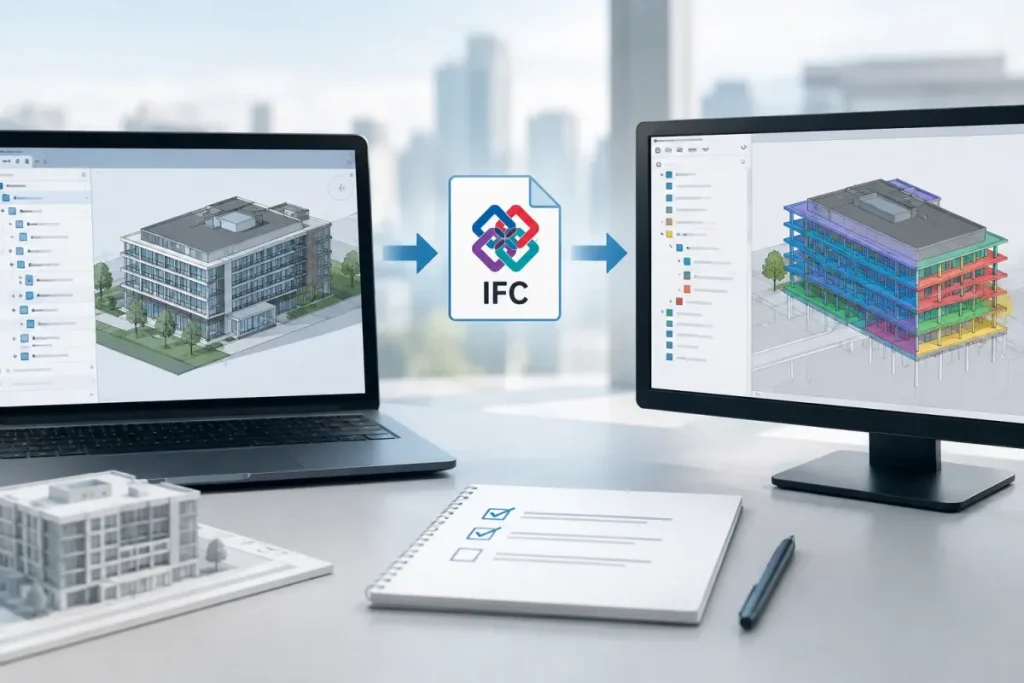

Every BIM manager has an IFC horror story. Mine involves a Thursday evening, a coordination meeting scheduled for Friday at nine and an IFC export from the architect that arrived at six o’clock containing, as far as I could tell, a beautiful building made entirely of generic proxy objects, without a single property, floating three kilometers east of the structural model. The architect’s team was not careless. They had done what almost everyone does: they clicked Export to IFC, accepted the default settings and sent the file. The defaults were not wrong. They were simply not our requirements.
If you take only one idea from this guide, take this one: an IFC export is not a “Save As”. It is a translation, and the quality of a translation depends on the instructions you give the translator. The instructions are the export settings and the mapping. The recipient, meanwhile, has its own set of choices on import. When both sides treat the process as a one-click operation, the result is a lottery. When both sides treat it as a small, repeatable procedure, the result is boring, and boring is exactly what you want from an exchange.
In this guide, I give you that procedure. It is tool-neutral, because the dialogs differ between software and change with every release, but the decisions are the same everywhere. I will explain what to prepare in the model, what to decide before you export, how to configure the main settings, how to check the result, how to import and link IFC models on the receiving side and how to troubleshoot the typical problems. For the structure of the file, see IFC Files Explained: Structure, Classes, and Properties; for validation, see How to Validate IFC Models for Data Quality and Compliance.
The Short Answer
A reliable IFC exchange has six steps.
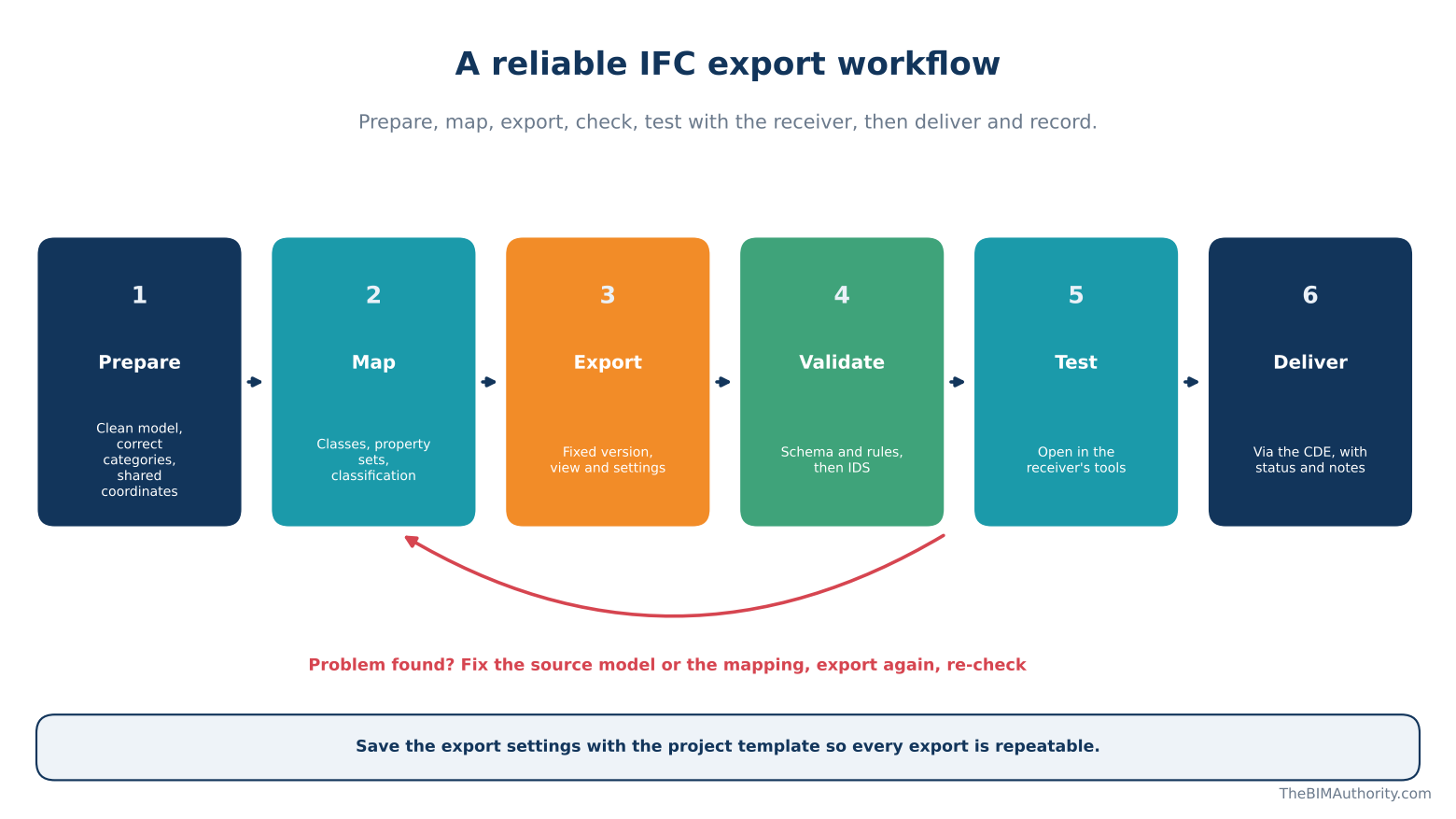
- Prepare the source model: correct categories, clean data, agreed coordinates.
- Map the model’s categories, parameters and classification to IFC classes, property sets and references.
- Export with fixed, saved settings: schema version, model view and options.
- Validate the file, first for schema conformity and then against the project requirements.
- Test it in the receiver’s software.
- Deliver it through the CDE, with status, revision and a short note on settings and known limits.
And the golden rule for the whole procedure:
Never send an IFC file you have not opened, and never accept one you have not checked.
Before You Export: Decide, Don’t Default
Most export problems are decided before the export dialog opens. Settle these questions first, ideally in the BEP and EIR.
| Decision | Why it matters | Where to write it |
|---|---|---|
| Schema version (for example IFC 2×3, IFC4, IFC 4.3) | The sender and receiver must both support it | EIR, BEP. See IFC 2×3 vs. IFC4 vs. IFC4.3: Key Differences |
| Model view (for example Coordination View, Reference View) | Defines the subset of the schema | EIR, BEP. See Model View Definitions (MVD): Understanding IFC Exchange Requirements |
| Purpose of the exchange | Coordination needs less than handover | EIR |
| Content requirements (classes, properties, quantities, classification, documents) | Determines the mapping | EIR, using the level of information need. See ISO 7817-1: Level of Information Need Explained |
| Coordinates and units | Models must align | BEP. See BIM Georeferencing: Coordinate Systems and Model Positioning |
| Scope of the export (which disciplines, zones, phases, categories) | Controls file size and relevance | BEP |
| Frequency and responsibility | Who exports, when, to whom | MIDP. See Master Information Delivery Plan (MIDP): Complete Guide |
| Validation method | How the receiver will check | EIR |
If any of these is missing, you are exporting on hope.
Step 1: Prepare the Source Model
A translation is only as good as the text being translated. Before exporting, spend time on the source model. This is the part of the procedure that most teams skip, and it is the part that matters most.
Check Categories and Classes
Every element should be modeled with its correct category. A beam modeled as a generic object will export as a generic proxy, and no export setting can recover its meaning. Review: walls are walls, slabs are slabs, ducts are ducts. Generic or in-place categories should be the exception. See How to Identify and Fix BIM Model Errors.
Clean the Data
- Make sure required parameters are filled in, with consistent names and values. See BIM Metadata, Attributes, and Property Sets Explained.
- Check that types are well named and that product data sits in type-level parameters. See BIM Objects, Families, and Parameters Explained.
- Remove duplicate and overlapping elements, orphaned and unplaced items.
- Purge unused content.
Check the Spatial Structure
- Levels must be named and elevated consistently across disciplines.
- Elements must be hosted at the right levels. Elements without a level or placed at the wrong one will land in the wrong storey in the IFC.
- Rooms and spaces must be placed and bounded, if they are required.
Check Coordinates and Units
- Confirm the project base point, survey point and rotation against the agreed coordinate system.
- Confirm that units match the BEP.
- Confirm that the model sits at a sensible distance from its origin. Models far from the origin can cause precision problems.
Control What Is Visible
Many exporters export what is visible in a chosen view or what is selected, depending on the tool. Set up a dedicated export view (or a selection set) that contains exactly what should be exported: no temporary construction geometry, no unwanted linked models, no entourage, no markers.
Resolve Warnings
Hidden errors travel. A model full of unresolved warnings is a poor candidate for a clean export. See Revit Model Health and Optimization: File Size, Warnings, Links, and Performance.
Step 2: Map What Needs Mapping
Mapping is the process of telling the exporter how your internal objects correspond to IFC concepts. Most exporters let you configure it through tables or files. The details differ, but there are always four kinds of mapping.
Category to IFC Class
Which IFC class does each category (or sub-category, or type) become? Most categories have sensible defaults. The exceptions deserve attention: generic models, specialty equipment and custom categories. Set the mapping explicitly, including predefined types where the requirements need them.
Parameters to Property Sets
Which of your parameters become which properties in which property sets? This is where requirements are won or lost.
- For standard properties (for example fire rating, external or internal use), map to the standard property sets so that other software and checkers recognize them.
- For project-specific properties, define custom property sets with documented names.
- Decide whether to export all parameters or only a selected list. Exporting everything produces large files full of noise; exporting too little drops what the requirements need.
Where possible, align property names and definitions with a recognized dictionary. See buildingSMART Data Dictionary (bSDD) Explained.
Classification
If the requirements call for classification codes, configure the exporter to include them as classification references (system, code, title). A model that is classified internally can arrive unclassified if this is not set. See BIM Classification Systems Compared: Uniclass, OmniClass, Uniformat, and MasterFormat.
Quantities
If the receivers need quantities, make sure the exporter writes quantity sets. Many exporters have an option for base quantities. Without it, the cost consultant will ask where the areas went. See BIM Quantity Takeoff: Methods, Tools, and Best Practices.
Save the Mapping
Store the mapping files and settings with the project template and under version control. A mapping that lives in one person’s installation is a risk.
Step 3: Export With Deliberate Settings
Different tools name settings differently, and some call a saved configuration a “setup”, a “preset” or a “translator”. The topics below appear in almost every exporter.
| Setting topic | What to decide | Typical guidance |
|---|---|---|
| Schema version | IFC 2×3, IFC4, IFC 4.3 | As specified in the EIR, supported by both parties |
| Model view / exchange requirement | Coordination, Reference, Design Transfer and so on | As specified; reference views are usually right for coordination |
| Geometry representation | How shapes are described, level of detail, whether to use triangulated geometry | Choose according to the purpose; test file size and fidelity |
| Property sets | Which sets to export, standard and custom | As mapped for the purpose |
| Quantity sets | Whether to include base quantities | Include if required |
| Classification | Whether to include classification references | Include if required |
| Spatial structure | Whether to split elements by storey, how to treat elements crossing levels | Agree to avoid confusion in quantities and containment |
| Space boundaries | Whether to export space boundaries | Usually only if energy or similar analysis needs them |
| 2D elements | Whether to include 2D annotation and symbols | Normally off for model exchange |
| Linked models | Whether to export linked files into the same IFC or separately | Usually export each model separately to preserve ownership |
| Phases and filters | Which phase or filter to export | As agreed |
| Coordinates | Which base point to use | As agreed in the BEP |
| Identifiers | How GlobalIds are generated and preserved | Prefer stable identifiers across exports. Test it |
| Units | The unit in the file | As agreed |
| File name and metadata | Naming convention, revision | Follow the project convention. See BIM File Naming Conventions and ISO 19650 |
Export Settings as a Controlled Document
I ask teams to produce a one-page export specification per discipline: the software and version, the saved settings name, the schema and view, the mapping files and the known limits. It goes into the BEP or the project standards, and any change goes through the BIM manager. The page takes an hour to write and prevents an endless supply of “why did it change?”.
Step 4: Validate Before You Send
Never send an IFC file you have not checked. A short routine catches the majority of problems.
- Open the header and check the schema, view definition and software.
- Run a schema validation. The buildingSMART IFC Validation Service is a free online service that checks STEP syntax, the IFC schema and normative rules, and also reports industry practice warnings and consistency with the data dictionary. See How to Validate IFC Models for Data Quality and Compliance.
- Open it in a viewer and check spatial structure, classes, properties, coordinates and geometry.
- Check against requirements. Use a rule-based checker or IDS to test that the required information is present. See Information Delivery Specification (IDS): The Complete Guide.
- Compare with the source. Count key elements in the source and in the IFC. Large differences deserve investigation.
- Check the file size for plausibility.
Write the result in a short export note that travels with the file: settings, known limits, results of checks.
Step 5: Test in the Receiver’s Software
The most valuable test is the simplest: open the file in the software that will use it. Many teams skip this because it feels like the receiver’s job. It is not. Exports that pass every generic check can still fail in a specific tool, and you will learn it in minutes instead of hours.
- For coordination, load the file in the coordination tool and confirm that it aligns with the other models.
- For quantity takeoff, check that the quantities are present.
- For analysis, test the specific import path.
- For handover, load a sample into the owner’s system, if possible.
Agree a pilot exchange at the start of the project, before the real deadlines. See BIM Execution Plan (BEP): How to Create and Implement One.
Step 6: Deliver Through the CDE
Deliver the IFC file like any other information container.
- Name it according to the naming convention.
- Give it the correct status and revision in the CDE.
- Attach the export note.
- Keep the native source model and the settings archived with the same revision.
- Record who exported, when and with which tool and version.
See Common Data Environment (CDE): The Complete Guide.
Importing and Linking IFC Models: The Receiving Side
Importing IFC is not the same as opening a native file. Treat it as a controlled activity too.
Decide: Link, Open or Convert?
| Approach | What it is | When to use it |
|---|---|---|
| Link or reference | The IFC is displayed in the host model as a reference background | Coordination, design against a reference, clash detection |
| Open as a new model | The IFC is converted into a native model | Existing information needed as a starting point, accepting limited editability |
| Convert and rework | The IFC becomes the basis for new native content | Rare; the result needs significant cleanup |
| View only | Load into a viewer or checker | Review, checking, communication |
Linking is almost always the right choice for coordination. Converting an IFC into a native model and editing it is a restoration job, not an exchange.
Import Settings to Consider
- Schema and view support: confirm the tool supports what you received.
- Units and scale: check how the tool interprets the file’s units.
- Coordinates: choose how to position the model (by shared coordinates, by origin).
- Category mapping: how IFC classes map to the tool’s categories.
- Property import: whether properties are imported and in which parameters.
- Level of detail and performance: large files may need to be filtered or split.
Check After Import
- Does the model align with the others?
- Are the spatial structure and levels right?
- Are the classes and categories meaningful?
- Are the properties present?
- Does the geometry look right?
- Does it update correctly when a new revision arrives?
Handling Updates
When a new version of an IFC file arrives:
- Reload the link rather than importing again, where possible.
- Check that identifiers are stable so that issues and references remain valid.
- Compare versions to understand what changed. See BIM Model Version Comparison and Change Detection.
Troubleshooting Guide
| Symptom | Likely cause | What to do |
|---|---|---|
| Many generic proxy objects | Categories not mapped or modeled generically | Fix categories and mapping in the source; re-export |
| Properties missing | Property sets not configured or parameters not mapped | Configure the property export; verify with a viewer |
| Wrong storey or no storey | Levels or containment inconsistent | Correct level assignments; re-export |
| Model far away or misaligned | Coordinates or base point mismatch | Align coordinates in source models; re-export |
| Model too large or too small | Unit mismatch | Check project units and export unit |
| Windows without openings | Void and fill not exported correctly | Check opening and host settings; test alternative geometry options |
| Geometry distorted or missing | Complex geometry; wrong representation setting | Adjust geometry settings; test; simplify the source if needed |
| Classification absent | Classification export not enabled | Enable and map; re-export |
| Identifiers change every export | Setting or workflow regenerates GlobalIds | Adjust settings; test stability |
| File huge | Excess detail, all properties, tessellation | Reduce detail, limit properties, review geometry settings |
| Receiver cannot open the file | Version or view not supported | Agree a version they support; test earlier |
| Linked models exported as one | Link export option enabled | Export each model separately |
| Elements doubled | Linked models duplicated, or model exported twice | Check export scope and links |
Who Is Responsible for What
| Role | Responsibility |
|---|---|
| Appointing party | States version, view and content requirements in the EIR |
| Lead appointed party / BIM manager | Defines export standards, mappings and the pilot; owns the export specification |
| Task team / modeler | Prepares the source model, exports with the agreed settings, checks and documents |
| BIM coordinator / receiver | Imports, checks, reports issues with BCF |
| Information manager | Ensures the file is identified, statused and stored correctly in the CDE |
See BIM Roles and Responsibilities: Manager, Coordinator, Modeler, and Information Manager and How to Create a BIM Responsibility Matrix.
A Checklist for Every IFC Export
Before export
- Do we know the required schema version, view and content?
- Are categories correct and parameters filled in?
- Are levels, coordinates and units agreed and correct?
- Is there an export view or selection with only what is needed?
- Are warnings resolved?
Mapping and settings
- Are category-to-class, parameter-to-property and classification mappings configured?
- Are quantities, classification and properties enabled as required?
- Are the settings saved and documented?
After export
- Does the header show the right schema and software?
- Does schema validation pass?
- Does the file look right in a viewer?
- Do requirement checks (for example IDS) pass?
- Is the file size plausible?
- Has it been tested in the receiver’s software?
Delivery
- Is the file named, statused and stored correctly in the CDE?
- Is there an export note?
- Are the native source model and settings archived?
Common Mistakes
- Exporting with default settings and hoping they match the requirements.
- Never opening the exported file.
- Skipping the model preparation. No setting can fix a wrongly categorized model.
- Exporting the whole project when only a scope is needed.
- Mixing export settings between team members.
- Not saving the mapping with the template.
- Expecting round-trip editing through IFC.
- Importing as a native model when a link would do.
- Not testing after software updates.
- Treating validation as optional.
- Sending files with no note about settings and limits.
- Forgetting identifier stability.
See also Common BIM Mistakes Beginners Should Avoid.
Frequently Asked Questions
How do I export a model to IFC correctly?
Prepare the source model, configure and save the mapping and export settings (schema version, model view, properties, classification, quantities, coordinates), export, validate the file, test it in the receiver’s software and deliver it with a short note.
Which IFC export settings should I use?
Those that match the EIR: the specified schema version and model view, the required property sets, classification and quantities, and the agreed coordinates and units. Test them in a pilot.
Why are my properties missing in the IFC file?
Usually because the parameters are not mapped to property sets, or the exporter is not configured to export them. Check the mapping and verify in a viewer.
Why does my IFC file contain generic objects?
Because elements were modeled in generic categories, or the category mapping to IFC classes is missing. Fix categories and mapping in the source model.
Should I link or import an IFC file?
For coordination, link it as a reference. Importing to convert it into native content is a restoration job with limited editability.
Can I round-trip a model through IFC?
Not reliably. IFC is an exchange format, not a lossless copy. Keep native files as the source of truth.
How do I check an exported IFC file?
Check the header, run a schema validation, open it in a viewer, test project requirements with a checker or IDS, compare element counts with the source and test it in the receiver’s software.
How do I keep GlobalIds stable between exports?
Check your exporter’s options for identifier handling, and test by exporting twice with a small change in between. Stable identifiers are essential for issue tracking and comparison.
Who is responsible for IFC export quality?
The task team that exports is responsible for the content and settings, under the standards of the BIM manager. The appointing party states the requirements.
Final Thoughts
Back to that Thursday evening. We did get through the Friday meeting, mostly because the architect’s team stayed late and re-exported with a corrected mapping. What I remember is not the stress. It is what happened afterward: they wrote a one-page export specification, saved the settings in their template and added a ten-minute check to their routine. The next exchange, three weeks later, was unremarkable. Nobody mentioned it in the meeting, because there was nothing to say.
That is what a good IFC procedure delivers: unremarkable exchanges. Not perfection, but predictability, which lets the team spend its time on the design instead of on the file. Write down your export procedure, save the settings, check what you send and test what you receive. It is not glamorous, and it works.
Where to go next: to verify files, read How to Validate IFC Models for Data Quality and Compliance and Information Delivery Specification (IDS): The Complete Guide. For the issues that will come up, continue with BIM Collaboration Format (BCF): The Complete Guide and BIM Interoperability Problems and How to Solve Them.