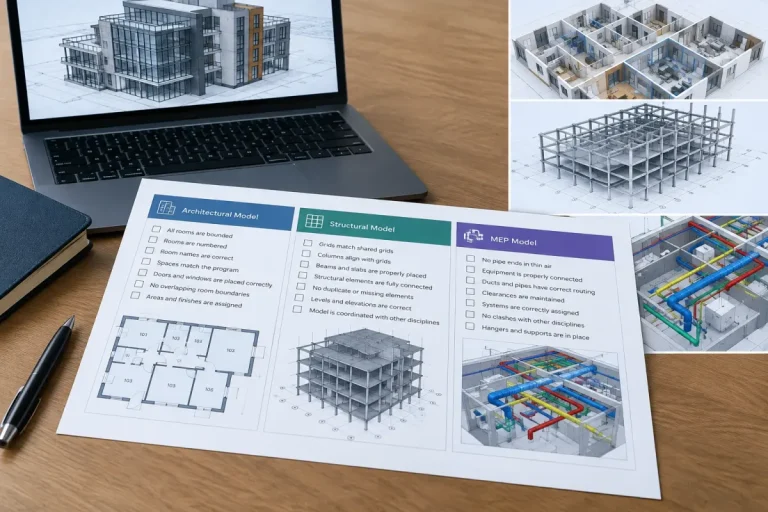

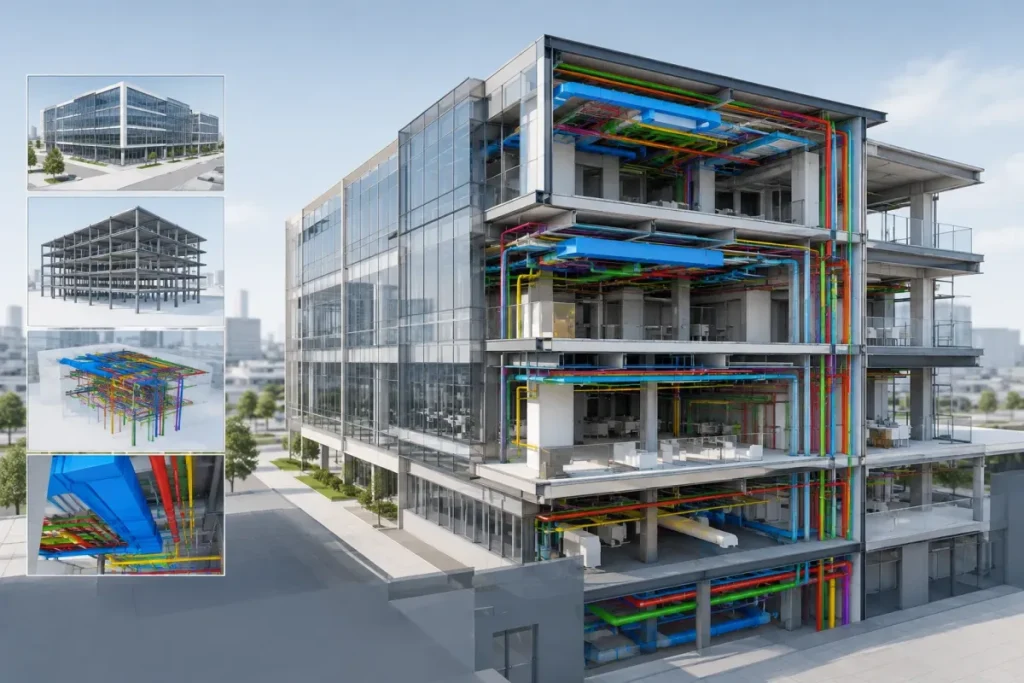

The first time I used Navisworks, I did not model anything. That was precisely the point. I opened a window, appended a handful of files from different disciplines and, within minutes, was flying through a building that no single team had built: architecture, structure, ductwork, piping, cable trays, all in the same space and the same coordinates. I could hide the architecture and see the services. I could slice the building and see what sat above the ceiling. I could select a duct and ask what it touched. It felt like a reading room for the whole project, a place where, for the first time, everyone’s work could be seen together without anyone being able to change anyone else’s.
That is the essence of Navisworks. It is not an authoring tool. It does not create walls or ducts. It is a review and coordination environment: a place to aggregate models from many sources and formats, organize them, test them against each other, simulate and visualize them and communicate what you find. For nearly two decades it has been one of the most widely used tools for model coordination and clash detection in construction. Its simplicity of concept, read-only aggregation, is also its greatest strength: it lets teams work in their native tools and still see the whole.
This guide explains Navisworks as a coordination tool for BIM professionals. It covers the product family, the file formats, the core features (aggregation, selection and search sets, viewpoints, clash detection, 4D simulation, quantification, animation), what is new in Navisworks 2027, how it fits into coordination workflows and with cloud platforms, performance practices, limitations and alternatives, governance and the mistakes to avoid. It complements Navisworks Clash Detection: Step-by-Step Guide, which goes through the clash workflow in detail, and BIM Coordination: The Complete Guide. Product features, editions and packaging change between releases; check Autodesk’s current documentation for your version. This guide gives no prices.
The Short Answer
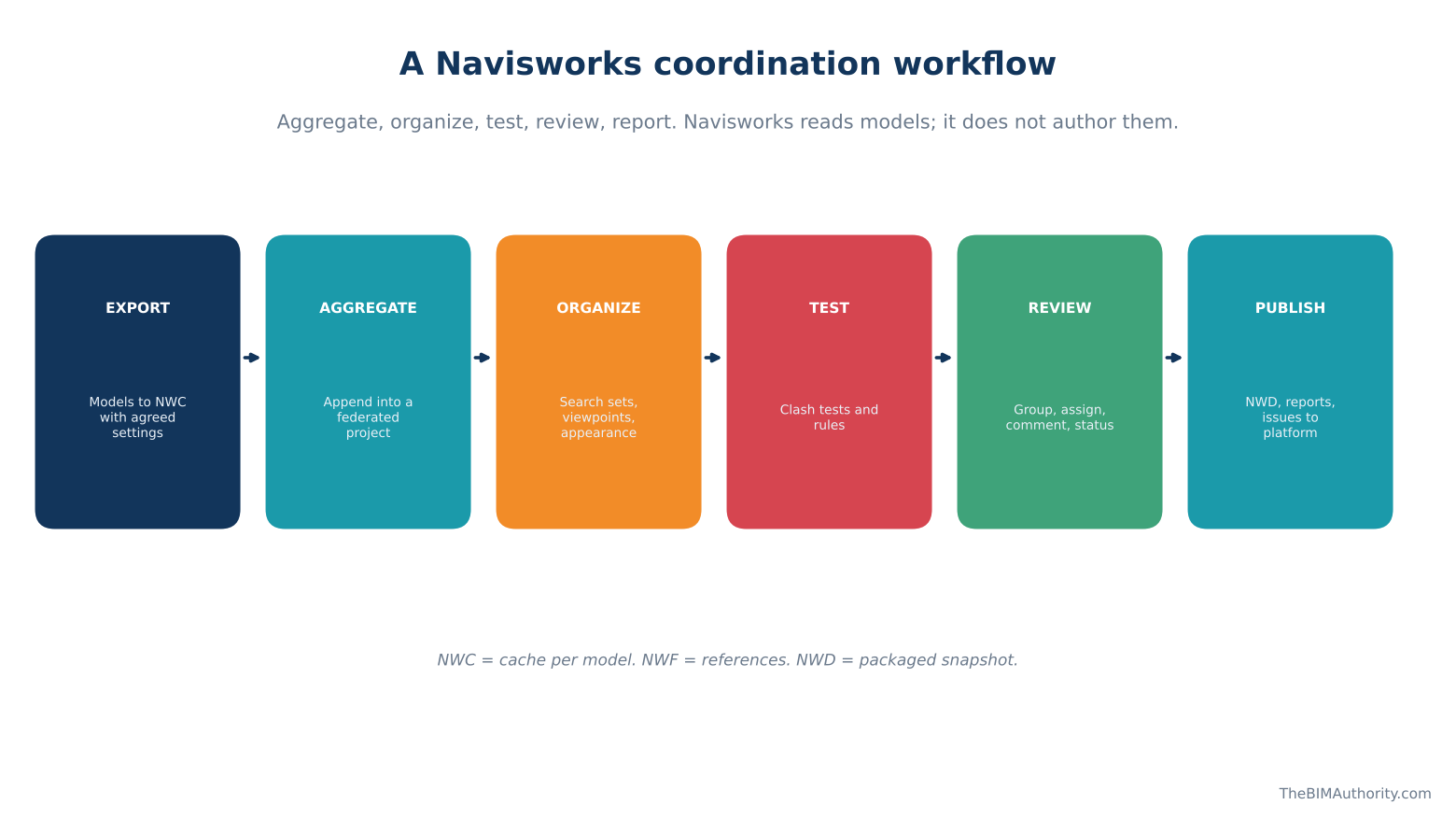
| Step | What happens |
|---|---|
| Export | Source models are exported or cached to Navisworks formats with agreed settings |
| Aggregate | Models are appended into one federated project |
| Organize | Search sets, viewpoints and appearance rules structure the model |
| Test | Clash tests and rules run on defined sets |
| Review | Results are grouped, assigned, commented and given statuses |
| Publish | Packaged files, reports and issues go to the team or platform |
In one sentence:
Navisworks lets teams see and test all disciplines together without editing anyone’s source models: it reads, organizes, tests and reports.
The Product Family
| Product | Typical role | Notes |
|---|---|---|
| Navisworks Manage | Full coordination: aggregation, review, clash detection, simulation, quantification | The clash detection tool is available in this edition |
| Navisworks Simulate | Review, simulation and quantification without clash detection | For reviewers and planners who do not run clash tests |
| Navisworks Freedom | A free viewer for packaged files | Lets stakeholders open and navigate published models |
Editions and bundles are defined by Autodesk and may change; check the current product page for what each includes. Navisworks is also available as part of Autodesk’s architecture, engineering and construction collection of products.
File Formats
| Format | Meaning | Use |
|---|---|---|
| NWC | A cache file for an individual model, created when a source file is opened or exported; contains the model’s geometry and properties in Navisworks form | Exported from authoring tools or generated on open; fast to reload; the building block of federations |
| NWF | A federated project file that stores references to the original or cached files and the Navisworks work (sets, viewpoints, tests) | The working file; lightweight; depends on the referenced files |
| NWD | A packaged, self-contained snapshot with model data and the Navisworks work | For publishing and sharing; no dependence on referenced files; can be opened in Freedom |
| NWL | A text file that lists files to load, introduced with Navisworks 2027 according to a published summary | Convenient for managing lists of files to append |
Navisworks reads many source formats: published sources state that it supports more than sixty file formats from authoring, CAD, reality capture and other tools, including IFC. Navisworks 2027 is reported to add support for CATIA V6 (3DXML) and USD files, and to introduce a new 2027 file format. Files from newer versions typically cannot be opened in older ones, so agree the version across the project.
Core Features
Aggregation and Navigation
| Feature | Description |
|---|---|
| Append and merge models | Combine models in one scene; each retains its source |
| Selection tree | A hierarchical list of files, layers, categories and elements for navigation and selection |
| Navigation tools | Orbit, walk, fly, look around, section planes and section boxes |
| Viewpoints | Saved camera positions with appearance and visibility states; the basis of reporting and communication |
| Appearance Profiler | Rules to color or make transparent elements by properties (reported to be improved in the 2027 release) |
Organizing: Sets and Search
| Feature | Description |
|---|---|
| Selection sets | Saved selections of specific elements |
| Search sets | Saved queries on element properties (for example all ducts of a given system on a given level); they re-evaluate when models are refreshed, so they stay valid as models change |
| Find Items | Query builder for properties |
| Properties | View element properties exported from source models, including custom data |
Prefer search sets for tests and views: they are dynamic. This matters when models update weekly. See BIM Clash Detection: The Complete Guide.
Clash Detection (Manage)
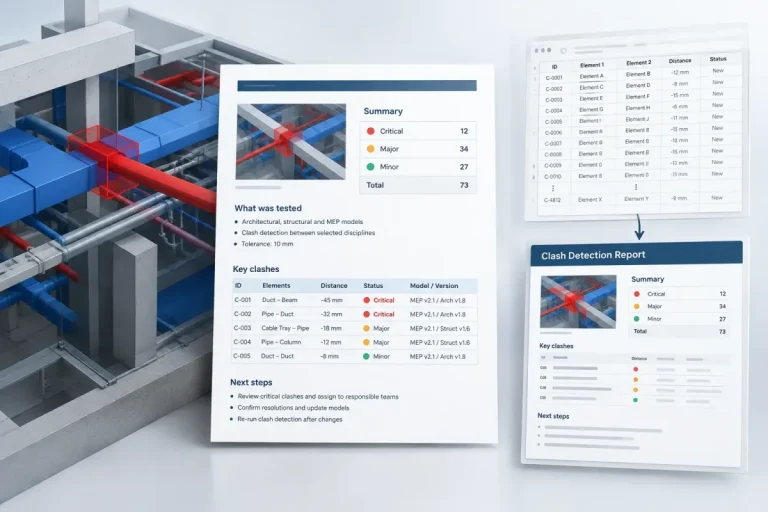
Clash Detective tests defined sets against each other with test types such as hard, hard (conservative), clearance and duplicates, with tolerances, statuses, grouping, viewpoints and reports. The detailed workflow is in Navisworks Clash Detection: Step-by-Step Guide. According to a published summary, Navisworks 2027 redesigns Clash Detective with clash test folders, a Clash Test Matrix for creating many tests at once, bulk renaming of results and a new results details panel.
4D Simulation, Quantification and Animation
| Feature | Description |
|---|---|
| TimeLiner | Link model elements to schedule tasks imported from scheduling tools or tables, and simulate construction sequences. See 4D BIM Explained: Construction Scheduling and Simulation and How to Link BIM Models with Construction Schedules |
| Quantification | Extract quantities from model elements for takeoff. See BIM Quantity Takeoff: Methods, Tools, and Best Practices |
| Animator and Scripter | Animate objects and cameras; trigger events; used for equipment and logistics simulations |
| Rendering | Visualization within the tool |
| Point cloud support | View scan data alongside models |
Review and Communication
| Feature | Description |
|---|---|
| Markups and comments | Redlines, tags and comments on viewpoints |
| Measure tools | Distances, angles, areas |
| Reports | Clash and viewpoint reports in various formats |
| Publishing | NWD packages, images and animations |
| Integration with issue platforms | Connections to issue management in cloud platforms (see below) |
What Is New in Navisworks 2027
According to published summaries, Navisworks 2027 was released in March 2026. Reported highlights:
| Area | Highlights |
|---|---|
| Clash Detective | Redesigned with clash test folders, a Clash Test Matrix for creating multiple tests at once, bulk renaming of clash results and a new results details panel |
| Appearance | Improvements to the Appearance Profiler |
| Formats | Support for CATIA V6 (3DXML) and USD files; a new 2027 file format; an NWL file type listing files to load |
| Cloud and issues | Continued integration with Autodesk’s cloud platform, now branded Autodesk Forma, including issue integration with model coordination |
Before adopting a new version for a live project, test it with your models and workflows, and make sure all coordinators use compatible versions.
Navisworks in a Coordination Workflow
Preparing Models
Good coordination starts before Navisworks. See BIM Coordination: The Complete Guide and How to Create and Manage a Federated BIM Model.
| Practice | Why |
|---|---|
| Shared coordinates and levels | Alignment |
| Clean models | Remove unused content, duplicates and tiny slivers that create noise |
| Agreed export settings | Published guidance for one common workflow lists settings such as shared coordinates, conversion of all element properties and handling linked files as separate models; follow your project’s agreed settings |
| Systems and categories assigned | For search sets |
| Level of information as agreed | Insulation, supports, clearances |
| Status and revision set | Control |
Running a Cycle
| Step | Practice |
|---|---|
| 1. Collect models | By the cut-off date, with status |
| 2. Export or cache | To NWC with agreed settings; or let Navisworks read the sources |
| 3. Append | Into the project file; check alignment against control points |
| 4. Refresh | Update changed files; sets and tests re-evaluate |
| 5. Run tests | Per the clash matrix. See How to Create a BIM Clash Detection Matrix |
| 6. Group and report | One issue per decision |
| 7. Distribute | NWD for review; issues to the tracking platform; reports for meetings |
| 8. Archive | Keep the snapshot. See BIM Coordination Meetings: Planning, Reporting, and Best Practices |
Cloud and Issue Integration
Navisworks integrates with Autodesk’s cloud platform, which was renamed Autodesk Forma on 24 March 2026. A published summary notes that, through issue integration, teams can view, create and respond to issues on models in Model Coordination from Navisworks. Autodesk also provides web-based model coordination in its cloud platform. See Autodesk Construction Cloud: BIM Collaboration and Data Management. For tool-independent issue exchange, use BCF-based tools where possible. See BIM Issue Tracking and Resolution Using BCF.
Performance Practices
| Practice | Effect |
|---|---|
| Use NWC caches | Faster loading |
| Filter non-coordination content at export | Smaller models |
| Split large projects by building, zone or discipline | Manageable tests |
| Use level-of-detail and faceting settings sensibly | Balance accuracy and size |
| Hide or exclude unneeded categories | Faster navigation |
| Use a capable workstation | Check Autodesk’s requirements |
| Keep source files on fast storage | Load times |
| Archive old snapshots | Tidy working set |
| Use search sets, not huge manual selections | Maintainable tests |
Strengths, Limits and Alternatives
| Strengths | Limits |
|---|---|
| Reads many formats; strong federation concept | Not an authoring tool; fixes happen in source models |
| Mature clash detection and 4D tools | Clash results need grouping and judgment |
| Free viewer for stakeholders | Model data can be reduced on export; check properties |
| Integration with Autodesk cloud services | Dependence on Autodesk ecosystem for some workflows |
| Widely known; skills available | Versioning and file format compatibility need management |
| Dynamic search sets | Requires consistent properties across models |
Alternatives and complements include rule-based checkers, cloud-based coordination platforms, viewers for IFC and BCF-based issue tools. See Best BIM Software: A Complete Comparison Guide and Solibri: BIM Model Checking and Validation Guide.
Governance
| Topic | Practice |
|---|---|
| Who owns the federation? | The coordinator; publication controlled |
| Version policy | Same Navisworks version for coordinators; stated in the BEP |
| Export settings | Shared, saved configurations |
| Naming and structure | Consistent file, set and test names |
| Registers | Model register with versions and dates |
| Test library | Saved clash tests and sets, versioned |
| Training | For coordinators and reviewers |
| Security | Access to NWD and cloud platform |
Common Mistakes
- Treating Navisworks as a place to fix models.
- Running tests on unaligned models.
- No export standard.
- Using fixed selections that go stale.
- Raw clash counts as a deliverable.
- No model register or version control.
- Mixing incompatible Navisworks versions.
- Federating non-coordination content.
- No clash matrix or tolerances.
- Not testing cloud integrations.
- No archive of snapshots.
- Skipping verification after fixes.
See also Common BIM Mistakes Beginners Should Avoid.
A Short Checklist
- Have we agreed the Navisworks version, export settings, coordinates and model register?
- Are models clean and aligned before appending?
- Do we use dynamic search sets and a clash matrix?
- Do we group and assign results as issues?
- Do we use viewpoints and NWD packages for communication?
- Do we integrate with our issue platform, and test BCF or cloud workflows?
- Do we manage performance (caches, filters, splits)?
- Do we archive snapshots and keep a test library?
- Do we verify after fixes?
- Do we train coordinators and reviewers?
Frequently Asked Questions
What is Navisworks used for?
Aggregating models from many sources, reviewing them, detecting clashes, simulating construction sequences and quantifying, without editing the source models.
What is the difference between Manage and Simulate?
Manage includes the clash detection tool; Simulate offers review, simulation and quantification without clash detection. Check current editions.
What are NWC, NWF and NWD files?
NWC is a cache of one model; NWF is a federated project referencing files; NWD is a packaged, self-contained snapshot.
Can I open Navisworks files for free?
A free viewer can open packaged files; check Autodesk’s current offering.
Does Navisworks support IFC?
Yes, it reads IFC among many formats. Test the properties and geometry you need.
What is new in Navisworks 2027?
Per published summaries: a redesigned Clash Detective with test folders and a Clash Test Matrix, new format support (CATIA V6 and USD), a new file format and other updates.
Can Navisworks create models?
No. It is for review and coordination; models are authored elsewhere.
How does Navisworks relate to Autodesk Forma?
It integrates with the cloud platform formerly named Autodesk Construction Cloud for model coordination and issues; check current documentation.
Final Thoughts
I still remember the first coordination meeting in which a subcontractor said, looking at the screen: “I did not know our duct went there.” He was not making an accusation or an excuse. He was seeing his own work in context for the first time, alongside everyone else’s. That is the value of aggregation, and it is why Navisworks, for all its technical features, is fundamentally a tool for shared sight. Models stay in their authors’ hands; the picture belongs to everyone.
Use it with discipline: prepare the models, agree export settings, align coordinates, use dynamic sets, test with a matrix, group results into decisions and keep the snapshots. Know what is new in your version, test before upgrading and connect it to the issue platform your team actually uses. Navisworks will then do what it does best: let a team look at the same building at the same time, and decide.
Where to go next: for the clash workflow, read Navisworks Clash Detection: Step-by-Step Guide. For the principles behind it, continue with BIM Coordination: The Complete Guide and BIM Clash Detection: The Complete Guide, and for the cloud platform, Autodesk Construction Cloud: BIM Collaboration and Data Management.