

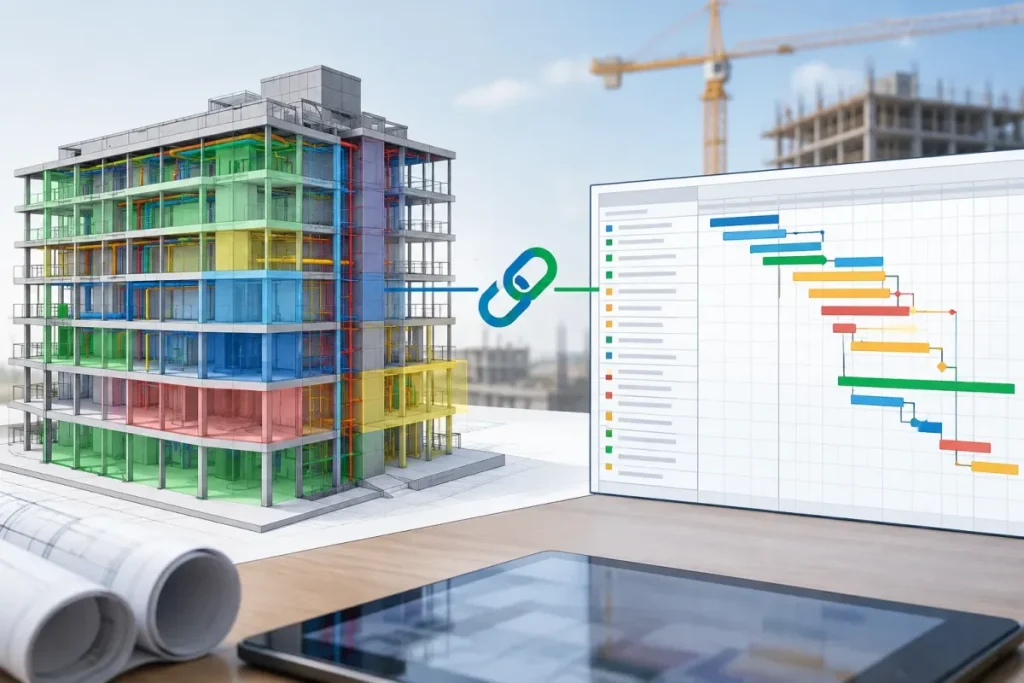

The first 4D model I ever linked took me nine working days. The second took four. The third took one and a half. The fourth took an afternoon, and the reason was not that I had become faster at clicking. It was that, by the fourth, I had learned to do the work before the linking: to agree the activity codes with the planner, to ask the modelers to put a zone parameter on every element and to cut the schedule‘s granularity to match what the model could show. On the first project, I had linked by hand, element by element, and discovered halfway through that the planner revised the programme every week. By the time I had finished the first month’s activities, the second month’s had changed.
Linking a model to a schedule is, in principle, simple: choose some elements, attach them to an activity. In practice, it is a problem of two structures that must be made to match. The model is organized by levels, types and systems. The schedule is organized by work packages, zones and trades. Unless both sides share some common thread, whether a code, a zone name or a work breakdown structure, the link must be made by a person looking at both and deciding, activity by activity, which elements belong. That is slow, error-prone and fragile.
This guide explains how to link models and schedules so that the link survives change. It covers the structures to align, the main linking methods, a step-by-step workflow, coding and naming strategies, handling updates to the schedule and to the model, quality checks for the link, scale and automation, special cases and the mistakes to avoid. It supports 4D BIM Explained: Construction Scheduling and Simulation and 5D BIM Explained: Quantity Takeoff and Cost Estimation. The commands differ by software; the logic does not.
The Short Answer
Linking works best when both model and schedule carry a shared code, and links are rules, not hand-picked selections.
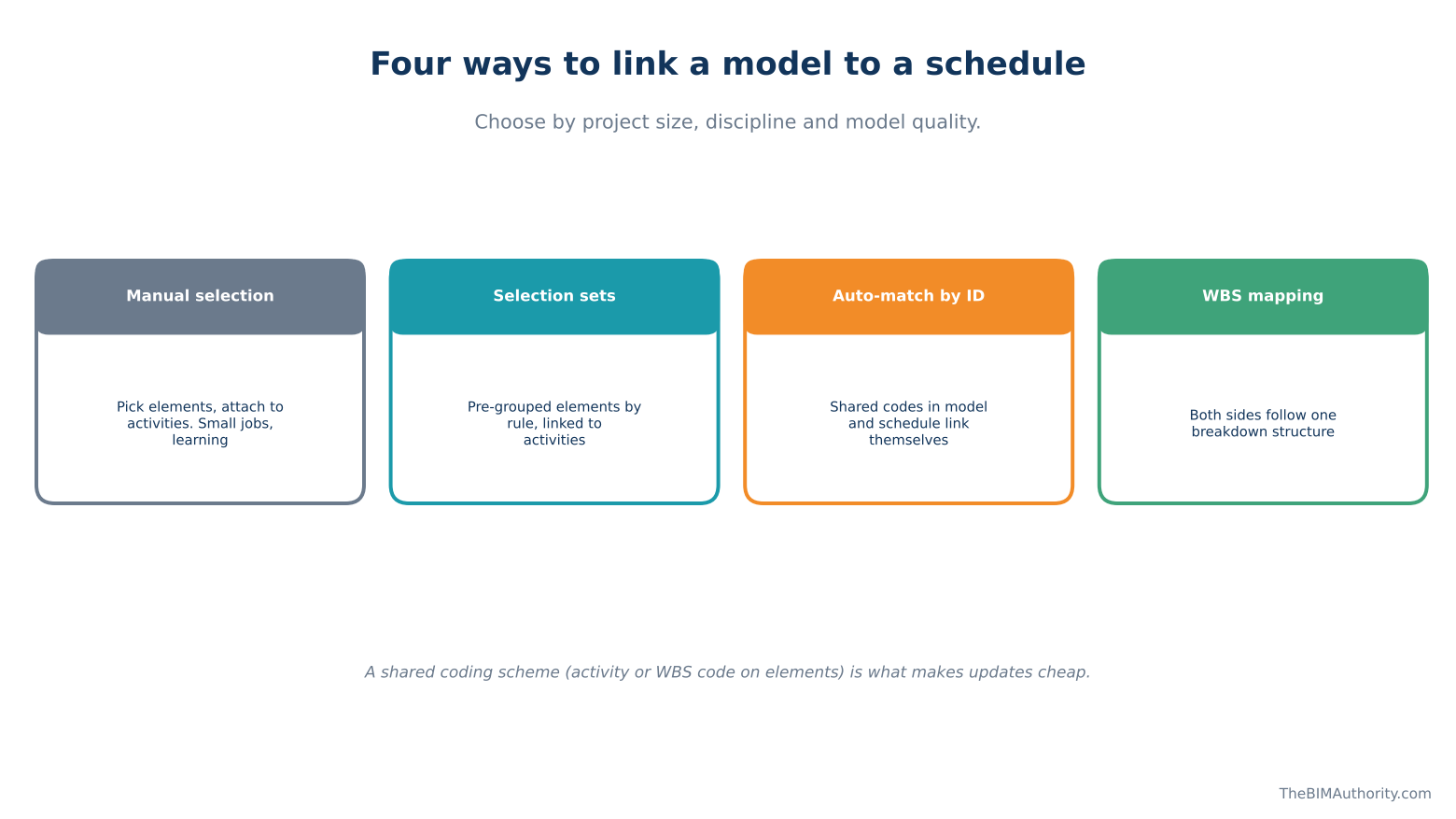
| Method | How it works | Best for |
|---|---|---|
| Manual selection | Pick elements, attach them to an activity | Small projects; learning; one-off fixes |
| Selection sets | Elements pre-grouped by rule (by level, system, type) and attached to activities | Medium projects |
| Auto-match by ID or name | The software links elements to activities that share a code or naming pattern | Large projects with disciplined coding |
| WBS mapping | Model and schedule follow one work breakdown structure | Programmes with strong structure and many trades |
In one sentence:
Agree the codes first, link by rules second, and click last.
Step 0: Understand the Two Structures
| Aspect | Model structure | Schedule structure |
|---|---|---|
| Organized by | Levels, categories, types, systems, phases | WBS, work packages, zones, trades, activities |
| Unit | Element | Activity |
| Granularity | Defined by how it was modeled | Defined by planning detail |
| Change | Design changes, model updates | Programme revisions |
| Identification | Element IDs, parameters | Activity IDs, WBS codes |
| Owner | Design team, modelers | Planner |
Linking succeeds when you find a bridge between the two. Examples of bridges:
| Bridge | How |
|---|---|
| Level and zone | Both model and schedule use the same level and zone names |
| Activity or task code on elements | A parameter on each element carries the activity code |
| WBS code on elements | A parameter carries the WBS code |
| Work package code | Elements carry the package they belong to |
| System | Elements assigned to systems; schedule activities named by system |
Step 1: Decide the Purpose and Granularity
Before touching the software, decide:
- What questions should the linked model answer? See 4D BIM Explained: Construction Scheduling and Simulation.
- At what granularity? Strategic, master programme, detailed trade or lookahead.
- Which areas need more detail? Risk or complexity.
- Which schedule? The master programme, a trade programme or lookahead; which version.
Matching granularity is critical. Published guidance warns against mismatches such as linking one model element to a hundred schedule activities, or one activity to hundreds of unrelated elements. If the schedule has an activity “Pour level 3 slab, zone B”, the model must allow selecting exactly the slab of level 3 zone B.
Record the decisions in the BEP and, if needed, a 4D linking protocol.
Step 2: Prepare the Schedule
| Task | Why |
|---|---|
| Clean the logic | Missing links, constraints and illogical ties make the simulation misleading |
| Structure by WBS | A well-structured WBS mirrors how model elements will be grouped, and speeds linking |
| Assign activity IDs and codes | Stable identifiers for linking |
| Check durations and calendars | Realistic and consistent |
| Align granularity | Activities neither too coarse nor too fine for the model |
| Add activities for temporary works and logistics | Scaffolds, cranes, formwork, hoists |
| Mark milestones and constraints | Delivery dates, approvals, inspections |
| Export in a format the 4D tool imports | Exported programme files or comma-separated tables, as supported |
Work with the planner. The schedule belongs to the planner, and any changes needed for linking are agreed, not imposed.
Step 3: Prepare the Model
| Task | Why |
|---|---|
| Check levels, phases and zones | They provide natural grouping |
| Add link parameters | Zone, work package, WBS code, activity code on elements, as the protocol states |
| Split elements where the sequence requires | Slabs by pour; walls by lift; systems by zone. See How Much Detail? in 4D BIM Explained: Construction Scheduling and Simulation |
| Model temporary works and site elements | Cranes, scaffolds, formwork, hoardings, site facilities |
| Verify identifiers | Persistent IDs that survive model updates |
| Clean the model | Remove stray elements and duplicates |
| Export for the 4D tool | Consistent export settings; properties included |
| Federate | Combine models from all disciplines in the federation. See How to Create and Manage a Federated BIM Model |
Parameters That Make Linking Easy
| Parameter | Example value | Use |
|---|---|---|
| Zone | Z-B | Group by zone |
| Level | L03 | Group by level |
| Work package | WP-CONC-SLAB | Group by package |
| Activity code | A1020.10 | Match to a schedule activity directly |
| Phase or stage | Stage 2 | Phasing |
| Task type hint | Temporary | Hint for construct/demolish/temporary |
The examples are illustrative. Use codes that fit your project’s WBS.
Step 4: Import the Schedule and Create the Link
Generic Workflow (Most Tools)
| Step | Action |
|---|---|
| 1 | Open the federated model in the 4D or timeline tool |
| 2 | Add the schedule as a data source (import from the exported programme or table) |
| 3 | Check that tasks, dates, IDs and hierarchy arrived correctly |
| 4 | Create selection sets or search sets based on parameters, for example “all elements where zone equals B and level equals L03 and category equals structural floors” |
| 5 | Attach sets to tasks, either manually or by auto-match rules (for example, match a model parameter to the schedule’s activity ID or name) |
| 6 | Assign task types: construct, demolish, temporary |
| 7 | Check the unattached tasks and unlinked elements reports |
| 8 | Simulate and review |
| 9 | Save the project; document the protocol and the source file versions |
Choosing a Linking Method
| Method | Pros | Cons |
|---|---|---|
| Manual selection | Intuitive; fine for small jobs | Slow; breaks when models change; hard to audit |
| Selection sets (fixed) | Faster; reusable | Do not update when the model changes |
| Dynamic search sets (rule-based) | Update automatically when the model changes; auditable | Requires good parameters |
| Auto-match by code or name | Fast for large projects | Requires consistent coding on both sides |
| WBS mapping | Strong, structured, scalable | Requires a shared WBS discipline |
Prefer rule-based, dynamic sets. The extra thought up front saves weekly rework.
Coding and Naming Strategies
An Illustrative Scheme
Published practice suggests that consistent naming is the key to auto-linking. Examples of schemes (illustrative; adapt):
| Where | Example | Meaning |
|---|---|---|
| Schedule activity ID | A1020.10 - Pour ground floor columns | Activity code and description |
| Model element parameter | TaskCode = A1020.10 | The same code on elements |
| Model element naming | Column_A1020.10_GF_ZoneA | Code embedded in names if parameters are not available |
Principles
- One shared code or structure. Choose it with the planner and the BIM coordinator.
- Short, stable and unique. Codes that change every week will break links.
- Assigned in the model by rule where possible. For example, automatically from zone and level, not typed by hand.
- Documented in the protocol.
- Maintained by named people.
Zones
Zones are the most useful common language. Agree zone boundaries with the planner and the design team and put them in the model (as areas, spaces, volumes or parameters). Many sequencing questions are zone questions.
Handling Updates
When the Schedule Changes
| Change | Response |
|---|---|
| Dates or durations change | Re-import or refresh the schedule; links remain because they depend on activity IDs |
| New activities added | Link them via rules or manually; check the unattached tasks report |
| Activities split or merged | Update sets and links; communicate with the planner; maintain code mapping |
| WBS restructured | Update mapping; this is the costly case: avoid restructuring without need |
| Baseline changes | Record the version; keep the earlier version for comparison |
When the Model Changes
| Change | Response |
|---|---|
| Elements modified | Dynamic sets update; check the simulation |
| Elements added | Dynamic sets include them if parameters are set; check the unlinked elements report |
| Elements deleted | Check that activities do not become empty |
| Elements renamed or re-created | Identifiers may change; links may break; avoid deleting and recreating. See BIM Model Version Comparison and Change Detection |
| Major remodel | Re-test the links with a full review |
A Routine
| Frequency | Action |
|---|---|
| Each programme revision | Refresh the schedule; run link checks |
| Each model cycle | Refresh the federation; check unlinked elements |
| Monthly or at milestones | Full review of the simulation |
| Always | Record versions and baselines |
Quality Checks for Links
| Check | What to look for |
|---|---|
| Unattached tasks | Activities not linked to any element (check whether they need to be) |
| Unlinked elements | Elements not attached to any activity (missing from the simulation) |
| Multiple links | Elements linked to several activities (unless intended) |
| Task types | Construct, demolish and temporary assigned correctly |
| Dates and logic | Elements appear in a plausible order; no impossible overlaps |
| Granularity | No gross mismatches |
| Completeness at the end | Everything that should exist at completion appears by the final date |
| Codes and sets | Rules work and are documented |
| Version records | Schedule and model versions noted |
| Spot checks | Review specific activities visually |
A final-state check is simple and powerful: at the completion date, the simulated model should match the complete model. If elements are missing or extra, the links have gaps.
Scale and Automation
| Practice | Effect |
|---|---|
| Parameter assignment by rule | Generate zone, level and package parameters from model data using scripts or built-in tools |
| Rule-based sets | Define sets by queries rather than manual selection |
| Auto-matching | Link by shared codes at scale |
| Scripts and APIs | Batch operations; checks; reports. See BIM Automation: The Complete Guide |
| Template linking projects | Reuse set definitions across similar projects |
| Linking dashboards | Show unlinked and unattached counts |
Automation requires consistent data. It amplifies good coding and bad coding alike.
Special Cases
| Case | Guidance |
|---|---|
| Temporary works | Model them and assign the temporary task type; link activities for erection and removal |
| Multiple models and trades | Use a shared code scheme across trades; each trade carries codes in its model |
| Linear and infrastructure works | Link by chainage or segment; see Infrastructure BIM: The Complete Guide |
| Demolition and renovation | Use phases and demolish task types. See BIM Modeling for Renovation and Existing Buildings |
| Prefabrication | Link design activity, fabrication, delivery and installation as separate activities. See BIM for Prefabrication and Modular Construction |
| Long-lead procurement | Add activities for orders and deliveries with dates |
| Location-based schedules | Zones map naturally to locations |
| Large models | Split by zone or level; use lightweight formats |
| Actual progress | Add actual start and finish data to compare. See BIM for Construction Progress Monitoring and Reporting |
Documenting the Link: A One-Page Protocol
| Section | Content |
|---|---|
| Purpose and granularity | Questions answered; level of detail |
| Sources and versions | Model federation and schedule file versions |
| Codes and parameters | Which parameters carry which codes |
| Sets and rules | How sets are defined |
| Task types | Conventions |
| Update procedure | Who updates, when, how |
| Checks | Unlinked and unattached reports; final-state check |
| Responsibilities | Planner, BIM coordinator, modelers |
| Outputs | Simulations, views, reports |
Common Problems and Remedies
| Problem | Cause | Remedy |
|---|---|---|
| Linking takes weeks | Manual selection; no codes | Codes; rule-based sets; auto-matching |
| Links break with updates | Fixed selections; unstable IDs | Dynamic sets; stable IDs; avoid recreating elements |
| Unlinked elements | Missing codes or sets | Reports; parameter checks; completeness check |
| Wrong simulation order | Schedule logic errors; wrong task types | Review logic; check types |
| Temporary works remain visible | Wrong task type | Assign temporary type |
| Granularity mismatch | Schedule and model detail differ | Align detail; split elements or activities |
| Planner and BIM team disagree | No shared protocol | Joint workshop; protocol |
| Outdated link | No maintenance routine | Routine; ownership; baselines |
| Import problems | Format or field mapping | Test; fix mapping; use supported formats |
Common Mistakes
- Linking by hand before agreeing codes.
- Mismatched granularity.
- Fixed selections that go stale.
- No unlinked or unattached checks.
- Deleting and recreating elements that links depend on.
- No temporary works.
- Wrong task types.
- No protocol or owner.
- No version record.
- Restructuring the WBS without notice.
- No final-state check.
- Linking once and abandoning it.
See also Common BIM Mistakes Beginners Should Avoid.
A Short Checklist
- Have we agreed purpose, granularity and a shared code with the planner?
- Is the schedule cleaned, structured and exported correctly?
- Does the model carry link parameters, with zones and elements split as needed?
- Do we use rule-based, dynamic sets and, where possible, auto-matching?
- Are task types correct, including temporary works?
- Do we run unlinked and unattached reports and a final-state check?
- Is there an update routine for schedule and model changes?
- Are versions and baselines recorded?
- Is the protocol written, with owners?
- Do we review the simulation with the planner and site?
Frequently Asked Questions
How do I link a BIM model to a construction schedule?
Import the schedule into a 4D-capable tool, group model elements into sets by rule, attach sets to activities (manually or by matching codes) and assign task types.
What is the best way to link?
Rule-based sets and auto-matching using shared codes or a shared WBS, because they survive updates.
What schedule formats can I import?
Exports from common scheduling tools and tabular files, depending on the 4D software. Test your formats.
What if the model and schedule do not match?
Align granularity: split model elements by zone or pour, or adjust the schedule’s detail, and agree codes between planner and BIM team.
How do I handle schedule revisions?
Refresh the imported schedule; if activity IDs are stable, links remain. Check unattached tasks and update sets.
How do I handle model updates?
Use dynamic sets; keep identifiers stable; check unlinked elements; avoid deleting and recreating linked elements.
Do I need to model temporary works?
For logistics and sequence studies, yes: cranes, scaffolds, formwork and hoardings that matter to the plan.
How do I check that the link is complete?
Run unlinked elements and unattached tasks reports and compare the final-state simulation with the complete model.
Final Thoughts
By my fifth 4D project, the afternoon link had become a ritual. On the Monday after the planner issued a revised programme, I refreshed the schedule, ran the two reports and looked at a one-page list: three new activities unattached, eleven elements unlinked, no task-type warnings. I fixed the three activities with sets I had prepared the week before. I told the model team about the eleven elements, which they added to the right zone. By noon the simulation was updated. “It feels like cheating,” the planner said. It was not cheating. It was the dividend of agreeing the codes.
Linking is not a clicking skill. It is a data alignment skill: finding the bridge between two structures, strengthening it with shared codes and keeping it maintained. Do that, and the link stops being a fragile object that you rebuild each month and becomes what it should be: a quiet connection between the plan and the model, always ready to answer the next question.
Where to go next: for what to do with the link, read 4D BIM Explained: Construction Scheduling and Simulation. For cost, continue with 5D BIM Explained: Quantity Takeoff and Cost Estimation, and for tracking, BIM for Construction Progress Monitoring and Reporting.