
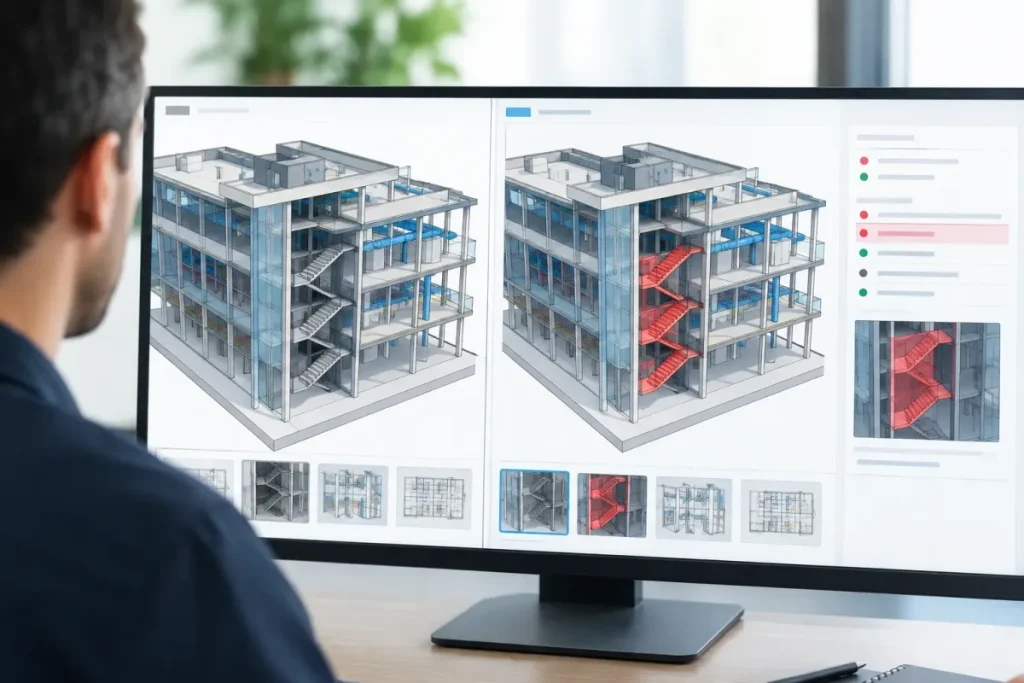

On one project, a contractor’s coordinator told me that he had a fixed Monday morning routine. At nine o’clock, the architect’s new model arrived. At ten, he began what he called “the hunt”: opening the new model next to the previous one, flicking between views, trying to spot what had changed. “Last week,” he said, “I found that a stair had moved by a hundred and fifty millimeters. I only noticed because I happened to look at it.” He did not say what he had missed. Neither of us needed to.
Models change constantly, and most changes are legitimate and unannounced. The design develops, the engineers adjust, the architect tidies a corner. Each team notifies the others of the changes it considers important. But what a team considers important and what actually matters to the next discipline are not always the same thing. A stair moves slightly, and to the architect it is a tidy-up; to the structural engineer it is a changed opening in a transfer slab; to the services engineer it is a conflict with a riser. The result is change by surprise, discovered late and expensive.
Version comparison and change detection are the methods for finding out what changed between two versions of a model, systematically instead of by sight. Done well, they turn a Monday morning hunt into a five-minute report: elements added, removed, moved, resized, re-typed or re-parameterized, with a view of each. This guide explains how it works: what can be compared, the technical basis (identifiers, geometry and data), tools and methods (including IFC-based comparison), how to set up a reliable comparison, how to read and report results, how to use change detection in coordination, change control and quality assurance, the limits of comparison and the mistakes to avoid.
The Short Answer
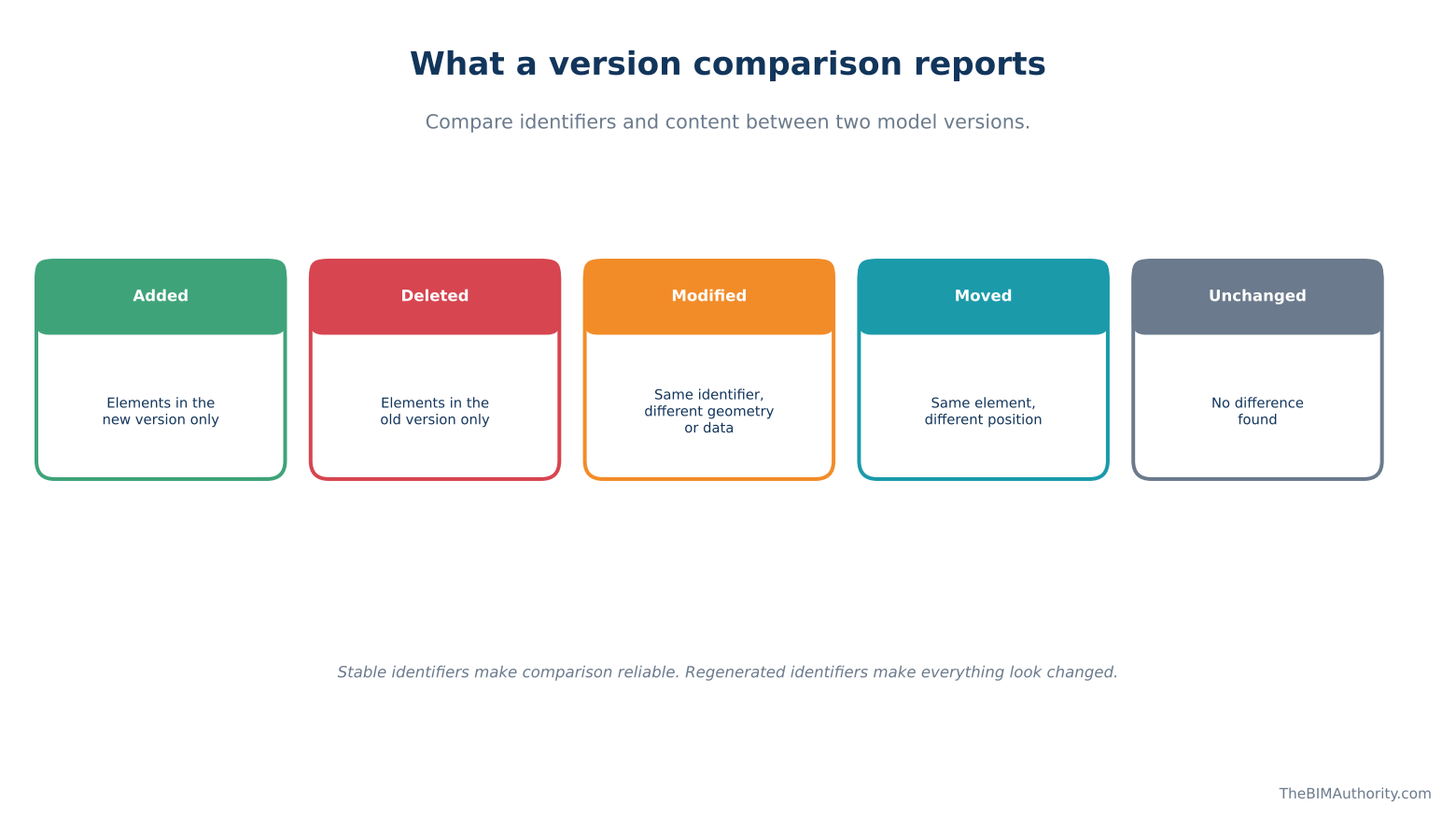
Version comparison finds differences between two versions of a model, by matching elements and comparing their geometry, properties and relationships.
| Result | Meaning |
|---|---|
| Added | Elements present only in the new version |
| Deleted | Elements present only in the old version |
| Modified | The same element with different geometry, properties or relationships |
| Moved | The same element in a different position |
| Unchanged | No difference found |
In one sentence:
Version comparison makes change visible and reportable, so that nobody has to hunt for it, and so that change control can work.
Why Compare Versions?
| Purpose | Benefit |
|---|---|
| Coordination | Know what changed since the last cycle; focus tests and reviews on changed areas |
| Change control | Verify that only approved changes were made; detect unannounced ones |
| Quality assurance | Find accidental changes: elements deleted, moved or altered by mistake |
| Impact assessment | Evaluate which disciplines are affected by a change |
| Design management | Track design development; report progress to the client |
| Cost and programme | Identify changes that affect quantities and schedules |
| Records and disputes | Evidence of what changed, when and in which version |
| Handover and as-built | Record deviations from design |
How Comparison Works: Matching and Differencing
Comparison has two steps.
Step 1: Matching Elements
The tool must decide which element in version 2 corresponds to which in version 1. Matching methods:
| Method | How it works | Reliability |
|---|---|---|
| By persistent identifier | Elements carry a stable unique identifier (for example a global unique identifier in IFC, or a persistent ID in a native model) | High, if identifiers persist across versions |
| By tool-specific ID | Internal IDs from the authoring tool | Good within one tool; can change if elements are recreated |
| By geometry and properties | Heuristics: match elements with the same type, similar position, shape | Lower; fails after movement or re-creation |
| By manual mapping | A person maps unmatched items | Slow; rare |
Stable identifiers are the foundation. If identifiers change between versions (for example because the model was re-exported in a way that regenerates them, or elements were deleted and recreated), the comparison will report everything as deleted and added, which is useless. In IFC, the global identifier of an element is meant to persist for the life of the element; exports should preserve it, and teams should avoid workflows that regenerate it. See IFC Files Explained: Structure, Classes, and Properties.
Step 2: Differencing
For matched elements, compare:
| Aspect | What is compared |
|---|---|
| Geometry | Shape, size, position, orientation, with a tolerance |
| Properties | Values of properties and quantities |
| Type and class | Element type, category or class |
| Relationships | Containment, connectivity, system membership, hosting |
| Materials and classification | Assigned materials and codes |
| Metadata | Names, tags, status |
Tolerances matter: tiny geometric differences from export precision should not be reported as changes. Choose a tolerance that matches your needs.
What You Can Compare
| Item | Comparison |
|---|---|
| Two versions of a native model | Within an authoring tool, using built-in comparison or add-ins |
| Two exports (IFC or other) | In a comparison-capable viewer or coordination tool; open formats make it tool-independent |
| Two federation snapshots | Comparing models in the federation across cycles |
| Drawings or sheets | Visual or file-based comparison of PDFs or drawings |
| Schedules and quantities | Compare tables across versions |
| Point clouds and models | Deviation analysis between scan and model. See Scan-to-BIM: Converting Point Clouds into Intelligent Models |
Comparison between IFC files is particularly useful in openBIM projects, because it does not depend on the authoring tool. Open-source tools and commercial platforms can report differences between IFC versions by matching global identifiers and comparing attributes, properties and geometry; the available features and their behavior vary, so test with your own models. See openBIM Explained: Principles, Standards, and Benefits.
Setting Up a Reliable Comparison
| Practice | Why |
|---|---|
| Preserve identifiers | Allow element matching across versions |
| Use the same export settings | Different settings produce artificial differences |
| Use consistent coordinates and units | Avoid false moves |
| Define the comparison scope | Disciplines, categories, zones, properties |
| Set tolerances | Ignore noise |
| Compare consecutive versions | Cycle to cycle, and baseline to current for the bigger picture |
| Record the versions and dates compared | Traceability |
| Check the baseline | Make sure the “old” version is the one you think it is |
| Prefer the CDE’s revision control | Revision identifiers help pick the correct pairs. See Common Data Environment (CDE): The Complete Guide |
The Identifier Problem in Practice
| Situation | Effect on comparison |
|---|---|
| Element edited normally | Identifier persists; reported as modified |
| Element deleted and recreated | New identifier; reported as one deletion and one addition |
| Model re-exported with regenerated identifiers | Everything appears changed |
| Copied and pasted elements | New identifiers; may duplicate |
| Model rebuilt from scratch | No continuity; comparison useless |
Agree a rule: do not delete and recreate elements merely to change them, and configure exports to preserve identifiers.
Reading and Reporting Changes
A Change Report
| Section | Content |
|---|---|
| Header | Project, discipline, versions compared (with dates and revisions), tool and settings |
| Summary | Counts: added, deleted, modified, moved; the most significant changes in words |
| By category or system | Where the changes are concentrated |
| By zone or level | Where the changes are located |
| Significant changes | The ten that matter most, with viewpoints and before/after images |
| Unexpected changes | Changes not matching the change log or approvals |
| Impact notes | Which disciplines or systems are likely affected |
| Next steps | Tests or checks to run, owners to notify |
Visualizing Change
| Technique | Use |
|---|---|
| Color coding | Added in one color, deleted in another, modified in a third |
| Ghosting | Show the old geometry transparent beside the new |
| Before and after views | Saved viewpoints |
| Filtering by change type | Focus on what matters |
| Lists and schedules of changes | Properties changed, with old and new values |
| Heat maps by area | Where change is concentrated |
Interpreting Change
Not all change is equal. Ask:
- Was it expected? Compare with the change log and approvals.
- Does it affect others? Structural supports, openings, clearances, services.
- Is it significant in size or consequence? Moved 5 mm versus moved 500 mm; a non-structural partition versus a load-bearing wall.
- Is it a legitimate design development or an error? Accidental changes often appear as unexplained deletions or shifts.
Using Change Detection in Coordination
| Use | How |
|---|---|
| Focus clash tests | Re-run and review tests first where elements changed |
| Notify affected disciplines | Send change reports with each model release |
| Verify resolutions | Check that agreed changes were made, and that no extra changes slipped in |
| Detect late changes after sign-off | Compare signed-off baseline with the current version; flag differences |
| Manage freezes | Changes to frozen items trigger change requests |
| Update issues | Link changes to issues; close or reopen |
| Track design development | Report progress to management |
Change detection is the safety net for freeze and change control. See BIM Coordination: The Complete Guide and BIM Issue Tracking and Resolution Using BCF.
Using Change Detection in Quality and Contracts
| Use | Explanation |
|---|---|
| Quality assurance | Detect accidental deletions or moves before they propagate |
| Change orders and claims | Evidence of the design as it was at a given date, and what changed. See BIM Contracts and Legal Considerations |
| Information management | Verify revisions against the revision register |
| Milestone snapshots | Archive and compare issued versions |
| Handover | Compare as-built with design to document deviations |
| Audit | Evidence of change control working |
Keep archived snapshots at issue points so that comparisons remain possible later.
Limits of Version Comparison
| Limit | Explanation |
|---|---|
| Depends on identifiers | Without stable identifiers, results are unreliable |
| Tolerance trade-offs | Too tight reports noise; too loose hides small but meaningful changes |
| Geometry differences from export | Different tools tessellate or exchange geometry differently |
| Not all information is compared | Relationships and some properties may be ignored by the tool |
| Semantics are not understood | The tool reports a difference, not whether it matters |
| Intent is invisible | Why a change was made needs the change log and the issue record |
| Drawings and documents | Model comparison does not cover them automatically |
| Large models | Comparison can be slow; scope it |
So change detection supports, but does not replace, communication and change control.
Common Problems and Remedies
| Problem | Cause | Remedy |
|---|---|---|
| Everything appears changed | Identifiers regenerated or export settings differ | Preserve identifiers; fix export settings; compare same-setting exports |
| Many tiny changes | Tolerance too tight; export precision | Set tolerance; stabilize export |
| Changes missed | Scope too narrow; categories excluded | Widen scope; check settings |
| Unclear which versions were compared | No record | Record versions, dates and settings |
| Reports too long | No prioritization | Summary; significance ranking |
| Changes not communicated | No process | Send reports with each release |
| Deleted and recreated elements | Workflow habit | Rule: edit, do not recreate; train |
| Changes after sign-off unnoticed | No baseline comparison | Compare against signed-off baselines |
| Comparison tool not trusted | Untested | Pilot on known changes |
Common Mistakes
- Comparing by eye.
- Not preserving identifiers.
- Different export settings between versions.
- No tolerance policy.
- No record of what was compared.
- Treating all changes as equal.
- Not sending change reports to affected parties.
- Ignoring unexpected changes.
- No baseline at sign-off.
- No archive of snapshots.
- Assuming comparison explains intent.
- Not testing the tool on known changes.
See also Common BIM Mistakes Beginners Should Avoid.
A Short Checklist
- Do models preserve persistent identifiers across versions?
- Are export settings, coordinates and units consistent?
- Have we defined scope and tolerances for comparison?
- Do we compare each cycle and against signed-off baselines?
- Do we record versions, dates and settings?
- Do reports prioritize significant and unexpected changes with views?
- Do we notify affected disciplines with each release?
- Do we link changes to change requests and issues?
- Do we archive snapshots at issue points?
- Have we tested the comparison method on known changes?
Frequently Asked Questions
What is BIM version comparison?
A method for finding differences between two versions of a model by matching elements and comparing geometry, properties and relationships.
How does the tool know which element is which?
Usually by persistent unique identifiers. If identifiers change between versions, matching fails.
Can I compare IFC files?
Yes. IFC-based comparison uses global identifiers and attribute, property and geometry comparison, and works across authoring tools. Test with your own models.
Why does everything show as changed?
Usually because identifiers were regenerated, export settings differ or the model was rebuilt.
How often should I compare versions?
At each coordination cycle and each issue, and against baselines at sign-off.
What tolerance should I use?
One that ignores export noise but catches meaningful changes. Decide with the disciplines and test.
Does comparison replace change control?
No. It supports it by detecting changes, but approvals, communication and impact assessment remain necessary.
Can I compare drawings as well?
Yes, with drawing or document comparison tools, but they are separate from model comparison.
Final Thoughts
The coordinator with the Monday hunt now has a different morning. At nine, the model arrives. At nine-oh-five, the comparison runs. At nine-fifteen, he sends a one-page summary to every discipline: “Architecture: 312 elements changed; significant: stair at core B moved 150 mm east, two partitions deleted on level 4, door types changed on level 2. Structure: affected openings in transfer slab. MEP: riser R2 now clashes with the stair.” By ten, the issues are open and assigned. “It is the same Monday,” he told me, “but it is no longer a hunt. It is a briefing.”
That is the promise of version comparison. Change is normal. Surprise is optional. Keep identifiers stable, keep export settings consistent, set sensible tolerances, compare every cycle, report significant and unexpected changes with views and feed them into change control. The team will stop hunting and start deciding.
Where to go next: for the coordination framework, read BIM Coordination: The Complete Guide. For tracking the consequences, continue with BIM Issue Tracking and Resolution Using BCF, and for the quality system around it, BIM Quality Assurance vs. Quality Control: Processes and Checklists.