



Every Revit model begins its life as a quick, responsive thing. A few walls, a few levels, a window. Opens in seconds, syncs in a blink. And then, over months, something happens. Imports accumulate. Families multiply. Warnings pile up like unread mail. Links stack on links. A sheet set doubles. One day somebody notices that the model takes four minutes to open and seven to synchronize, that the status bar freezes during every regeneration and that two of the team’s computers crash on opening a particular section. Nobody did anything dramatic. The model simply aged badly, like a house that was never maintained.
I have inherited models in this condition more times than I care to count, and I have a ritual for the first morning. I do not open the model first. I open a list. It has about a dozen lines: file size, number of warnings, unused families and types, imported CAD files, in-place families, groups, linked models and how they are attached, worksets and their visibility, view count, design options, sync time. In an hour, the list tells me what is wrong and what to do first. The answers are rarely mysterious. Model health is a matter of habits, and habits can be changed.
This guide describes those habits for Revit: what bloats models, how to monitor model health, how to manage file size, warnings, links, worksets, families and views, how to keep worksharing healthy, what to check when performance degrades, a routine of weekly and monthly maintenance and the mistakes to avoid. The principles apply to other authoring tools too; the names of commands are Revit’s. Features, commands and defaults change between versions, so check the documentation of your version and test changes on a copy first. For the coordination side, see BIM Coordination: The Complete Guide; for the quality system around it, BIM Quality Assurance vs. Quality Control: Processes and Checklists.
The Short Answer
Model health rests on a handful of indicators checked regularly and a handful of habits practiced daily.
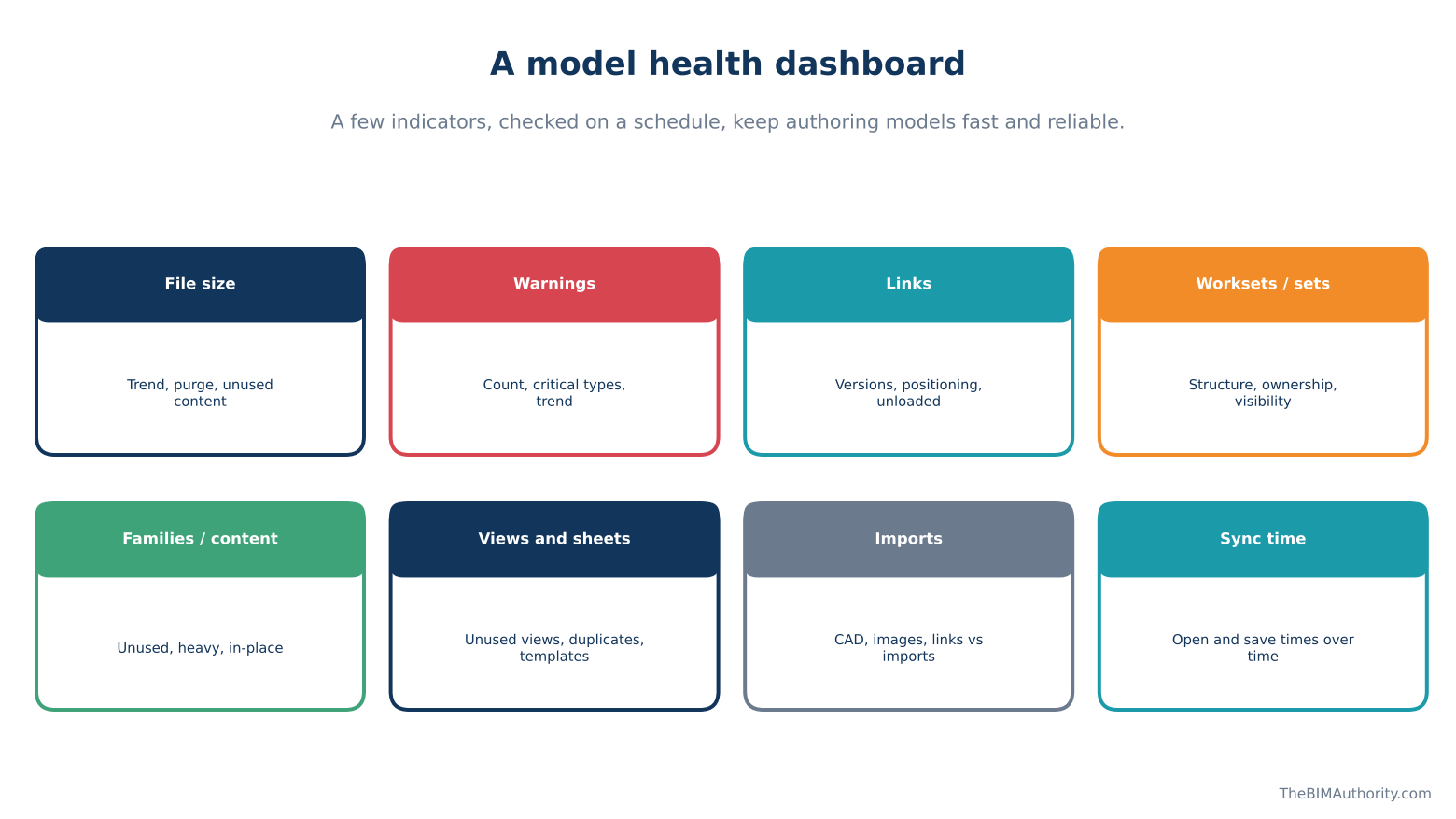
| Indicator | Why it matters |
|---|---|
| File size and its trend | Growth without added content signals bloat |
| Warnings | Count, types and trend; many warnings often mean real modeling problems |
| Links | Versions, positioning, nesting and load status |
| Worksets and organization | Ownership, visibility and performance |
| Families and content | Unused, heavy or in-place content |
| Views and sheets | Unused views, duplicates, missing templates |
| Imports | CAD and image imports that inflate the model |
| Open and sync times | The lived experience of the model |
In one sentence:
A healthy model is one whose size, warnings, links and content are known, controlled and trending the right way, checked on a schedule and not only when it hurts.
What Makes Models Heavy and Slow
| Cause | Why it hurts |
|---|---|
| Imported CAD files (instead of linked, or left unused) | Add complex geometry and styles that the model carries permanently |
| Raster images at large sizes | Add file size and memory use |
| Unused families and types | Add content that is loaded but not used |
| Heavy families | Complex geometry, imported meshes or CAD inside families; many nested families |
| In-place families | Often heavy, not reusable and slow to regenerate |
| Excessive groups and nested groups | Slow editing and regeneration |
| Large numbers of views, sheets and schedules | Each carries settings and caches; many are never used |
| Hidden elements and heavy detail levels everywhere | Display cost |
| Many design options | Multiplies geometry |
| Poorly handled links | Large or nested links slow opening and display |
| Warnings and unresolved problems | Each adds processing overhead and signals deeper issues |
| Overly detailed modeling | Fine detail in places where it is not needed |
| Large point clouds loaded in full | Heavy display and memory use |
| Large numbers of rooms, tags and annotations | Regeneration overhead |
| Poor worksharing practice | Long sync times, conflicts, corruption risk |
| Insufficient hardware or network | Slow storage and connections amplify every other cause |
Often several causes compound. The way to find out which matters most in your model is to measure.
Monitoring Model Health
What to Track
| Item | How to check |
|---|---|
| File size | File properties; record at each milestone or weekly |
| Open, sync and save times | Note times from the same machine and network; record trends |
| Warnings | The warnings review list; count and group by type |
| Unused content | The purge function’s list of unused families, types and materials (review before deleting) |
| Imports | The manage links dialog; check CAD and image imports |
| Links | The manage links dialog: names, versions, reference type, positioning, load status |
| Worksets | Workset list: number, ownership, default visibility |
| Families | Schedules of families and types; in-place families list |
| Views and sheets | Project browser; schedules of views; look for unused or duplicated views |
| Groups | Group lists and nesting |
| Design options | Which exist and why |
| Custom checks | Model checking add-ins or scripts |
Dashboards and Tools
Several tools help: the built-in review of warnings, schedules and filters, model health or model checking add-ins from software vendors and third parties, and scripts or visual programming routines. A simple spreadsheet log (date, file size, warning count, key counts, open and sync times) already makes trends visible. See BIM Automation: The Complete Guide and Solibri: BIM Model Checking and Validation Guide.
Baselines and Thresholds
Define targets with the team: for example, a warning count that triggers review, a maximum acceptable open time, no unused imports at milestones. Choose thresholds from experience on your projects and model sizes rather than from generic numbers.
Managing File Size
Housekeeping Habits
| Habit | Effect |
|---|---|
| Purge unused (after review) | Removes unused families, types, materials and styles |
| Remove unused imported CAD | Links instead of imports; delete imports no longer needed |
| Avoid raster images in the model or reduce their size | Smaller file |
| Delete unused views, sheets and legends | Reduces clutter and overhead |
| Review and simplify heavy families | Often a few families account for much of the size |
| Avoid in-place families for repeated or standard objects | Replace with proper families |
| Limit nested groups | Faster editing |
| Resolve design options that are no longer needed | Reduces geometry |
| Check linked file sizes and load only what is needed | Memory and open time |
| Use compact-on-save in worksharing as appropriate | Reduces file size on save, with possible time cost |
| Keep the central model clean | Avoid accumulating baggage |
Caution: purging can remove content that someone intends to use; review the list and make sure another copy of important content exists. Test on a copy.
Finding the Culprits
If the file is large for no clear reason:
- Save a copy and test by removing categories of content in the copy (for example, remove imports, then unused families, then views) to see the effect on size.
- Check families: open or examine the largest families; some manufacturer content is huge.
- Check images and CAD in the imports list.
- Check for unusual elements: very many tags, rooms or detail items.
- Check design options and groups.
- Compare with a previous version to see when size jumped, and what changed. See BIM Model Version Comparison and Change Detection.
Managing Warnings
Why Warnings Matter
Warnings are Revit telling you that something is ambiguous or inconsistent: walls overlapping, elements not joined, rooms not enclosed, duplicate mark values, identical instances in the same place, lines that are slightly off axis. Some are harmless. Many point to genuine problems that distort quantities, clash results and exports. A large number of warnings also adds overhead to the model.
Typical Warnings and What to Do
| Warning type | Usual meaning | Typical action |
|---|---|---|
| Elements overlap or are duplicated (identical instances) | Two elements in the same place | Delete the duplicate; correct modeling process |
| Walls or elements joined but do not intersect; joined elements overlap | Geometry join problems | Review joins; correct positions |
| Room not in a properly enclosed region; room separation line issues | Room boundary problems | Fix boundaries; use separation lines |
| Duplicate marks or numbers | Identification conflicts | Regenerate identifiers using the rule |
| Lines slightly off axis or very short lines | Sloppy sketches | Clean up; align |
| Elements have slightly inaccurate positions | Geometry precision problems | Move closer to origin; review positioning |
| Highlighted elements are not in a closed loop or too small | Sketch errors | Fix sketches |
| Missing reference | Broken relationships | Repair or replace |
Approach
- Review warnings by type, not one by one.
- Fix the most numerous and most meaningful types first.
- Find the cause: a template issue, a family issue or a habit.
- Fix as you go: each author clears warnings on their own work during the sharing routine.
- Set a team target and track the trend, rather than aiming for zero at all costs.
- Do not suppress or ignore warnings that duplicate geometry or create slivers: they affect clash tests, quantities and exports.
Published guidance on preparing models for coordination in a common workflow also stresses cleaning the model, purging unused content, removing unused CAD and resolving warnings that duplicate geometry or create tiny slivers.
Managing Links
Linked Models
| Practice | Why |
|---|---|
| Position by shared coordinates | Alignment between models. See BIM Georeferencing: Coordinate Systems and Model Positioning |
| Choose the reference type deliberately | Models linked as attachments carry nested links with them; overlays do not. Choose according to the project’s linking strategy |
| Avoid unnecessary nesting | Nested links slow opening and complicate positioning |
| Pin links | Prevent accidental movement |
| Control versions | Use the agreed revision; do not link random copies |
| Manage load status | Unload links not needed for the task |
| Use consistent paths | Shared locations or cloud paths; avoid links that break when files move |
| Manage visibility | Control linked model display per view with templates; hide categories not needed |
| Document the linking strategy | In the BEP, so that everyone links the same way |
CAD and Image Links
| Practice | Why |
|---|---|
| Link CAD rather than import when it must be kept | Keeps the main model lighter and updateable |
| Remove CAD links that are no longer needed | Reduce overhead |
| Convert CAD content to model elements where it will be maintained | Avoid dead geometry |
| Control layers and visibility in views | Display performance |
| Limit image sizes | File size |
Point Clouds
Link them as indexed point cloud files, restrict display with section boxes and scope boxes, keep them out of unnecessary views and consider segmented clouds. See Scan-to-BIM: Converting Point Clouds into Intelligent Models.
Worksets and Worksharing
Workset Discipline
| Practice | Effect |
|---|---|
| A small, meaningful set of worksets | Easier management; too many cause confusion |
| Logical structure | By discipline, system, level or zone; consistent with the BEP |
| Separate links onto their own worksets | Control load and visibility |
| Default visibility rules | Hide what is not needed by default in views |
| Ownership discipline | Borrow and relinquish; avoid long-held ownership |
| Standard workset for shared levels and grids | Controlled changes |
| Clean up empty and unused worksets | Tidiness |
Central Model Health
| Habit | Why |
|---|---|
| Everyone works in a local copy | Protects the central model |
| Synchronize regularly, with short intervals | Smaller changes, fewer conflicts |
| Relinquish elements and worksets when done | Avoid locks |
| Use proper network or cloud connections | Slow connections cause sync problems |
| Run audit on opening occasionally | Detect corruption; allow time and test on a copy |
| Keep backups | Recover from problems |
| Recreate the central model periodically if advised | To reset accumulated baggage, with a documented procedure |
| Test upgrades | Upgrade models with a plan and verification |
| Cloud worksharing | Follow the platform’s recommendations. The cloud services and brand names of the vendor have changed over time, so check current documentation |
Sync Time Diagnosis
If synchronization is slow, consider: model size, number of changes since the last sync, links being reloaded, network speed, many users syncing together, cloud or server load and warnings. Measure before changing anything.
Families and Content
| Practice | Why |
|---|---|
| Use a controlled library | Prevents bad content entering |
| Check manufacturer families for size, geometry, parameters and nested content | Many are heavy |
| Prefer simple geometry with detail levels | Display performance. See BIM Families and Parametric Components: Best Practices |
| Avoid imported CAD inside families | Heavy and uncontrollable |
| Avoid unnecessary nesting | Complexity |
| Replace in-place families with proper families where reuse is likely | Performance and consistency |
| Purge unused families and types | After review |
| Keep types to the approved list | Prevent proliferation |
| Test performance by placing many copies in a test file | Find heavy content |
| Keep the library under version control | Traceability |
Views, Sheets and Display Performance
| Practice | Why |
|---|---|
| Use view templates | Consistency and fewer individual overrides |
| Use filters carefully | Many filters slow display |
| Control view range, detail level and crop regions | Reduce what is displayed |
| Hide categories and worksets not needed | Faster regeneration |
| Delete unused views, legends and schedules | Overhead and clutter |
| Use dependent views sparingly | Many dependent views add overhead |
| Limit 3D views and section boxes | Reduce heavy views |
| Avoid large shaded or realistic views in working views | Display cost |
| Name views consistently | Find and manage them |
| Use a separate model or copy for visualization | Keep the production model lean |
Remember hidden elements still exist: hiding is not removing. Heavy invisible content still costs.
Hardware, Network and Environment
| Factor | Notes |
|---|---|
| Memory and processor | Large models need adequate resources. Check the vendor’s guidance for your version |
| Graphics | Display performance depends on a capable graphics card and drivers |
| Storage | Fast local storage helps opening and saving |
| Network or cloud connection | Slow connections hurt worksharing |
| Software version and updates | Maintain a supported, tested version across the team |
| Add-ins | Some slow startup or regeneration; review and remove unnecessary ones |
| Antivirus and background tools | May slow file operations; coordinate with IT |
Hardware cannot fix a bloated model, but a bloated model on weak hardware is miserable. See BIM Implementation Costs: Software, Training, and Hardware Budget.
A Maintenance Routine
Daily (Each Author)
- Synchronize at sensible intervals; relinquish at the end of the session.
- Review warnings on work in progress.
- Avoid imports; link instead.
- Use approved content only.
Weekly (Team Lead or BIM Coordinator)
- Check the central model: size, sync time, warnings, worksets.
- Check links: versions and positions.
- Run the sharing checks before the cycle’s release.
Monthly or at Milestones (BIM Manager)
- Run the health checklist (the indicators above) and record results.
- Purge unused content after review.
- Review heavy families and content.
- Clean views and sheets.
- Audit and, if needed, repair or recreate the central model following a tested procedure.
- Report the trend to the project team.
- Update templates and standards from findings.
Troubleshooting: When Performance Drops
| Symptom | Check |
|---|---|
| Slow opening | File size; links loaded; point clouds; nested links; network; audit on open settings |
| Slow saving or syncing | Number of changes; compact on save; central model health; network; users syncing at once |
| Slow view regeneration | View complexity; detail level; filters; hidden content; heavy families; linked models in view |
| Crashes | Corrupt elements (audit); memory; add-ins; problematic families; graphics drivers |
| Lag when editing | Groups; many tags; constraints; heavy families |
| Different people see different performance | Hardware; network; local settings; versions |
| Sudden degradation | What changed? Compare versions; new links, imports or families; upgrade |
Change one thing at a time and measure.
Common Mistakes
- Never checking model health until it hurts.
- Importing CAD and leaving it.
- Not purging unused content, or purging without review.
- Heavy manufacturer families loaded unmodified.
- In-place families for repeated objects.
- Ignoring warnings.
- Nested or badly positioned links.
- Too many or too few worksets, and poor ownership habits.
- Rarely synchronizing, then syncing huge changes.
- Everything in one huge file.
- No log or trend of key indicators.
- Assuming hardware is the only fix.
See also Common BIM Mistakes Beginners Should Avoid.
A Short Checklist
- Do we track file size, open and sync times, warnings, links, worksets, content and views?
- Do we purge and clean regularly, after review?
- Do we link rather than import CAD and control images and point clouds?
- Are warnings reviewed by type, with causes fixed?
- Are links positioned by shared coordinates, pinned, version-controlled and not needlessly nested?
- Is the workset structure simple, with clear ownership and visibility?
- Do authors work locally, sync often and relinquish?
- Is content controlled and tested for weight?
- Are views and templates managed for display performance?
- Do we run a maintenance routine and record the trend?
Frequently Asked Questions
Why is my Revit model so large?
Common causes are imported CAD and images, heavy or unused families, in-place families, many views and groups, design options, links and accumulated content. Measure to find your main causes.
How do I reduce Revit file size?
Review and purge unused content, remove unused imports, simplify heavy families, delete unused views and resolve unneeded design options, working on a copy first.
Should I fix all warnings?
Fix the meaningful ones, especially those that duplicate geometry or create slivers, and address root causes. Track the trend rather than aiming at zero at any cost.
Should I link or import CAD files?
Link when the CAD must be kept and updated; import only for content you will convert or discard, and remove imports when done.
How do I speed up synchronization?
Synchronize more often, relinquish elements, keep the central model clean, check the network or cloud connection and review model size, links and warnings.
What is audit on opening?
An option to check a model for corruption when opening; it can take time and should be used with care, ideally on a copy first.
How often should I check model health?
Weekly quick checks, monthly or milestone full checks and immediately when performance changes.
Does better hardware solve performance problems?
It helps, but cannot compensate for a bloated model. Fix the model first, then hardware.
Final Thoughts
On the inherited model with the four-minute opening time, the first week’s work was undramatic. We removed eleven unused CAD imports. We replaced three in-place families with standard ones. We found one manufacturer’s furniture family that was thirty-four megabytes. We reduced the warning types from nine to three. We reorganized the worksets and pinned the links. Opening time dropped from four minutes to under one. Nobody was more surprised than the team, who had assumed the model was “just big”. It was not big. It was unwell, and it had been telling them so for months.
Model health is a habit, not a rescue. Measure the indicators, keep a log, clean as you go, control what enters the model, link instead of import, tame the warnings, structure the worksets and maintain on a schedule. The model that opens in seconds, syncs in a blink and carries no baggage is within reach of any team that decides to look after it.
Where to go next: for fixing what the checks find, read How to Identify and Fix BIM Model Errors. For the coordination use of healthy models, continue with How to Create and Manage a Federated BIM Model, and for the wider quality system, BIM Quality Assurance vs. Quality Control: Processes and Checklists.