

The most expensive computer in an architecture office is not the one with the highest price tag. It is the one that makes a skilled person wait. I once watched a senior modeler open a heavy Revit model on a machine that took four minutes to load it. She did what everyone does: she stood up, got a coffee and came back. Multiply that by a few opens a day, a dozen modelers and two hundred and twenty working days, and the arithmetic of waiting becomes a budget line. A workstation that saves a quarter of an hour a day for ten people saves 15 ÷ 60 × 10 × 220 = 550 hours a year. (The figures are illustrative; measure your own.) Compared with the salaries involved, even a costly machine is cheap. Compared with a machine that is slightly too small, it is almost always cheaper to buy the right one the first time.
And yet hardware advice for BIM is full of folklore. “You need the most powerful graphics card.” (Usually not.) “More cores are always better.” (Not for most modeling.) “A gaming laptop is the same as a workstation.” (Sometimes, sometimes not.) The truth is that BIM software has specific hardware profiles: some tasks lean on a single fast processor core, some on memory, some on graphics and some on storage and network. Knowing which is which turns a guess into a decision.
This guide explains how to choose hardware for BIM. It covers how BIM software uses a computer, the vendor requirements (with Revit 2027 as the worked example, from public summaries of Autodesk’s published requirements), component-by-component guidance, laptops versus desktops, Windows and Mac considerations, special workloads (point clouds, rendering, large federations), cloud and virtual workstations, network and storage, how to test and specify, lifecycle and maintenance, and the mistakes to avoid. It supports BIM Implementation Costs: Software, Training, and Hardware Budget. Hardware and requirements change quickly. Always check each software vendor’s current published requirements and test with your own models. This guide gives no prices and no brand rankings.
The Short Answer
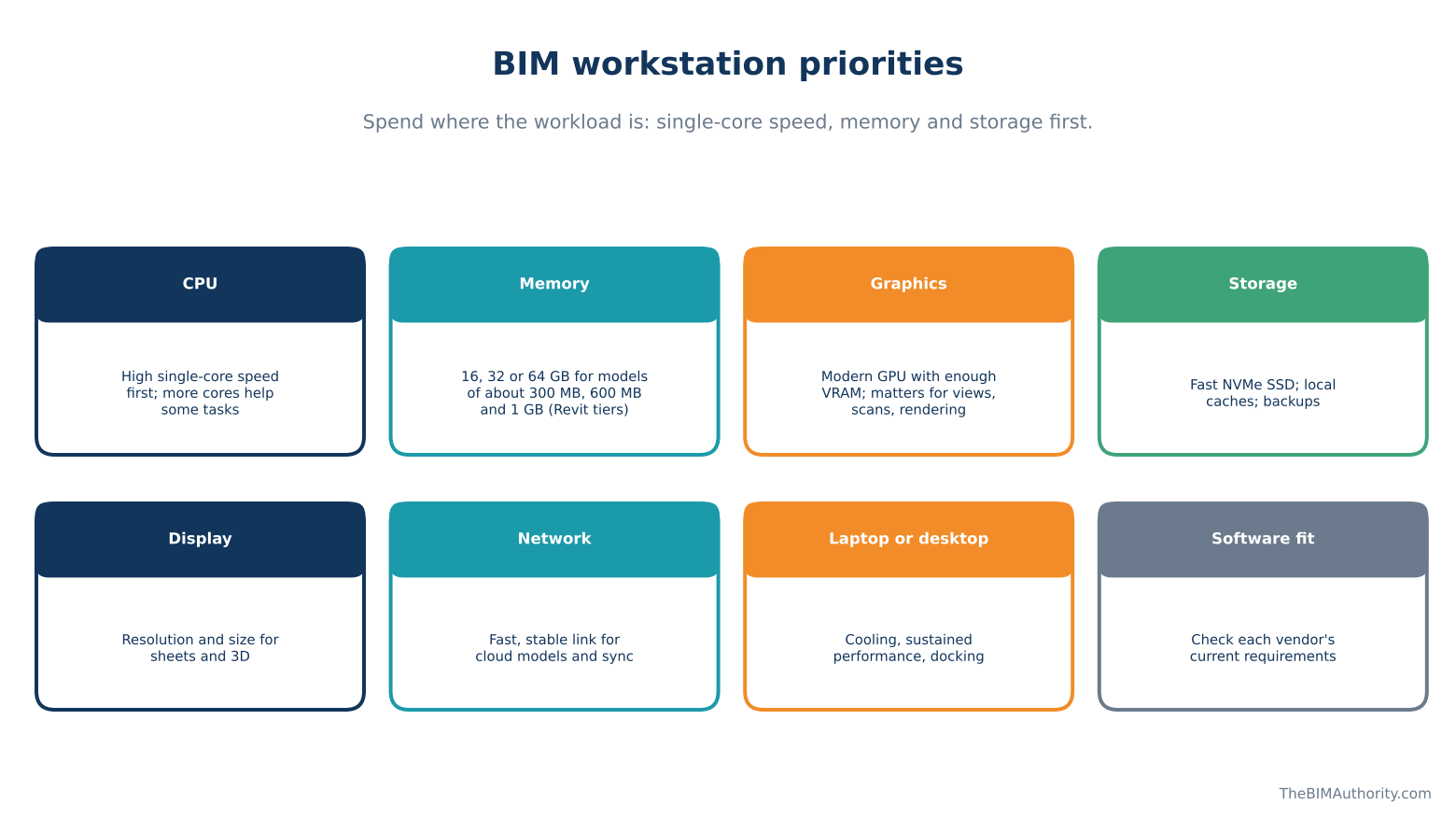
| Component | Priority for most BIM work |
|---|---|
| CPU | High single-core speed first; more cores help some tasks |
| Memory | Enough for your largest models: 16, 32 or 64 GB in Autodesk’s published tiers for models of about 300 MB, 600 MB and 1 GB |
| Graphics | A modern GPU with enough VRAM; matters for views, scans and rendering |
| Storage | Fast NVMe SSD; local caches; backups |
| Display | Resolution and size for sheets and 3D |
| Network | Fast, stable link for cloud models and synchronization |
| Form factor | Desktop or laptop, chosen for cooling, sustained performance and mobility |
| Software fit | Check each vendor’s current requirements |
In one sentence:
Buy for the workload: fast single-core processing and enough memory for your biggest models first, then graphics and storage, and test with your own files.
How BIM Software Uses a Computer
| Task | What it leans on |
|---|---|
| Modeling and editing | CPU single-core speed and memory; many operations are not fully parallel |
| Regenerating views, schedules and documentation | CPU and memory |
| Opening, saving and synchronizing models | Storage speed, network and CPU |
| Navigating 3D views | GPU, CPU and memory; improved by graphics acceleration where supported |
| Rendering and real-time visualization | GPU (and VRAM); some renderers use CPU cores heavily |
| Point clouds and reality capture | Memory, GPU and storage |
| Federated coordination and clash tests | Memory and CPU; sometimes many cores |
| Analysis and simulation | Depends: many analyses use several cores; some use GPU |
| Cloud-based collaboration | Network quality |
A computer that excels at rendering may be mediocre at modeling, and vice versa. Match components to your dominant tasks.
Vendor Requirements: Revit 2027 as an Example
Software vendors publish minimum and recommended requirements. A published summary of Autodesk’s Revit 2027 requirements (current as of the 2027.2 update in July 2026) reports:
| Item | Reported requirement or recommendation |
|---|---|
| Operating system | 64-bit Windows 11 only; Windows 10 is no longer listed for Revit 2027 (earlier versions accepted Windows 10) |
| Mac | There is no Mac version of Revit |
| CPU | A processor with a base clock speed of at least 2 GHz; the highest single-core base clock speed is recommended; Autodesk notes that more cores can give a gain in some tasks, reported as up to about 20% |
| Memory | Tiers by model size: about 16 GB, 32 GB and 64 GB for models of roughly 300 MB, 600 MB and 1 GB |
| Graphics | A DirectX 11 graphics card with Shader Model 5; recommended VRAM rises across tiers from about 4 GB (entry) to 6 GB (value) to 8 GB (performance) |
| Accelerated Graphics | Not recommended with the entry-level configuration |
| Internet | A fast connection for licensing and cloud components; a symmetrical 25 Mbps connection per machine is mentioned for burst transfers |
Other tools differ. For example, a published comparison reports that AutoCAD 2027 also lists Windows 11 as its only operating system and doubled its minimum memory to 16 GB. Always read the current requirements page of every tool you use. Tools such as Archicad and Vectorworks run on both Windows and macOS (check current versions), which matters if your office uses Macs. See Graphisoft Archicad: The Complete BIM Guide and Vectorworks Architect: BIM Modeling and Documentation Guide.
Minimum is not recommended. Minimum means it starts; recommended means it works at professional scale; your models decide which tier you need.
Component Guide
CPU
| Principle | Guidance |
|---|---|
| Single-core speed matters most for modeling | Choose processors with high sustained single-core performance; BIM authoring tools often rely on a few threads |
| More cores help specific tasks | Rendering, some analysis, point cloud processing and federated clash tests |
| Balance | A mid-core-count processor with high clocks often serves modeling better than a very high-core-count, lower-clock one |
| Thermal behavior | Sustained performance depends on cooling; check how the machine behaves under long loads |
Memory (RAM)
| Principle | Guidance |
|---|---|
| Size to your largest models | Use the vendor’s tiers as a starting point and add headroom for linked models, other applications and browsers |
| Typical professional baseline | Many offices standardize on 32 GB for general modeling and 64 GB or more for large models, federations and visualization |
| Speed and configuration | Use dual-channel or multi-channel configurations; fill slots sensibly |
| Upgradability | Check whether memory is soldered (common in thin laptops) |
Graphics (GPU)
| Principle | Guidance |
|---|---|
| Not the first priority for modeling | General BIM modeling is not as GPU-intensive as rendering |
| Needed for | Large 3D views, graphics acceleration features, point clouds, real-time rendering and VR |
| VRAM matters | Larger scenes need more video memory; follow vendor tiers (for example 4, 6, 8 GB or more for Revit tiers) |
| Professional versus consumer cards | Professional cards offer certified drivers and stability; consumer cards offer strong performance for less; some vendors certify specific cards. Check vendor certification lists and your IT policy |
| Drivers | Keep drivers on versions tested with your software |
Storage
| Principle | Guidance |
|---|---|
| NVMe solid-state storage | Faster opening, saving and caching |
| Capacity | Models, caches, point clouds and renderings consume space; plan for growth |
| Local caches for cloud models | Fast local storage improves synchronization performance |
| Backups | Automated backups to secure storage; do not rely on a single drive |
| Separate drives | Some offices use a separate fast drive for project work |
Display
| Principle | Guidance |
|---|---|
| Size and resolution | Larger or dual displays help sheets, 3D and tools side by side |
| Color accuracy | Important for visualization and presentation work |
| Scaling | Check that software handles high-resolution scaling well |
| Ergonomics | Position, glare and posture matter for long sessions |
Network
| Principle | Guidance |
|---|---|
| Cloud models and CDEs | Need fast, stable upload and download |
| Office networks | Wired connections for heavy synchronization; adequate bandwidth and low latency to servers |
| Remote work | Reliable home connections; consider VPN performance |
| Large file transfers | Plan for point clouds and model publication |
Desktop, Laptop or Mobile Workstation?
| Option | Strengths | Cautions |
|---|---|---|
| Desktop workstation | Best sustained performance, cooling, upgradability, value per performance | Not portable |
| Mobile workstation (laptop) | Portability; modern machines are capable | Heat and power limits can throttle performance under long loads; check thermal behavior and power adapters; soldered memory; shorter lifespan under heavy use |
| Thin-and-light laptop | Excellent for viewing, light editing and meetings | Usually insufficient for large models |
| Small form factor PC | Compact desktops | Cooling and expansion limits |
| Docking and peripherals | A laptop with a docking station, external displays and keyboard can combine mobility with desk comfort | Cost and setup |
A common pattern: powerful desktops for heavy modelers, capable mobile workstations for people who travel, light laptops for reviewers and managers.
Windows and Mac
| Topic | Notes |
|---|---|
| Windows | Required for Revit and many BIM tools; Revit 2027 requires Windows 11 |
| macOS | Supported by several design-oriented BIM tools; check current requirements for each product, versions and processor architectures |
| Mixed offices | Plan file exchange, standards and support for both platforms |
| Virtualization | Running Windows-only software on other systems has performance and support implications; check vendor positions before committing |
Choose the platform your software and partners require. See Best BIM Software: A Complete Comparison Guide.
Special Workloads
| Workload | Hardware emphasis |
|---|---|
| Point clouds and scan-to-BIM | Large memory, strong GPU, fast storage; processing may need many cores. See Scan-to-BIM: Converting Point Clouds into Intelligent Models |
| Real-time rendering and VR | Strong GPU with ample VRAM; check headset requirements |
| Large federated models and clash detection | Large memory; fast CPU; good storage. See Autodesk Navisworks: The Complete BIM Coordination Guide |
| Computational design and analysis | Many cores and memory for simulations; check tool-specific needs |
| Infrastructure and GIS | Large datasets; memory and storage. See Infrastructure BIM: The Complete Guide |
| Tablet and site use | Rugged devices; battery life; offline performance. See BIM for Building Operations and Maintenance |
| Multi-monitor coordination rooms | Strong GPU outputs and large screens |
Cloud and Virtual Workstations
| Option | Description | Considerations |
|---|---|---|
| Virtual desktops and remote workstations | Powerful machines in a data center or cloud, accessed remotely | Good for flexible capacity and remote work; depends on network latency and bandwidth; ongoing costs; check software licensing terms |
| Cloud collaboration platforms | Models hosted in the cloud, reducing file transfers | Still need capable local machines for authoring |
| Cloud rendering and analysis | Offload heavy tasks to the cloud | Costs and data governance |
Cloud options suit peak loads, distributed teams and security-sensitive environments, but they are not magic: test responsiveness with real work.
How to Choose and Specify
| Step | Practice |
|---|---|
| 1. Profile your work | Which software, which model sizes, which tasks dominate? |
| 2. Check vendor requirements | Minimum and recommended for each tool and version |
| 3. Define 2 or 3 standard builds | For example standard modeler, heavy modeler, light reviewer |
| 4. Benchmark with your own models | Open, regenerate, synchronize, export, navigate; time them |
| 5. Compare options by time saved | Use your own numbers, as in the example at the start |
| 6. Consider the whole system | Display, peripherals, network, backup, warranty |
| 7. Check IT policy and support | Management, security, warranties |
| 8. Plan the lifecycle | Typical replacement cycles; hand-me-down tiers |
| 9. Pilot | One or two machines before a fleet order |
| 10. Review annually | Requirements and models grow |
Illustrative Build Tiers (Not Prescriptions)
| Tier | Typical profile | Example specification direction (check current requirements) |
|---|---|---|
| Light reviewer | Viewing, small models, documents | Modern laptop, 16 GB memory, integrated or modest graphics |
| Standard modeler | Typical BIM authoring on medium models | High single-core CPU, 32 GB memory, mid-range professional GPU, NVMe storage |
| Heavy modeler or coordinator | Large models, federations, scans, rendering | High-end CPU with strong single-core speed, 64 GB or more, high-VRAM GPU, large fast storage |
Retail guidance for Revit workstations has listed, for example, high-end and entry-level examples around current-generation processors, 64 GB and 32 GB memory and professional graphics cards. Such examples are snapshots; verify against current requirements and test.
Lifecycle, Maintenance and Operations
| Practice | Why |
|---|---|
| Standard images and driver policy | Consistent, tested environments |
| Controlled updates | Delay OS and driver updates until software is tested |
| Monitor performance | Identify machines that struggle |
| Backups and security | Automated backups; disk encryption; antivirus and updates per IT policy |
| Cooling and cleaning | Dust and heat reduce performance and life |
| Warranty and spares | Reduce downtime |
| Replacement plan | Rotate machines; reuse older ones for lighter tasks |
| Sustainability | Responsible disposal and reuse |
| Ergonomics | Chairs, displays and input devices; long-term health |
Common Mistakes
- Buying by graphics card instead of by workload.
- Too little memory for the biggest models.
- Ignoring single-core CPU speed.
- Using thin laptops for heavy modeling.
- No benchmark with real models.
- Ignoring storage speed and backups.
- Ignoring network quality for cloud work.
- Upgrading the operating system before the software supports it.
- Ignoring vendor requirements and certified configurations.
- One build for everyone.
- No lifecycle or support plan.
- Saving on hardware while paying skilled people to wait.
See also Common BIM Mistakes Beginners Should Avoid.
A Short Checklist
- Have we profiled our software, model sizes and dominant tasks?
- Have we checked current vendor requirements for every tool and version, including operating system?
- Do we prioritize single-core CPU speed and enough memory for modeling?
- Is the GPU and VRAM matched to views, scans and rendering needs?
- Do we use fast NVMe storage and reliable backups?
- Is the network adequate for cloud models?
- Have we chosen desktop, laptop or virtual by need, and checked cooling?
- Have we benchmarked with our own models and compared on time saved?
- Do we have standard builds, a lifecycle plan and support?
- Do we review requirements annually?
Frequently Asked Questions
What is the best computer for Revit?
One that meets or exceeds Autodesk’s published requirements for your model sizes, with high single-core CPU speed, enough memory, a suitable GPU and fast storage. Check current requirements, since Revit 2027 requires Windows 11.
How much RAM do I need for BIM?
Many professionals use 32 GB for general work and 64 GB or more for large models; Autodesk’s tiers for Revit are reported as 16, 32 and 64 GB for models of about 300 MB, 600 MB and 1 GB.
Do I need an expensive graphics card?
Not always. Modeling is usually more CPU- and memory-bound; graphics matter more for rendering, scans, large 3D views and VR.
Is a gaming laptop good enough for BIM?
It can be capable, but check cooling, sustained performance, memory upgradability, drivers and software certification.
Can I run Revit on a Mac?
There is no Mac version of Revit. Some other BIM tools support macOS; check each.
Are cloud workstations worth it?
They suit distributed teams and peak loads if networks are good and costs are understood. Test with real work.
How often should I replace workstations?
Plan a rotation cycle based on performance monitoring and workload; many organizations replace heavy-use machines every few years and cascade older ones to lighter roles.
How do I decide between two options?
Benchmark with your own models and compare time saved against cost.
Final Thoughts
I once helped an office choose between two workstation specifications. The cheaper one met the vendor’s published requirements. The dearer one had a faster processor and double the memory. Rather than argue, we borrowed one of each for a week and had the same modeler run the same set of tasks on both: open the central model, regenerate three sheets, synchronize, export an IFC. We timed each. The faster machine saved just over a minute on a four-minute open and twenty percent on the others. She did these tasks, on average, thirty times a day across her projects. We did the arithmetic on the back of a drawing and ordered the dearer machine. “It was not a debate about brands,” the office manager said. “It was a stopwatch.”
That is the right approach to BIM hardware: profile the work, read the requirements, buy for the bottleneck, test with your own models and count the time. Single-core speed, memory, storage and network first; graphics where the work needs it; platform by what your software and partners require. The best workstation is the one you stop noticing.
Where to go next: for budgeting, read BIM Implementation Costs: Software, Training, and Hardware Budget. For software context, continue with Best BIM Software: A Complete Comparison Guide and Autodesk Revit: The Complete Guide for BIM Professionals, and for model performance, Revit Model Health and Optimization: File Size, Warnings, Links, and Performance.