


Ask a room of Revit users for their favorite add-in and you will get a dozen answers, a short argument and, if the room is honest, a confession. The confession is usually that someone installed forty add-ins over the years, that the ribbon now looks like a ransom note, that Revit takes three minutes to start and that nobody is entirely sure which add-in does what or whether it still works with the current version. The add-ins started as solutions. Collectively, they became a liability.
This is the part of the add-in story that rarely appears in “best of” lists. An add-in is a small piece of software that runs inside your authoring tool, with access to your model and, often, to your network. It can save hours or silently corrupt a family. It can be a lifeline or a source of crashes after every Revit release. It can send model data to a cloud service you never audited. A good add-in strategy is therefore less about finding the best tools than about choosing, governing and maintaining a small set of tools that earn their place.
This guide is a practical approach to Revit plugins and add-ins. It explains the categories and the problems each solves, how to evaluate an add-in (compatibility, security, licensing, performance, support), examples of well-known tools and platforms in each category (listed as examples from general knowledge, not endorsements or rankings), how to deploy and govern add-ins across a team, how to test them against new Revit versions, when to build your own and the mistakes to avoid. It supports Autodesk Revit: The Complete Guide for BIM Professionals and BIM Automation: The Complete Guide. Add-in availability, features, licensing and compatibility change constantly. Verify each tool for your Revit version, and test before deploying. This guide gives no prices and no rankings.
The Short Answer
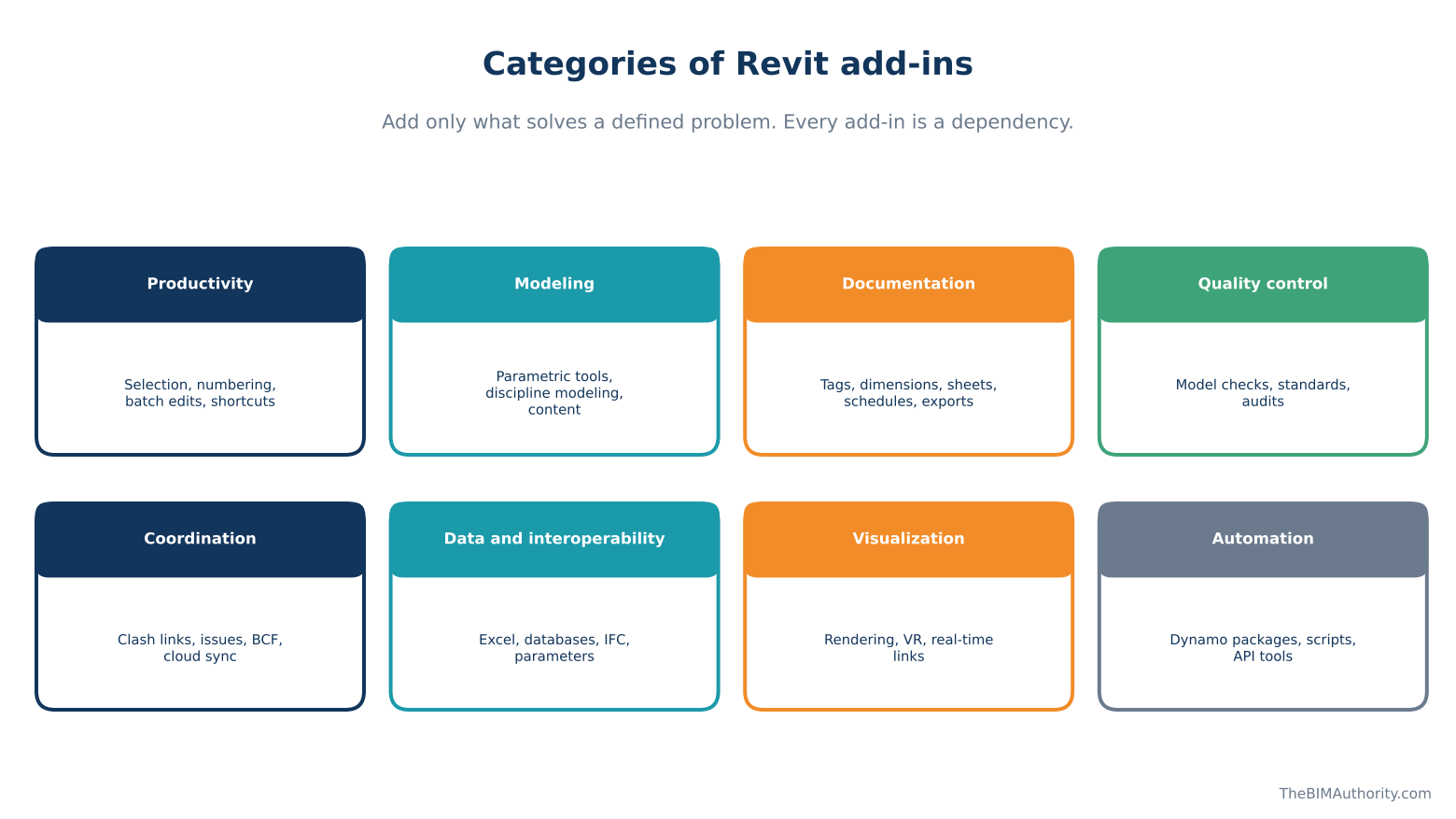
| Category | What it solves |
|---|---|
| Productivity | Selection, numbering, batch edits and repetitive tasks |
| Modeling | Parametric tools, discipline-specific modeling and content |
| Documentation | Tags, dimensions, sheets, schedules and exports |
| Quality control | Model checks, standards compliance and audits |
| Coordination | Clash links, issues, BCF and cloud synchronization |
| Data and interoperability | Excel, databases, IFC and parameter management |
| Visualization | Rendering, VR and real-time links |
| Automation | Dynamo packages, scripts and API-based tools |
In one sentence:
The best Revit add-ins are the few that solve a defined problem, are compatible and secure, and are governed by someone who tests them with every new release.
Why Add-Ins Exist, and What Changes Each Year
Revit is extended through an application programming interface (API) that lets developers add commands, panels, automation and integrations. Add-ins are typically installed as files that Revit loads at start-up. They range from small free scripts to commercial suites.
Two practical facts shape everything:
| Fact | Consequence |
|---|---|
| Add-ins are built for specific Revit versions | Each new Revit release usually requires updated add-ins. Revit 2027, for example, is reported to move to a newer .NET runtime, which developers must support. A tool that worked in last year’s version may not load in this year’s |
| Add-ins run inside your model session | They can read and change model data, call external services and affect stability and performance |
Revit 2027 also introduced native features that replace some add-in territory: according to published summaries, rule-based numbering, Tag by Example, built-in issues, a duct and pipe sizing calculator and an AI assistant (initially a technology preview). Before installing an add-in, check whether current Revit already does the job. See Autodesk Revit: The Complete Guide for BIM Professionals.
Categories, Problems and Examples
The tools below are examples from general knowledge and public information, to illustrate each category. They are not recommendations, rankings or a complete list; absence implies nothing.
1. Productivity and Batch Editing
| Problem | Approach | Examples |
|---|---|---|
| Repetitive selection, renaming, numbering, sheet creation, parameter edits | Batch tools and utility suites | Commercial utility suites such as DiRootsOne and Naviate (from Symetri); the open-source rapid development platform pyRevit; Autodesk’s own native features |
| Cleaning and standardizing | Tools that purge, rename and tidy | Utilities in the suites above; Dynamo graphs |
2. Modeling and Content
| Problem | Approach | Examples |
|---|---|---|
| Parametric or discipline-specific modeling | Vendor tools for structure, MEP and façades | Discipline suites from specialist vendors; check coverage for your discipline |
| Content libraries | Manufacturer and library plug-ins | Content platforms and manufacturer add-ins; check quality and file size. See BIM Families and Parametric Components: Best Practices |
| Computational design | Connect parametric design tools to Revit | Rhino.Inside.Revit, which brings Rhino and Grasshopper into Revit; Dynamo |
3. Documentation
| Problem | Approach | Examples |
|---|---|---|
| Tagging, dimensioning, sheet setup, schedules, exports | Automation add-ins | Productivity suites; PDF and DWG batch export tools; Dynamo scripts |
| Annotation consistency | Standards-driven tools | Template-based tools. See Architectural BIM Documentation: Plans, Sections, and Schedules |
4. Quality Control and Standards
| Problem | Approach | Examples |
|---|---|---|
| Model health, naming and parameter checks before exchange | In-tool checkers and audit tools | Commercial and open-source checkers; model checking services that connect to authoring tools, such as a cloud-based service from a model checking vendor that allows designers to check models inside the authoring tool. See Solibri: BIM Model Checking and Validation Guide and Revit Model Health and Optimization: File Size, Warnings, Links, and Performance |
| Standards compliance | Parameter and family checkers | Tools that compare against your standard |
5. Coordination and Collaboration
| Problem | Approach | Examples |
|---|---|---|
| Publishing to coordination platforms; issues inside Revit | Plug-ins from platform vendors | The Revit plug-ins of coordination and BCF platforms. See Revizto: BIM Coordination and Issue Management Guide and BIMcollab: BCF-Based Coordination and Issue Tracking; Autodesk Forma integration (issues are reported as built into Revit 2027) |
| Clash links and viewpoints | Link coordination tools to model elements | SwitchBack-style jumping from results to elements |
6. Data and Interoperability
| Problem | Approach | Examples |
|---|---|---|
| Moving data between Revit and Excel or databases | Round-trip data tools | Commercial tools such as Ideate BIMLink; Dynamo; custom scripts |
| Open data platforms and connectors | Cloud data platforms with Revit connectors | Speckle, an open-source data platform with a Revit connector |
| IFC export and import | Improved IFC tools and mappings | The IFC exporter and open-source projects. See How to Export and Import IFC Models Correctly |
| Shared parameters and property sets | Parameter management tools | Utility suites. See BIM Metadata, Attributes, and Property Sets Explained |
7. Visualization
| Problem | Approach | Examples |
|---|---|---|
| Real-time rendering and VR from the live model | Live-link renderers | Real-time tools such as Enscape and Twinmotion, which synchronize with the authoring model |
| Presentations and walkthroughs | Rendering and animation plug-ins | Check version support |
8. Automation
| Problem | Approach | Examples |
|---|---|---|
| Visual programming for repeatable tasks | Dynamo | Built into Revit; a large library of packages |
| Custom tools | Revit API development | In-house developers or consultants. See BIM Automation: The Complete Guide |
| AI assistance | Native and third-party assistants | Revit 2027 includes an assistant as a technology preview, according to published summaries; evaluate with human verification |
How to Evaluate an Add-In
| Criterion | Questions |
|---|---|
| Problem and value | What exact problem does it solve? How much time or risk does it save? Is a native feature or Dynamo script enough? |
| Compatibility | Which Revit versions does it support? Is the next release supported promptly? What is the vendor’s track record? |
| Stability and performance | Does it slow start-up or crash? Test on large models |
| Security | What access does it need? Does it send data to the internet? Where are data processed and stored? Is code signed? Is there a security review or certification? |
| Privacy and confidentiality | Does it process client data? Is that allowed under contracts? |
| Licensing | Per user, per machine, subscription, network, enterprise? What happens when licenses lapse? |
| Support and maintenance | Updates, documentation, response times, community |
| Data handling and lock-in | Does it write proprietary data into your models? Can you remove it cleanly? |
| Training needs | Learning curve and documentation |
| Cost and total cost | Licenses plus training plus maintenance. Compare with the value |
| Governance fit | Does it align with your standards and templates? |
A Simple Scorecard
| Criterion | Weight (agree) | Candidate | Evidence |
|---|---|---|---|
| Solves a defined problem | Pilot result | ||
| Compatible with our Revit version and roadmap | Vendor statement and test | ||
| Stable and fast | Large-model test | ||
| Secure and compliant | IT review | ||
| Licensing fits | Terms | ||
| Support and updates | References | ||
| Total cost versus value | Estimate |
Governing Add-Ins Across a Team
| Practice | Why |
|---|---|
| Maintain an approved add-in list | Know what is installed and why |
| Assign an owner | A BIM manager or champion decides additions and removals |
| Test before deployment | A test machine and test models; check each new Revit version |
| Deploy centrally | Managed deployment avoids inconsistent installations; version-controlled |
| Document use cases | One-page guides for each tool |
| Limit the number | Fewer add-ins mean fewer crashes and conflicts |
| Review annually | Remove tools no longer used |
| Check security and contracts | Especially for cloud-connected add-ins |
| Manage licenses | Track and reclaim |
| Plan upgrades | Do not upgrade Revit until critical add-ins are ready |
| Keep source and exit options | For in-house tools and scripts: repositories, documentation |
| Train users | Short sessions; shared tips |
Testing a New Revit Version
| Step | Practice |
|---|---|
| 1. List add-ins and critical uses | Which are essential? |
| 2. Check vendor compatibility notices | Dates and versions |
| 3. Install on a test machine | The new Revit and add-ins |
| 4. Test with representative models | Open, sync, export, run key commands |
| 5. Check performance and stability | Start-up, memory, crashes |
| 6. Decide | Upgrade, wait or replace |
| 7. Roll out | With communication and support |
Build or Buy?
| Option | When it fits |
|---|---|
| Use native features | Revit already does it; lowest maintenance |
| Dynamo script | Moderate automation needs; users who can maintain graphs |
| Open-source add-in platform | Technical teams wanting flexibility |
| Commercial add-in | Mature capability; vendor support; budget available |
| In-house development or consultant | Unique needs; long-term value; resources to maintain across releases |
Custom tools need maintenance every release. Budget for it, or do not build it.
Common Mistakes
- Installing add-ins without a defined problem.
- Too many add-ins.
- No owner or approved list.
- Not testing against new Revit versions.
- Ignoring security and data privacy.
- Ignoring licensing and lapses.
- Relying on one developer’s script with no documentation.
- Letting add-ins write data that cannot be removed.
- Ignoring native features.
- Upgrading Revit before checking add-ins.
- Choosing by “best of” lists.
- No training or documentation.
See also Common BIM Mistakes Beginners Should Avoid.
A Short Checklist
- Have we defined the problem each add-in solves, and checked native features first?
- Is each add-in compatible with our Revit version and roadmap?
- Has IT reviewed security, privacy and data handling?
- Do we have an approved list, owner and deployment method?
- Do we test with every new Revit version before upgrading?
- Are licenses tracked and terms understood?
- Is the number of add-ins limited and reviewed annually?
- Do custom tools have documentation, source control and a maintenance plan?
- Are users trained, with short guides?
- Do we measure value (time saved, errors avoided)?
Frequently Asked Questions
What are the best Revit plugins?
There is no single list. Choose tools that solve a defined problem, are compatible and secure and are governed. Examples exist in every category, but fit depends on your work.
What is the difference between a plugin and an add-in?
In Revit usage the terms are often used interchangeably: software that extends Revit with additional commands or integrations.
Do add-ins work in every Revit version?
No. They are usually built for specific versions and need updates for new releases.
Are free add-ins safe?
Not automatically. Check the source, permissions, data handling and maintenance, as with paid tools.
Is Dynamo an add-in?
Dynamo is a visual programming environment that integrates with Revit and is used to automate tasks and create custom workflows.
Should I build my own add-in?
Only if you have a unique need and the resources to maintain it across Revit releases. Otherwise use native features, Dynamo or commercial tools.
How many add-ins should I install?
As few as needed. Each adds risk, maintenance and start-up cost.
Should I wait for new Revit features instead?
Check what the current version offers. Some formerly add-in territory has moved into the product.
Final Thoughts
A BIM manager I admire has a one-page rule for add-ins. It says: “No add-in unless it saves more than five hours a month for at least three people, passes IT review, has a named owner and survives a test on the next Revit beta.” The rule has killed many requests and approved a few. Her office runs eleven add-ins. They start Revit in under a minute. When a new Revit version arrives, the upgrade takes a week of testing, not a month of firefighting. “People think I am against add-ins,” she says. “I am against unowned ones.”
That is the right spirit. Add-ins can transform a team’s productivity, but only when they are chosen for real problems, evaluated for compatibility and security, governed by an owner and tested with every release. Check native features first, keep the list short and treat every add-in as a dependency you are choosing to keep. The best add-ins are the ones your team forgets about, because they just work.
Where to go next: for the platform itself, read Autodesk Revit: The Complete Guide for BIM Professionals. For automation, continue with BIM Automation: The Complete Guide, and for model quality, Revit Model Health and Optimization: File Size, Warnings, Links, and Performance.