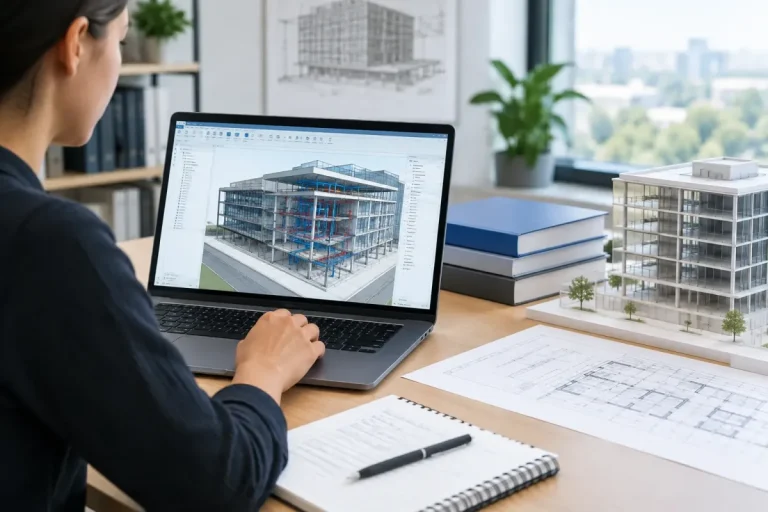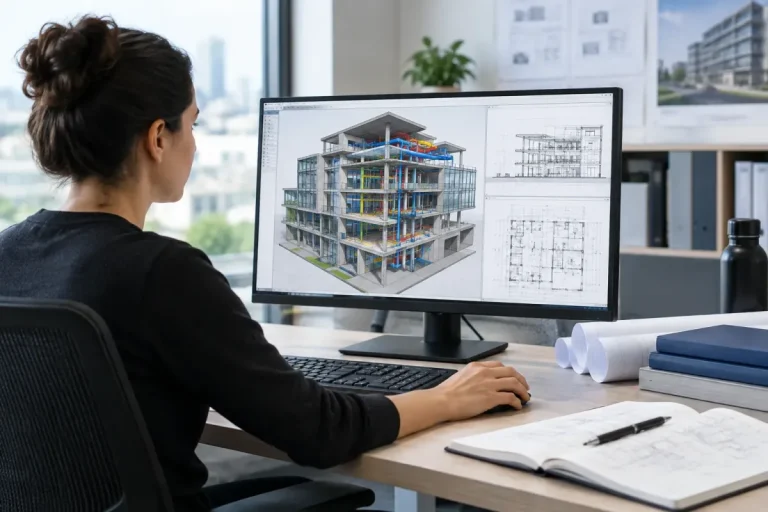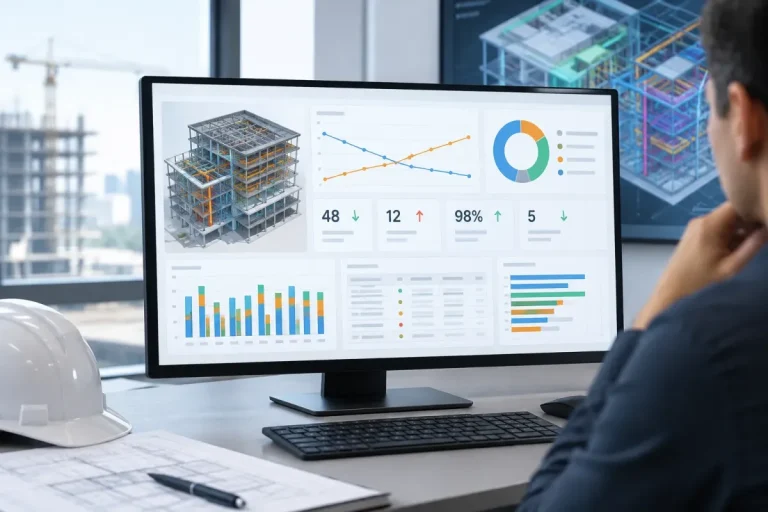

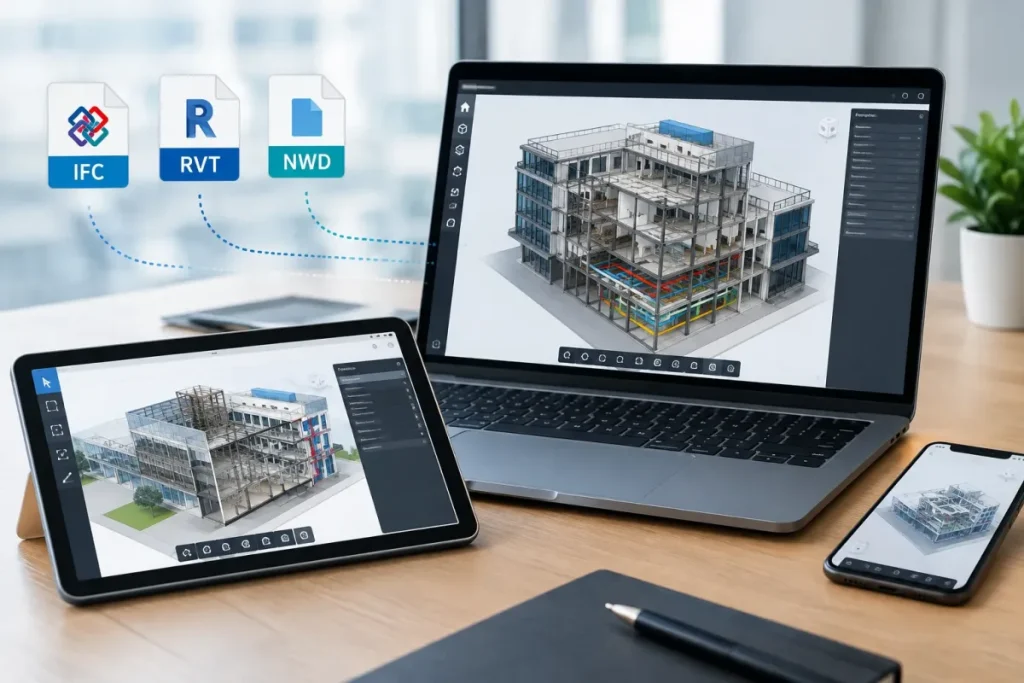

Every BIM professional has, sooner or later, received a file that they cannot open. A client sends an IFC. A subcontractor sends an RVT without a copy of Revit on the recipient’s side. A coordinator publishes an NWD to a project team that includes a site manager with a phone and no desktop software. A building owner wants to look inside the model of the building they have just paid for, and they have never installed a BIM application in their life. In each case, the person does not need to create anything. They need to look: to rotate, to section, to select an element and read its properties, to measure, perhaps to leave a comment. They need a viewer.
Viewers are the quiet infrastructure of BIM. Without them, models are locked inside the tools that made them, and the benefits of shared information stop at the edge of the authoring team. With them, a model becomes something a whole project, and an owner, can use. But viewers vary enormously. Some open one format superbly and others poorly. Some are free, some are part of a platform. Some show geometry only, others properties and relationships. Some check models; most do not. And the question “which is best?” depends entirely on the file, the person and the task.
This guide explains how to choose and use BIM viewers. It covers the difference between viewers, checkers and coordination platforms, the formats you are likely to meet (IFC, RVT, NWD and others), categories of viewers and what each is good for (with examples, described cautiously), selection criteria, practical workflows, the limits of viewing (including why the same IFC can look different in different viewers), security and the mistakes to avoid. It supports Best BIM Software: A Complete Comparison Guide and How to Export and Import IFC Models Correctly. Products, free tiers and supported formats change often. The examples below come from general knowledge and public information; always check current capabilities and terms, and test with your own files. This guide gives no prices or rankings.
The Short Answer
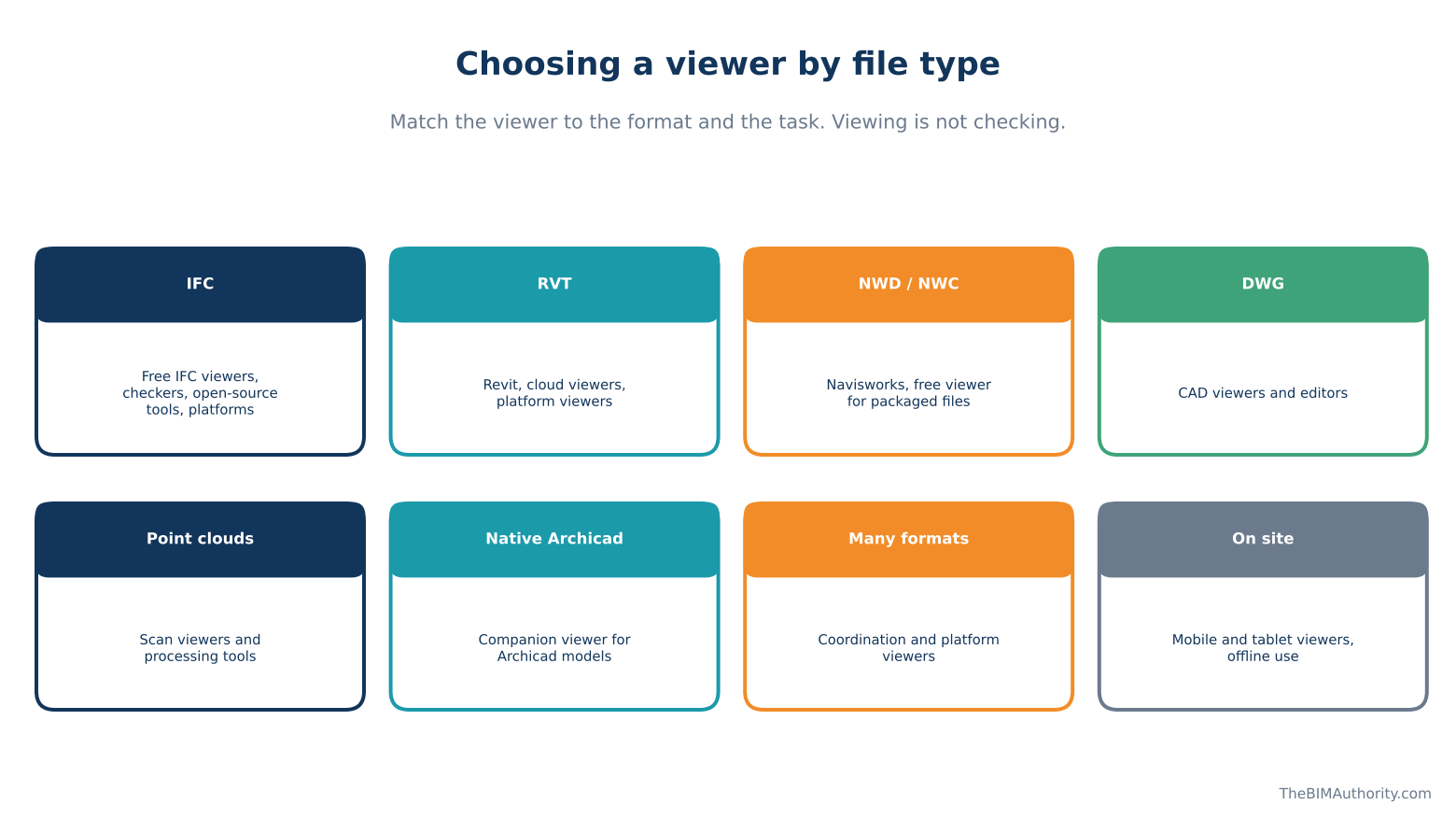
| File type | Typical routes |
|---|---|
| IFC | Free IFC viewers, model checkers with viewing tiers, open-source tools, coordination and platform viewers |
| RVT | Revit itself, cloud platform viewers, some coordination platforms |
| NWD and NWC | Navisworks, a free viewer for packaged files, some coordination platforms |
| DWG | CAD viewers and editors |
| Point clouds | Scan viewers and processing tools |
| Native Archicad | A companion viewer for Archicad models |
| Many formats | Coordination platforms and cloud viewers |
| On site | Mobile and tablet viewers, with offline options |
In one sentence:
Choose a viewer by the file, the person and the task: what must they open, on what device, and what must they do with it?
Viewers, Checkers and Platforms: Know the Difference
| Type | What it does | Examples of purpose |
|---|---|---|
| Viewer | Opens and displays models; navigation, sections, measure, properties; sometimes markups | Client review, site checks, quick inspection |
| Model checker | Tests models against rules and requirements; usually includes viewing. See Solibri: BIM Model Checking and Validation Guide | Quality assurance |
| Coordination tool | Federates models, detects clashes, manages issues. See Autodesk Navisworks: The Complete BIM Coordination Guide and Revizto: BIM Coordination and Issue Management Guide | Coordination |
| Collaboration platform or CDE | Stores, versions and shares information, with viewers built in. See Common Data Environment (CDE): The Complete Guide | Project information management |
| Authoring tool | Creates and edits models | Design |
A person who only needs to look should not be given an authoring license. A person who needs to approve quality needs a checker, not just a viewer.
The Formats You Will Meet
| Format | What it is | Notes for viewing |
|---|---|---|
| IFC | The open standard for BIM exchange | Any tool can export; viewers differ in geometry and property display; versions matter (IFC2x3, IFC4, IFC 4.3). See IFC Files Explained: Structure, Classes, and Properties |
| RVT | Revit’s native project format | Normally opened in Revit; cloud viewers and some platforms can display RVT without Revit. Models upgrade to newer versions when opened in a newer Revit, so keep versions in mind. See Autodesk Revit: The Complete Guide for BIM Professionals |
| RFA | Revit family | Content, not a project |
| NWD, NWC, NWF | Navisworks formats | NWD is a packaged snapshot; NWC a cache; NWF a federation referencing files. A free viewer exists for packaged files; check current availability |
| PLN and other native formats | Archicad and others | Native files usually need the authoring tool; companion viewers or IFC exports serve reviewers |
| DWG and DXF | CAD drawings and 3D | Widely viewable |
| Point clouds (E57, RCP, LAS and others) | Scan data | Specialized viewers |
| BCF | Issues | Opened in BCF-capable tools |
| glTF, FBX, OBJ | Visualization geometry | Lightweight viewing, usually without BIM data |
Remember: a viewer shows what is in the file. If the model was exported without properties, no viewer can show them.
Categories of Viewers
1. Free IFC Viewers
A number of vendors and communities offer free IFC viewers for desktop or web, typically with 3D navigation, sections, measuring, property inspection and sometimes issue creation.
| Considerations | Notes |
|---|---|
| Examples | Free viewers from model checking and BCF-oriented vendors, free standalone IFC viewers and open-source tools. See BIMcollab: BCF-Based Coordination and Issue Tracking and Free and Open-Source BIM Software: Tools, Features, and Limitations |
| Strengths | Low barrier; good for reviewers and clients |
| Cautions | Differences in geometry handling, performance on large models and property display; check IFC version support, including IFC 4.3 for infrastructure |
2. Checker-Based Viewers
Model checking products often include or offer viewing tiers: federation, inspection and issue workflows. For example, one checking vendor’s entry tier is described as viewing and inspection with federation and BCF collaboration, positioned as a replacement for a former viewing product.
| Considerations | Notes |
|---|---|
| Strengths | Viewing plus checking results from colleagues; BCF |
| Cautions | Tiers and names change; confirm what your tier includes |
3. Cloud Platform Viewers
Common data environments and collaboration platforms include web viewers.
| Considerations | Notes |
|---|---|
| Examples | Viewers within platforms from Autodesk (Forma), Trimble (Trimble Connect), Bentley and others; some can display native files such as RVT in the browser. See Autodesk Construction Cloud: BIM Collaboration and Data Management |
| Strengths | No installation; access control; versioning; links to issues and documents |
| Cautions | Tied to the platform; internet needed; supported formats vary |
4. Coordination Platform Viewers
Coordination and issue platforms federate many formats and add field tools.
| Considerations | Notes |
|---|---|
| Examples | Platforms that read Revit, IFC, Navisworks, DWG, PDF and point clouds. See Revizto: BIM Coordination and Issue Management Guide |
| Strengths | Many formats; issues; field apps |
| Cautions | A platform to license and manage |
5. Desktop Review Tools
Aggregation tools such as Navisworks open many formats and offer a free viewer for packaged files.
| Considerations | Notes |
|---|---|
| Strengths | Mature navigation, sections, measure, markups; NWD packaging |
| Cautions | The full tools are licensed; the free viewer opens packaged files only |
6. Vendor Companion Viewers
Some authoring tools have companion viewers for their native models, such as a viewer for Archicad models that also serves site use and client presentation.
| Considerations | Notes |
|---|---|
| Strengths | Faithful display of native models; designed for communication |
| Cautions | Limited to that vendor’s models |
7. Mobile and Site Viewers
Mobile apps and tablet viewers present models and drawings on site, often with offline access, markups, photos and issue creation.
| Considerations | Notes |
|---|---|
| Strengths | Information at the point of work. See BIM for Building Operations and Maintenance |
| Cautions | Device performance; model size; offline sync; security |
8. Open-Source and Developer Viewers
Libraries and applications for building custom viewers, including browser-based tools.
| Considerations | Notes |
|---|---|
| Strengths | Flexibility; integration; privacy with client-side processing |
| Cautions | Developer skills needed; check maintenance and features |
Selection Criteria
| Criterion | Questions |
|---|---|
| Formats | Which formats and versions must it open? IFC versions? Native files? Point clouds? |
| Performance | How does it handle your largest models? |
| Fidelity | Does geometry and appearance match the source? |
| Properties and data | Can you see property sets, classification, relationships, spatial structure? |
| Navigation and tools | Sections, measure, hide and isolate, saved views, 2D sheets |
| Federation | Can you open several models together, aligned? |
| Markup and issues | Comments, markups, BCF? |
| Checking | Any rule-based checks needed? |
| Devices | Desktop, web, tablet, phone; offline? |
| Users and access | Free for external users? Licensing and accounts? |
| Security and privacy | Where are models stored or processed? Access control? |
| Integration | With your CDE, issue tracking and authoring tools |
| Support and sustainability | Vendor stability; update frequency |
| Cost | Free limits; paid tiers; total cost for many viewers |
Practical Workflows
Sharing a Model With a Client or Reviewer
| Step | Practice |
|---|---|
| 1. Decide what they need to see | A federated model? A specific discipline? Properties? |
| 2. Choose the format and viewer | An IFC and a free IFC viewer; a packaged NWD and a free viewer; or a platform link with access control |
| 3. Prepare the model | Remove unneeded content; check export settings; check coordinates |
| 4. Provide instructions | One page: how to open, navigate, find views |
| 5. Provide saved views | Predefined viewpoints speed review |
| 6. Collect feedback | Markups or BCF issues, not emails with screenshots |
Viewing on Site
| Step | Practice |
|---|---|
| 1. Choose a mobile-friendly viewer or platform app | Test on the devices site teams use |
| 2. Prepare lightweight models | Per area or discipline |
| 3. Enable offline access | If connectivity is poor |
| 4. Train | A 15-minute guide |
| 5. Control versions | Only the approved version on site |
Opening an Unknown File
| Step | Practice |
|---|---|
| Identify the format and version | File extension and header; ask the sender |
| Choose a safe, appropriate viewer | Do not upload confidential models to unknown web viewers |
| Check units and coordinates | Confirm scale and position |
| Inspect properties | See what data are present |
| Report problems | Missing geometry or data should go back to the author |
Why the Same File Looks Different in Different Viewers
| Reason | Explanation |
|---|---|
| Geometry interpretation | IFC allows several representations; viewers handle some better than others |
| Property display | Viewers show property sets and quantities differently |
| Units and coordinates | Misinterpretation can shift or scale models |
| Materials and colors | Appearance may come from different sources |
| Performance optimizations | Viewers simplify geometry for speed |
| Version support | IFC schema versions have different capabilities, and infrastructure content in IFC 4.3 needs viewers that support it. See IFC 4.3 for Infrastructure: Concepts, Capabilities, and Applications |
| Bugs | Every viewer has limits |
Check important content in more than one viewer, and treat viewer differences as findings to investigate, not as proof of an error in the model or in the viewer. See How to Validate IFC Models for Data Quality and Compliance.
Security, Privacy and Governance
| Topic | Practice |
|---|---|
| Confidential models | Do not upload to untrusted web viewers; check where cloud viewers process and store data |
| Access control | Use platforms with permissions, expiry and audit logs for external reviewers |
| Watermarking and sharing | Where needed |
| Version control | Reviewers should see the right version |
| Data minimization | Share only what reviewers need |
| Contracts | Sharing terms, IP and confidentiality |
| Policy | A short organizational policy on approved viewers. See BIM Information Security, Access Control, and Data Governance |
Common Mistakes
- Giving reviewers authoring licenses.
- Assuming a viewer shows data that was never exported.
- Not checking IFC version support.
- Uploading confidential models to unknown services.
- Sending huge unfiltered models to phones.
- No instructions for reviewers.
- Collecting feedback by email screenshots.
- Trusting one viewer’s display.
- Ignoring units and coordinates.
- Not controlling versions on site.
- Assuming free means unlimited or permanent.
- No organizational policy.
See also Common BIM Mistakes Beginners Should Avoid.
A Short Checklist
- Do we know the formats and versions reviewers must open?
- Have we chosen viewer type by task: view, check, coordinate, site?
- Does the viewer handle our largest models and the IFC version we use?
- Can reviewers see the properties and structure they need?
- Are markups or BCF issues supported for feedback?
- Are devices, offline access and accounts covered?
- Are security, privacy and versions controlled?
- Do reviewers have instructions and saved views?
- Have we tested in more than one viewer for critical content?
- Is there a short viewer policy?
Frequently Asked Questions
What is the best free BIM viewer?
It depends on the file and task. Several free viewers exist for IFC, and free viewers for packaged Navisworks files and platform viewers for native files. Test with your own models.
How can I open an RVT file without Revit?
Through cloud viewers or platforms that support Revit files, or by asking the sender for an IFC or other export. Check each service’s supported versions and terms.
How do I open an NWD file?
With Navisworks or the free viewer for packaged files, or with platforms that read NWD. Check version compatibility.
Can a viewer edit models?
Generally no. Viewers are for inspection, measurement and markup; edits are made in authoring tools.
Why does an IFC look wrong in a viewer?
Possible causes include export settings, coordinates and units, representation types, version support or viewer limits. Test in another viewer and ask the author.
Is it safe to upload models to web viewers?
Only to services you trust. Check where data are stored and processed and your organization’s policy.
What is the difference between a viewer and a model checker?
A viewer displays models; a checker tests them against rules. Many checkers include viewing.
What viewer should a site team use?
A mobile-friendly platform or app that handles lightweight models, offline access and the right versions.
Final Thoughts
A building owner told me what she wanted from a viewer, and it has become my test. “I want to open it on my own laptop, on the train, without a call to the IT department. I want to find the plant room, click on a pump and see who made it. And I want to put a note on something and have the right person see it.” Three needs: zero installation friction, honest properties, a way to talk back. A viewer that does these three things is a good viewer, whatever its logo.
Choose by file, person and task. Prepare the model for viewing. Check important content in more than one viewer. Protect confidential information. Give reviewers a way to respond in structured form. The model will then reach everyone who needs to see it, which is the point of making it.
Where to go next: for the wider tool picture, read Best BIM Software: A Complete Comparison Guide. For free and open options, continue with Free and Open-Source BIM Software: Tools, Features, and Limitations, and for exchanging issues with viewers, BIMcollab: BCF-Based Coordination and Issue Tracking.